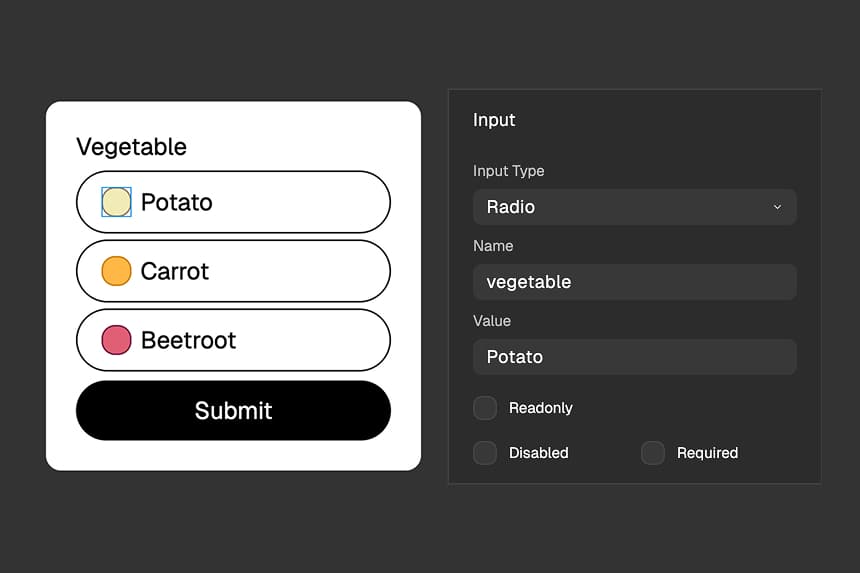
What Are Radio Inputs?
Radio inputs are form elements that let you ask single-choice questions - questions where the user can only pick one option from a list of choices. Think of them like ordering a pizza size: you can choose small, medium, or large, but you can't choose all three at once.
When you click on one radio button, any previously selected button in that group automatically unselects. This built-in behavior ensures users provide exactly one answer to your question.
For marketing agencies running lead generation campaigns, radio inputs are perfect for qualification questions like "What's your budget range?" or "How many employees does your company have?" - questions that need a single, clear answer.
Why Use Radio Inputs?
Clear Choices for Users
Radio inputs show all available options at once, making it easy for users to understand their choices before selecting one. Unlike dropdown menus that hide options until clicked, radio buttons display everything upfront.
This transparency reduces confusion and helps users complete your form faster, improving conversion rates for your campaigns.
Better User Experience
The visual nature of radio inputs makes forms more scannable and easier to navigate. Users can quickly review all options, compare them, and make an informed choice without clicking through menus or typing text.
Radio inputs also work great on mobile devices - the large circular buttons are easy to tap with a finger, unlike small checkboxes or text fields.
Validated Data
Because users must select from your predefined options, you receive clean, consistent data that's easy to analyze. No typos, no unexpected answers, no formatting issues.
This makes it simple to segment leads, generate reports, and track which options are most popular with your audience.
How to Create Radio Inputs
Step 1: Add Multiple Input Elements
In the FigForm editor, add input elements to your form canvas for each option in your question. If you're asking about budget range with three options (Under $5K, $5K-$10K, Over $10K), you'll need three input elements.
Click the add element button in the toolbar to insert containers, then convert each one to an input element by selecting it and choosing "Input" from the Type dropdown in the properties panel.
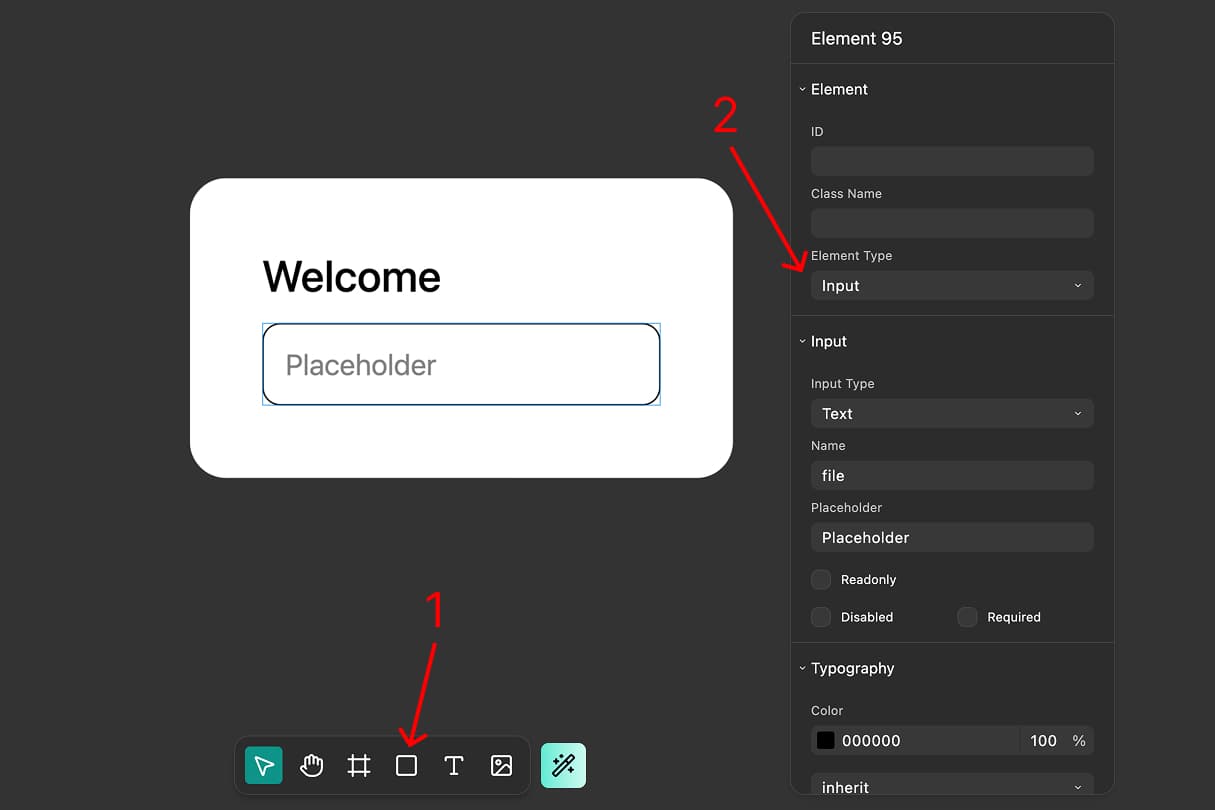
Step 2: Convert Inputs to Radio Type
Select each input element individually and open the properties panel on the right side of the editor. Find the "Input Type" dropdown and select "Radio" from the list of available input types.
Do this for all the input elements you just added. They're now radio buttons, ready to be grouped together.
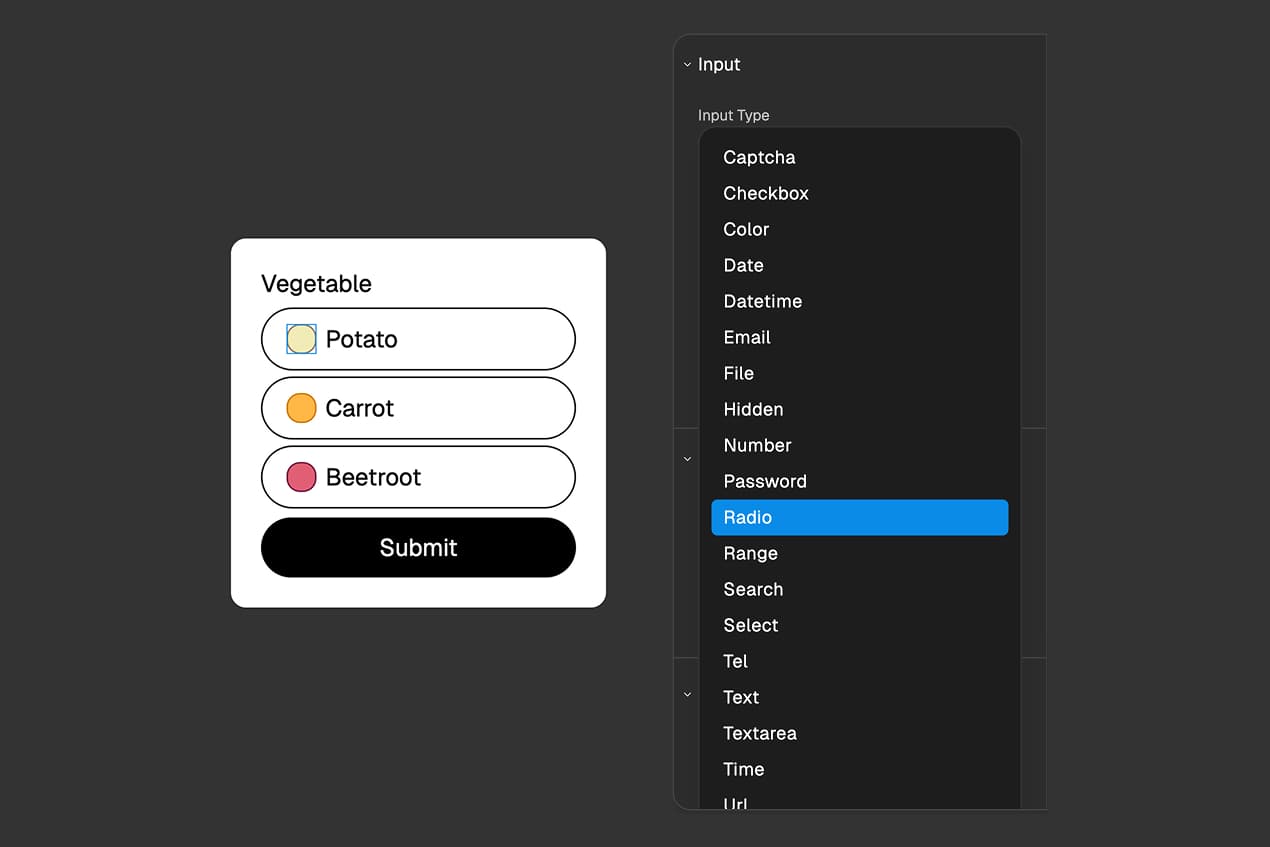
Step 3: Give Them the Same Name
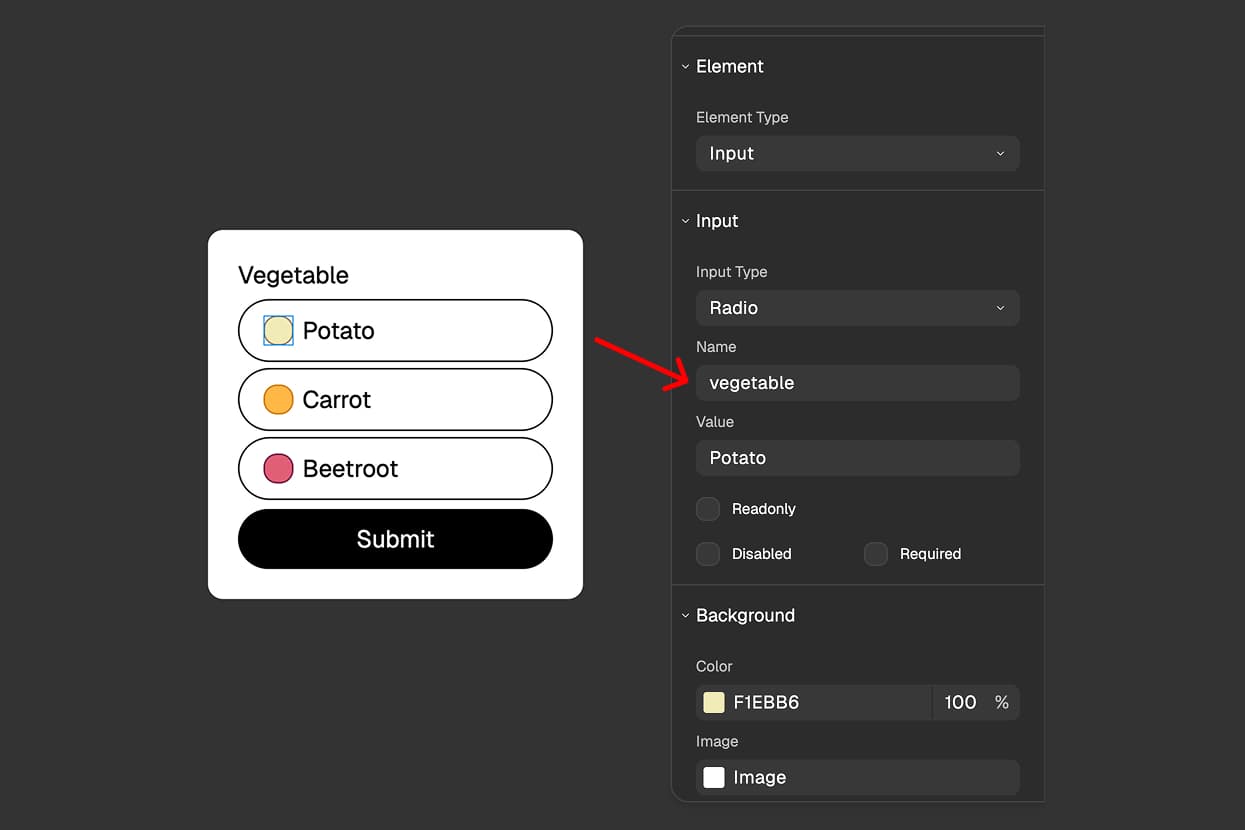
Here's the crucial step that groups your radio buttons together: select each radio input and set its "Name" field to the same value.
For example, if you're asking about budget, set the Name field to "budget" for all three radio inputs. The Name is how FigForm (and the browser) knows these radio buttons belong to the same question.
When radio inputs share the same Name, they automatically work as a group - selecting one unselects the others. If you give them different Names, they'll act as independent radio buttons, and users could select multiple options.
Ready to design a form?
Start creating stunning forms using an intuitive editor with a free account.
Start designingStep 4: Set Unique Values for Each Option
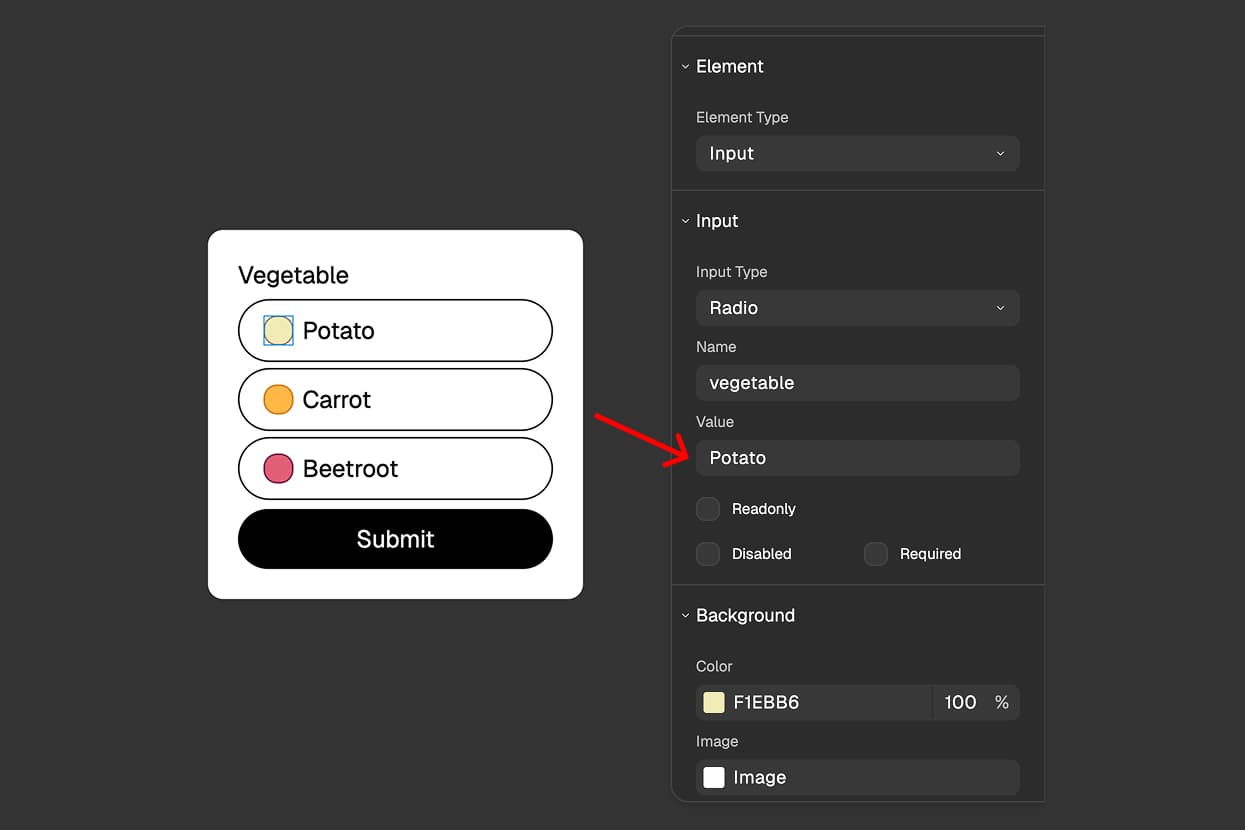
Now give each radio input a different "Value". The Value is what gets recorded when the user selects that option.
For your budget question, you might set:
- First radio input: Name = "budget", Value = "Under $5K"
- Second radio input: Name = "budget", Value = "$5K-$10K"
- Third radio input: Name = "budget", Value = "Over $10K"
When a user clicks the second option on your live form, FigForm records "budget: $5K-$10K" as their answer.
Step 5: Add Labels
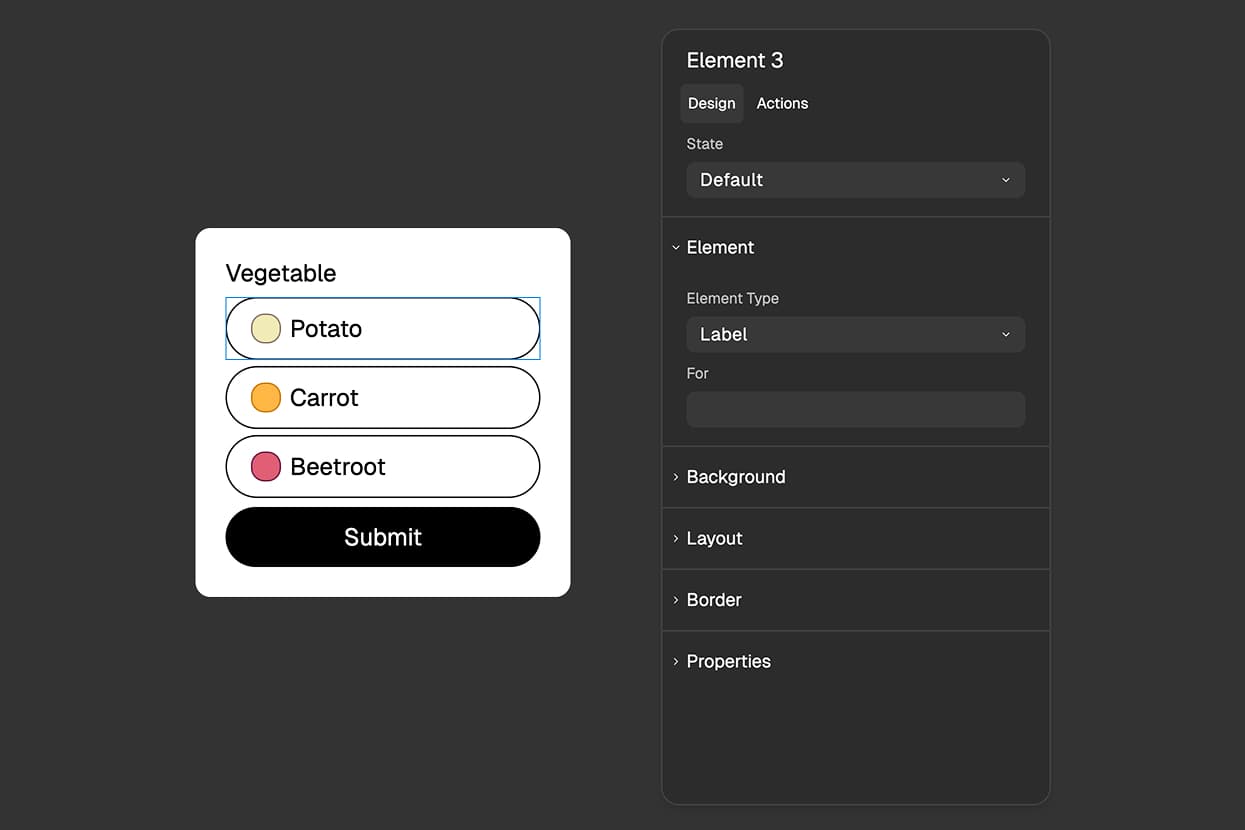
Most radio inputs need accompanying text that describes each option. The easiest way to do this is to wrap your radio input inside a label element.
Create a label element (add a container, then change its Type to "Label"), add your descriptive text inside it, and place your radio input inside the same label. Now when users click on the text, the radio button selects automatically.
For a complete guide on labels, check out our article on label elements.
Styling Radio Inputs with Checked State
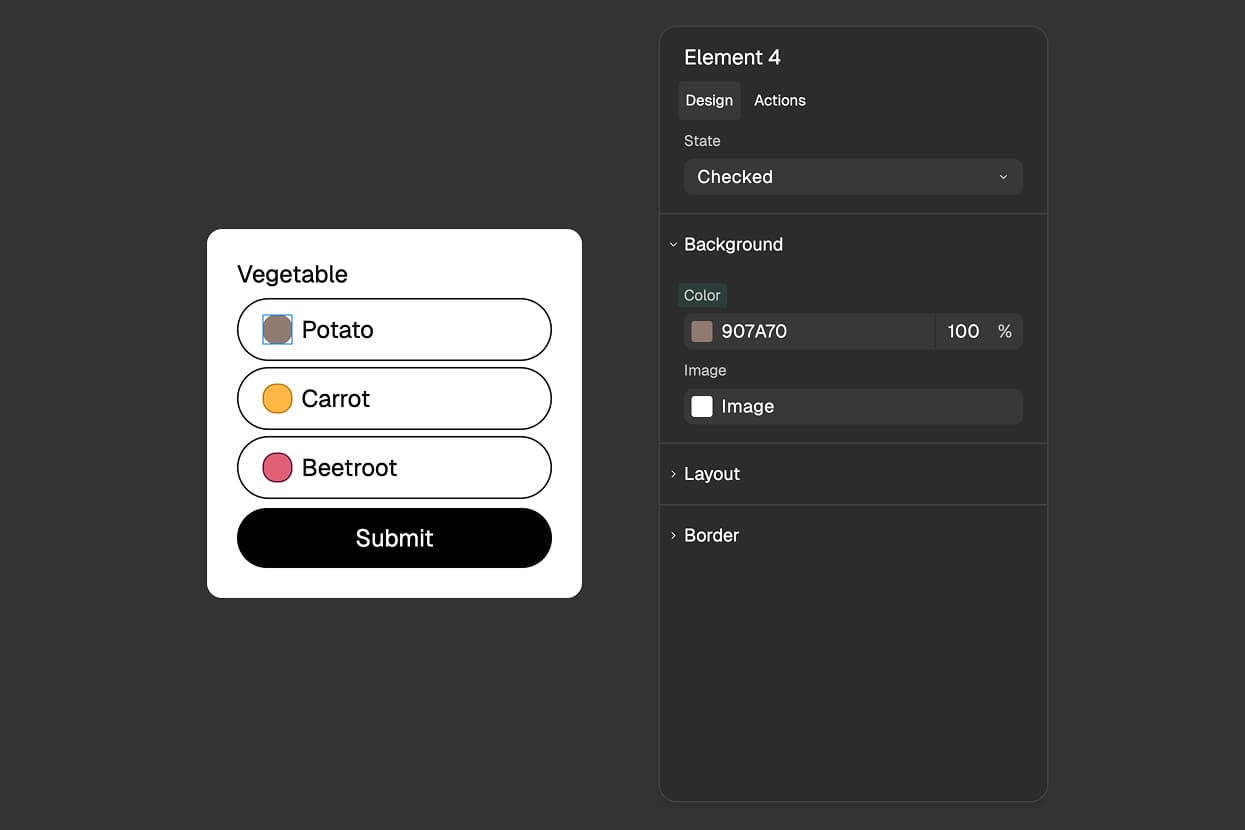
Radio inputs have a special Checked state that lets you customize how they look when selected. This makes it easy to create visually distinct designs that match your brand.
Styling the Radio Input Directly
Select a radio input and look at the state selector in the properties panel. You'll see options for Default (unselected) and Checked (selected) states.
Switch to the Checked state and customize:
- Background color - Change the fill color when selected
- Border - Adjust border color, width, or style
- Size - Make the selected indicator larger or smaller
- Custom elements - Add icons or graphics that appear only when checked
Your Checked state styles apply whenever that radio button is selected on your live form.
Styling Parent Labels Based on Checked State
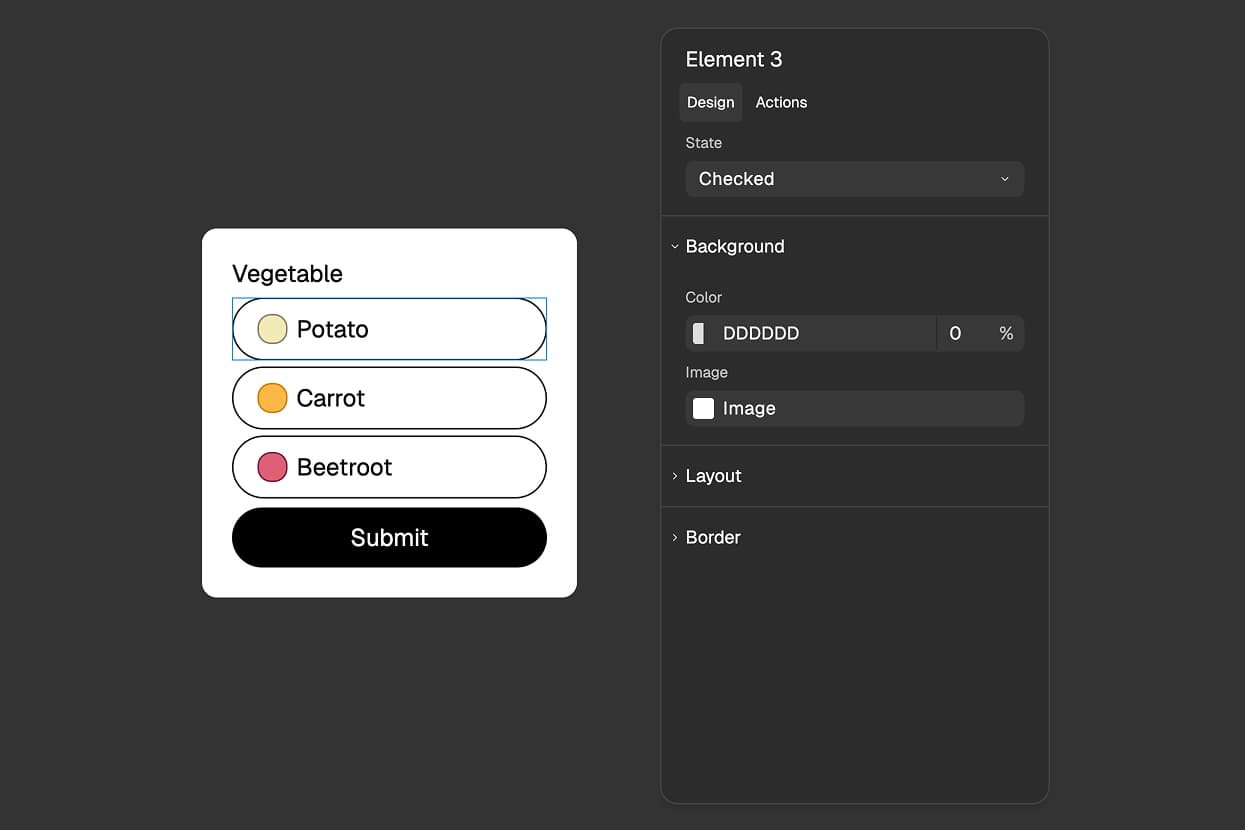
Here's a powerful feature: labels automatically inherit the Checked state from radio inputs or checkboxes nested inside them. This lets you style the entire label container when its radio button is selected.
Wrap your radio input inside a label, select the label element, and switch to the Checked state in the properties panel. Now you can customize the label's appearance when its radio button is selected:
- Background color - Highlight the entire option when selected
- Border - Add a colored border around the selected option
- Text color - Change the label text color
- Shadows - Add shadows or elevation effects
This creates a much more intuitive interface where users can clearly see which option they've selected, because the entire choice area changes appearance, not just the small radio button.
Best Practices for Radio Inputs
Use Radio Inputs for 2-6 Options
Radio inputs work best when you have between 2 and 6 choices. With fewer than 2, consider a different input type. With more than 6, the form gets long and overwhelming - consider using a dropdown select instead.
Order Options Logically
Arrange your radio button options in a logical order that makes sense to users:
- Numerical ranges from low to high (or high to low)
- Chronological order (past to future)
- Alphabetical when no natural order exists
- Most common choices first
Make One Option the Default
For better UX, consider pre-selecting one radio button as the default option. This reduces friction and helps users who are uncertain about their choice.
Set a default by enabling the "Checked" property for one radio input in your group.
Start Using Radio Inputs Today
Radio inputs in FigForm make it easy to collect clean, structured data from your forms. Add multiple radio inputs, give them the same Name but different Values, and FigForm automatically groups them into single-choice questions.
Style them with Checked states to match your brand, wrap them in labels for better accessibility, and enjoy the consistent, analyzable data they provide.
Ready to build better forms?
Sign up for free and start creating radio input questions that convert.