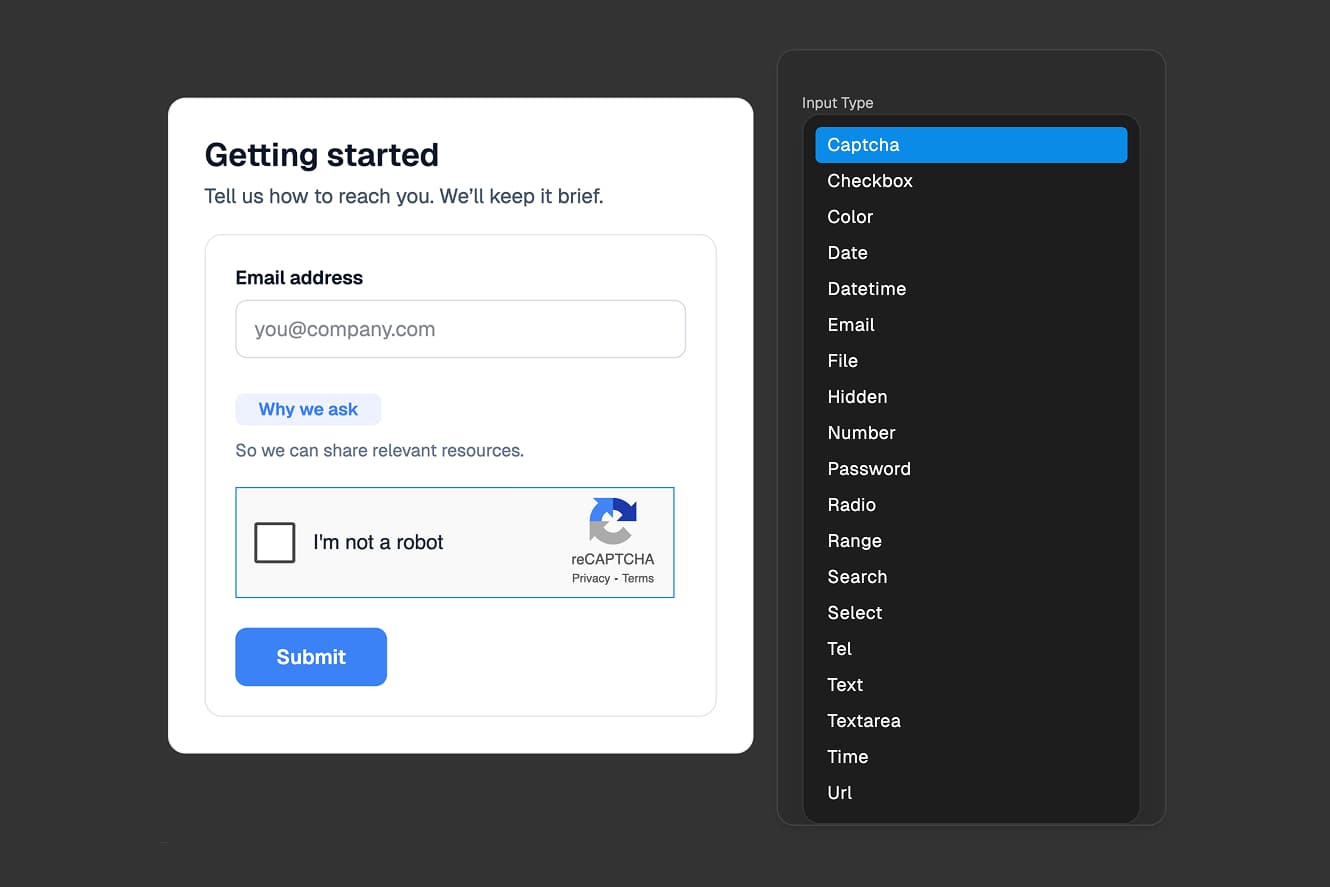
What Is CAPTCHA?
CAPTCHA is a security feature that helps you tell the difference between real people and automated bots filling out your forms. When you add CAPTCHA to your form, users need to complete a simple verification challenge before they can submit - typically by checking a box that says "I'm not a robot."
This verification step prevents spam submissions, protects your data from automated scrapers, and ensures that every form submission comes from a real person who genuinely wants to engage with your business.
For marketing agencies managing lead generation forms, CAPTCHA is essential for keeping your client's data clean and free from fake submissions that waste time and skew analytics.
Why Use CAPTCHA on Your Forms?
Stop Spam Submissions
Without CAPTCHA, bots can automatically fill out and submit your forms hundreds or thousands of times. This floods your inbox with fake data, making it impossible to identify real leads or genuine responses.
CAPTCHA blocks these automated submissions, ensuring every entry in your database represents a real person.
Protect Your Analytics
When bots submit your forms, they distort your conversion metrics and performance data. Your analytics show inflated submission numbers that don't represent actual customer interest.
With CAPTCHA enabled, your metrics accurately reflect real user behavior, helping you make better decisions about your marketing campaigns.
Save Time and Resources
Sorting through spam submissions wastes valuable time. Your team has to manually review entries, delete fake data, and verify legitimate responses before taking action.
CAPTCHA eliminates this manual filtering work by stopping spam at the source, so your team only deals with real submissions.
How to Add CAPTCHA to Your Form
Step 1: Add an Input Element
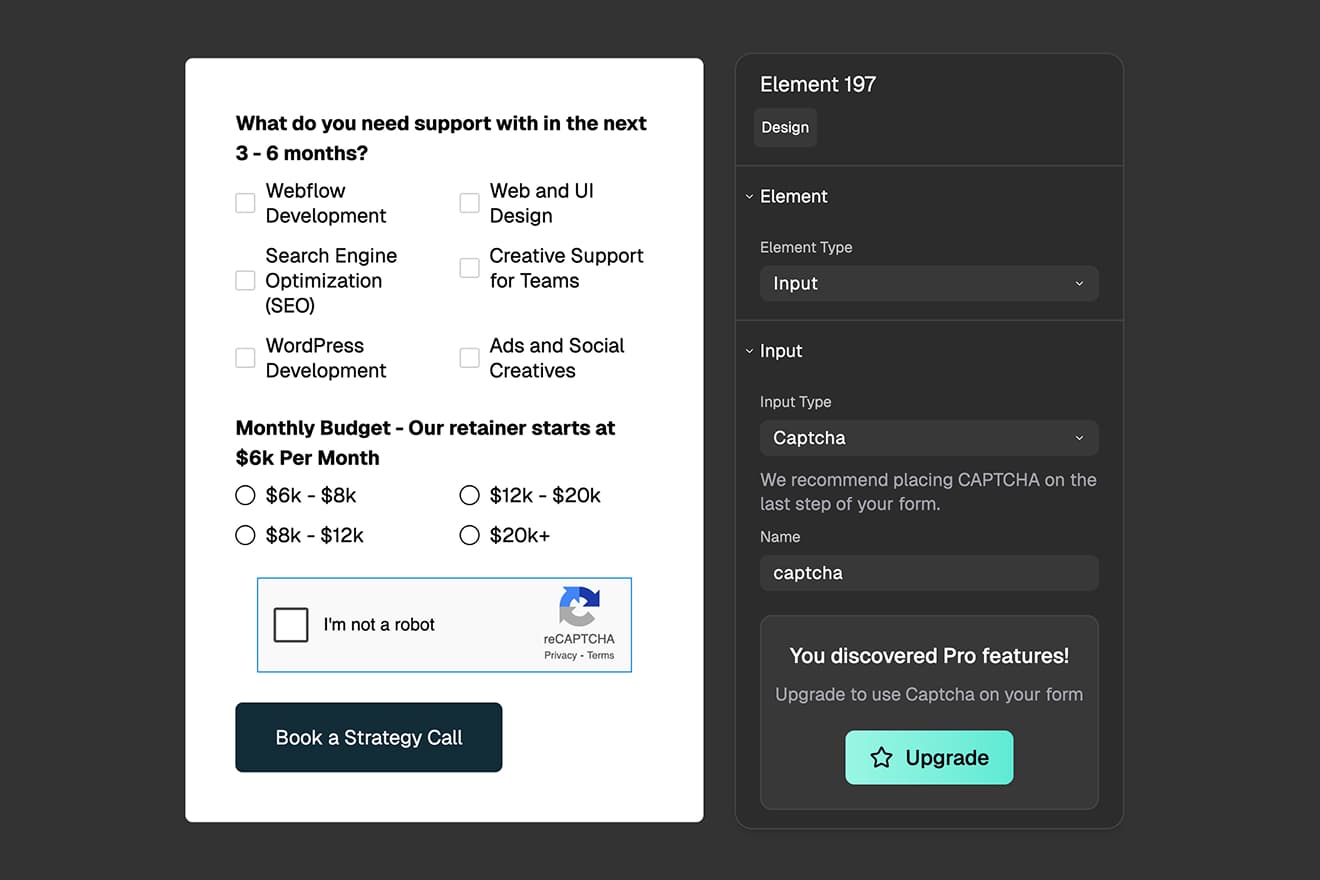
In the FigForm editor, add a new input element to your form. Click the add element button in the toolbar to insert a new container, then select it and open the properties panel on the right side of the editor.
Input elements are the components that collect information from people filling out your form - like text boxes for names, email fields, checkboxes for preferences, and CAPTCHA for verification.
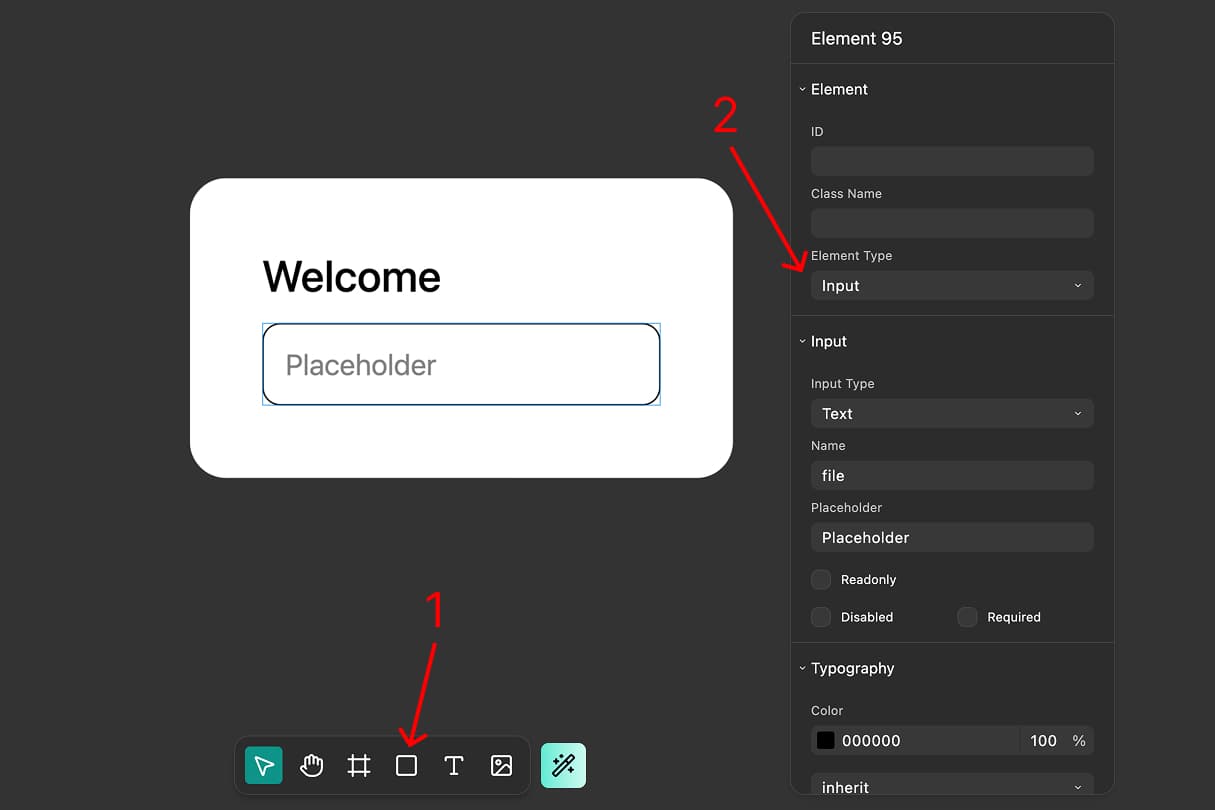
Step 2: Select "Captcha" as the Input Type
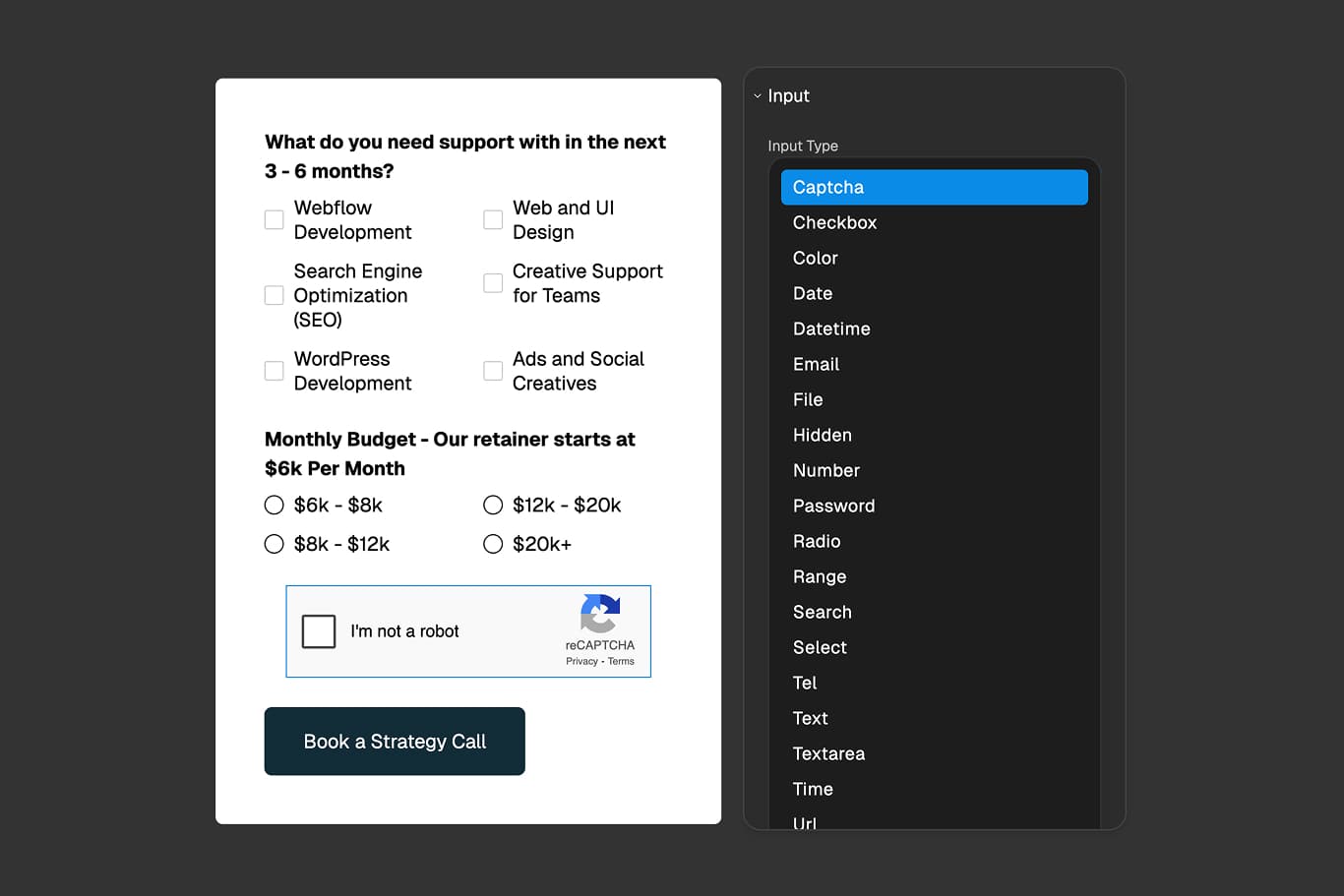
With your input element selected, find the "Input Type" dropdown in the properties panel. Click the dropdown and scroll through the list of available input types until you find "Captcha".
Select Captcha from the list. Your input element now becomes a CAPTCHA verification field that will display the "I'm not a robot" challenge to your form respondents.
Ready to design a form?
Start creating stunning forms using an intuitive editor with a free account.
Start designingStep 3: Optional - Add a Name Field
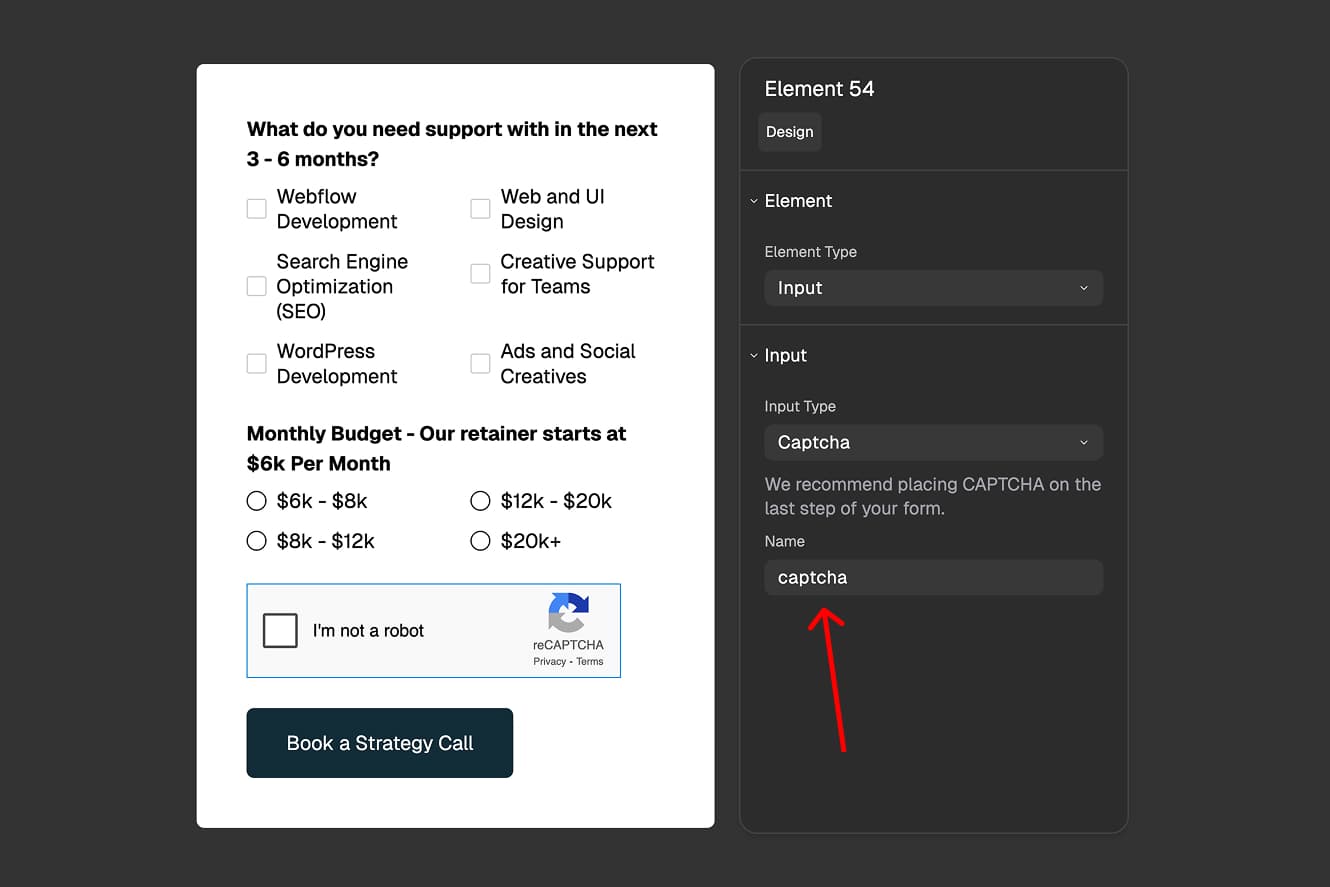
By default, CAPTCHA works without any additional configuration. However, if you want to track when users completed the CAPTCHA verification (for example, to see timestamps in your submission data), you can add a name to the CAPTCHA input.
In the properties panel, find the "Name" field and enter a descriptive name like "captcha" or "verification". This name will appear in your form submissions alongside a timestamp showing when the user completed the CAPTCHA challenge.
If you don't fill out the Name field, CAPTCHA still works perfectly - it just won't include a timestamp in your submission data.
Best Practices for CAPTCHA Placement
Place CAPTCHA on the Last Step
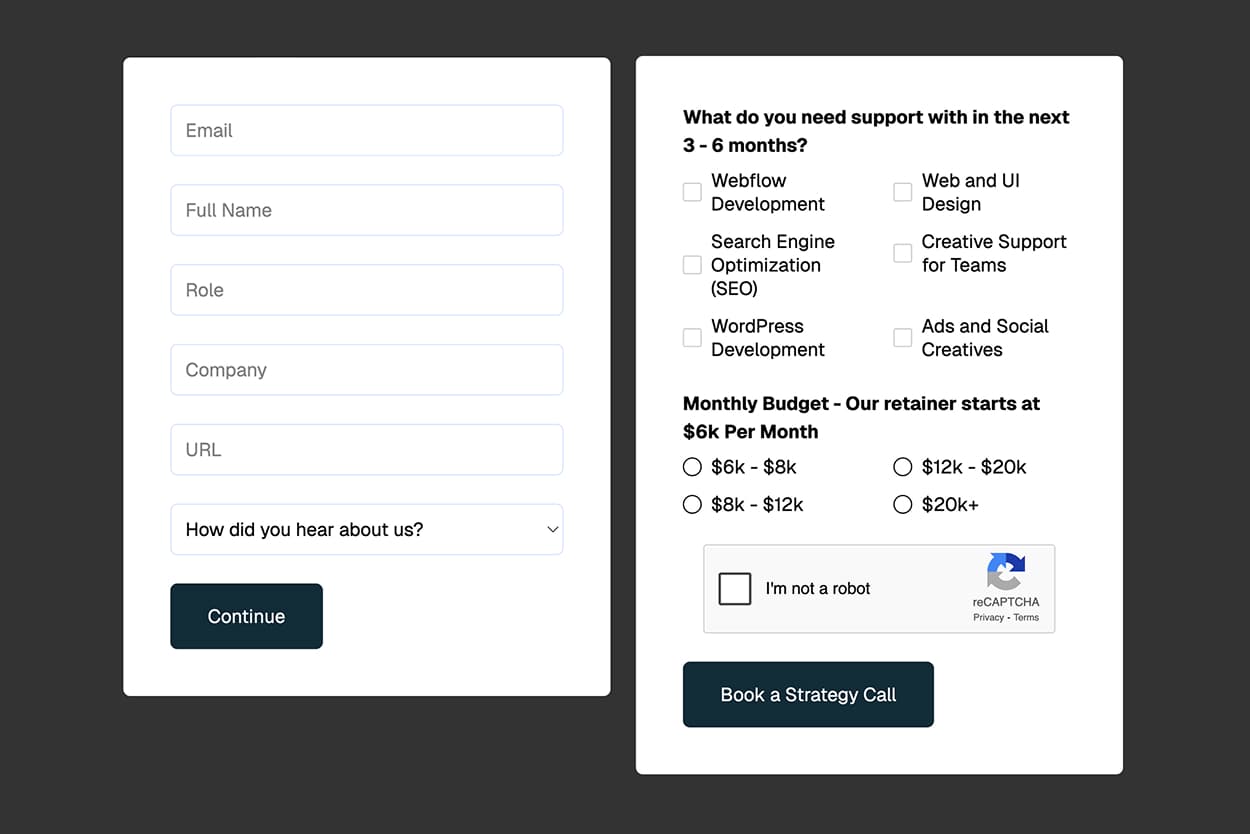
We strongly recommend adding CAPTCHA to the final step of your form, right before the submit button. This approach provides the best user experience because:
- Reduces friction - Users complete all form fields first, then verify they're human at the end
- Prevents abandonment - Asking for verification too early might discourage users from starting your form
- Matches expectations - Most forms follow this pattern, so users expect CAPTCHA at the end
If your form has multiple steps, place CAPTCHA on the same page as your submit button, just above it.
CAPTCHA on Live Forms
Once you publish your form, the CAPTCHA field automatically displays to users as an interactive "I'm not a robot" checkbox with the reCAPTCHA logo. Users simply click the checkbox to verify they're human.
The CAPTCHA system works in the background - it analyzes user behavior patterns to determine if they're a real person or a bot. Most users will only need to check the box, though occasionally users might need to complete an additional image verification challenge.
Your form cannot be submitted until the CAPTCHA verification is complete, ensuring every submission comes from a real person.

CAPTCHA Is a Pro Feature
CAPTCHA protection is available exclusively for FigForm users on Pro and Business subscription plans.
If you add a CAPTCHA input to your form while on the free plan, the CAPTCHA field will not appear when your form is published. Users will see your form normally, but without the CAPTCHA verification step.
To activate CAPTCHA protection on your forms, upgrade to a Pro or Business plan. Once upgraded, all CAPTCHA inputs you've added will automatically start working on your live forms.
Start Protecting Your Forms Today
CAPTCHA protection in FigForm is simple to set up and powerful in protecting your forms from spam and bots. Add a CAPTCHA input, select the Captcha type from the dropdown, place it on your final form step, and your form is protected.
For marketing agencies managing client campaigns, CAPTCHA ensures that every lead, every signup, and every form submission represents a real person - giving you clean data you can trust and act on immediately.
Ready to stop spam?
Sign up for FigForm Pro and add CAPTCHA protection to your forms in under a minute.