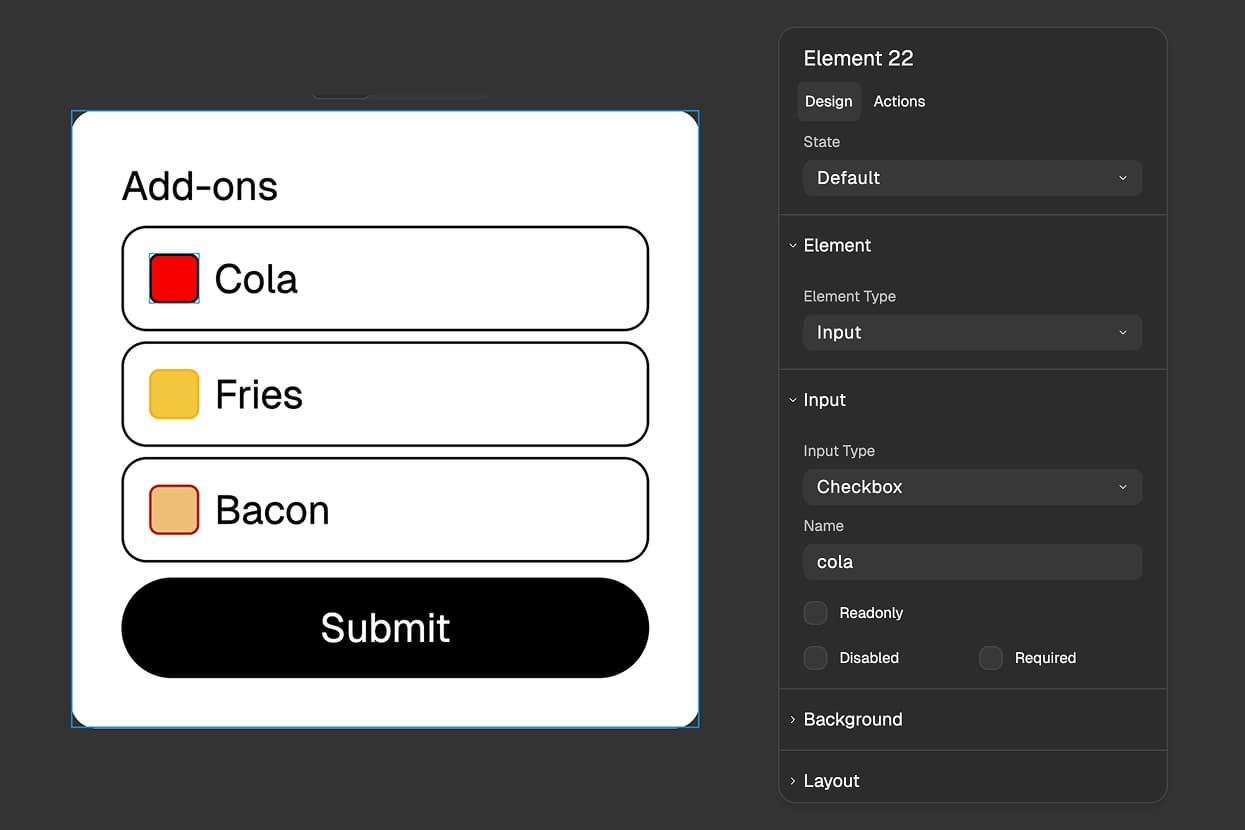
What Are Checkbox Inputs?
Checkbox inputs are form elements that let users toggle options on or off independently. Unlike radio buttons where you can only pick one choice, checkboxes let users select as many options as they want - or none at all.
Think of checkboxes like ordering pizza toppings: you can choose pepperoni, mushrooms, and olives all together, or skip toppings entirely. Each checkbox works independently, so checking one doesn't affect the others.
For marketing agencies collecting lead information, checkboxes are perfect for questions like "Which services are you interested in?" where prospects might want multiple options: SEO, paid ads, content marketing, and social media management all at once.
Why Use Checkbox Inputs?
Multiple Selections Made Simple
Checkboxes let users pick multiple options without any confusion. All choices are visible at once, so users can quickly scan the list, select everything that applies to them, and move forward.
This makes forms feel more natural and conversational, especially for questions where multiple answers make sense.
Perfect for Yes/No Questions
For simple yes/no questions - "Subscribe to our newsletter?" or "I agree to the terms" - a single checkbox is the clearest way to collect that answer. Users understand the pattern instantly.
Better Conversion Rates
When you let users select multiple options instead of forcing them to choose just one, you reduce friction in your forms. Prospects who are interested in three of your services don't have to pick just one or fill out the form three times.
Lower friction means more completed forms and better lead quality.
How to Create Checkbox Inputs
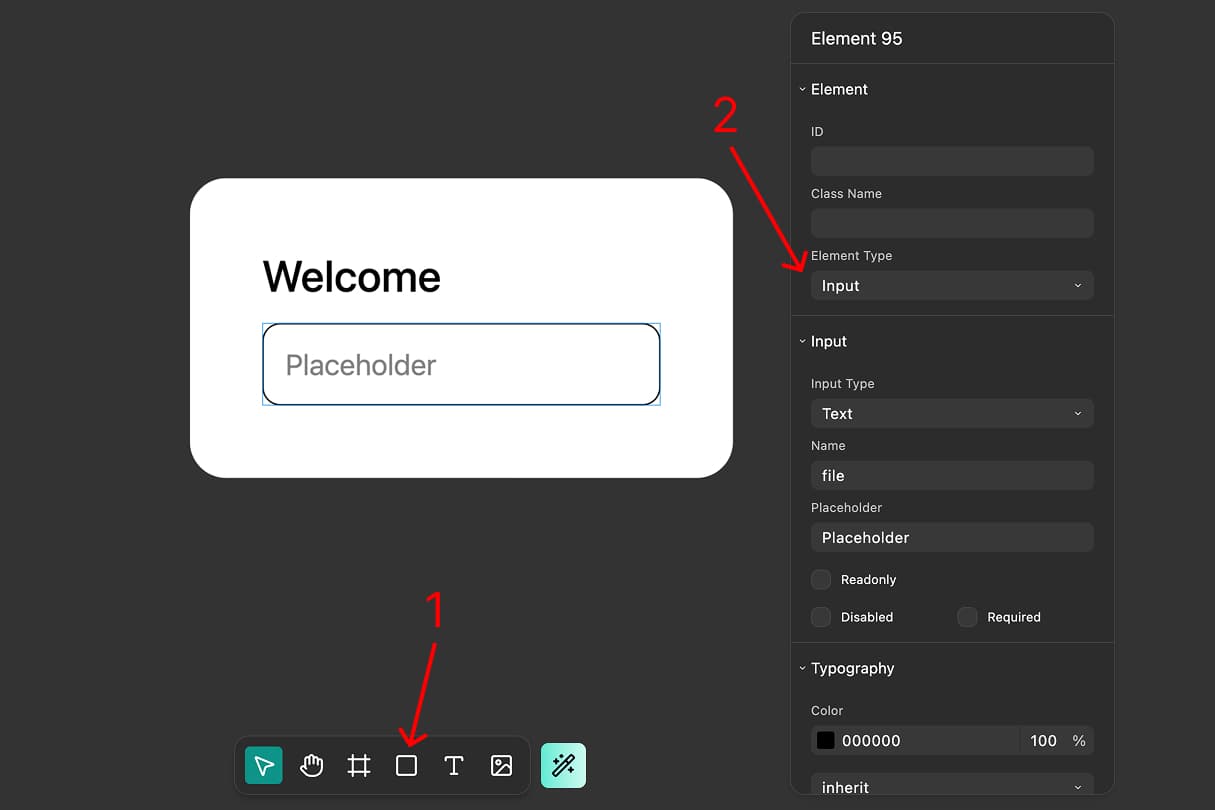
Step 1: Add an Input Element
In the FigForm editor, click the add element button in the toolbar to insert a new container on your form canvas. Then select the container and look at the properties panel on the right side of the editor.
Find the "Type" dropdown and change it from "Container" to "Input". You've now created an input element that you can configure as a checkbox.
Step 2: Set the Input Type to Checkbox
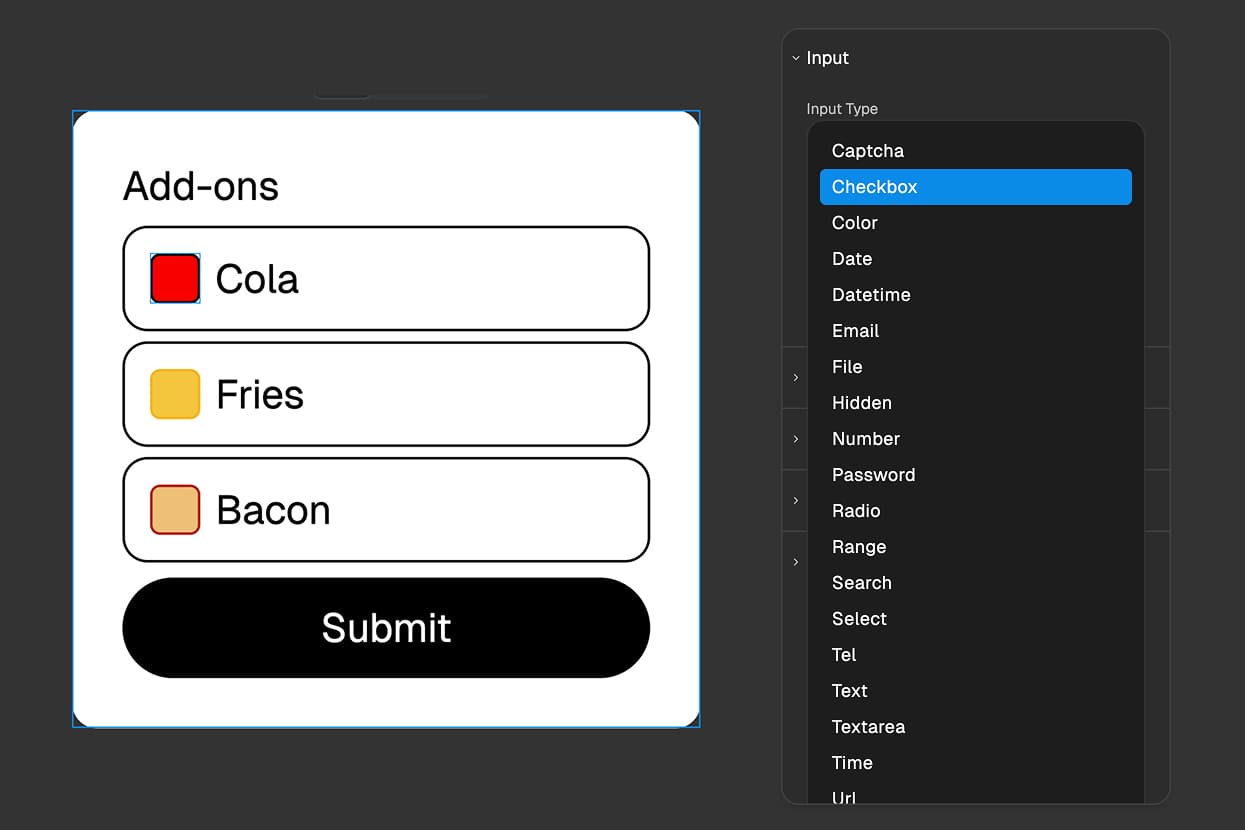
With your input element selected, open the properties panel and locate the "Input Type" dropdown. Click it and select "Checkbox" from the list of available input types.
Your input is now a checkbox. If you have multiple checkbox questions on your form, repeat these steps to add more checkbox inputs wherever you need them.
Step 3: How Answers Are Recorded
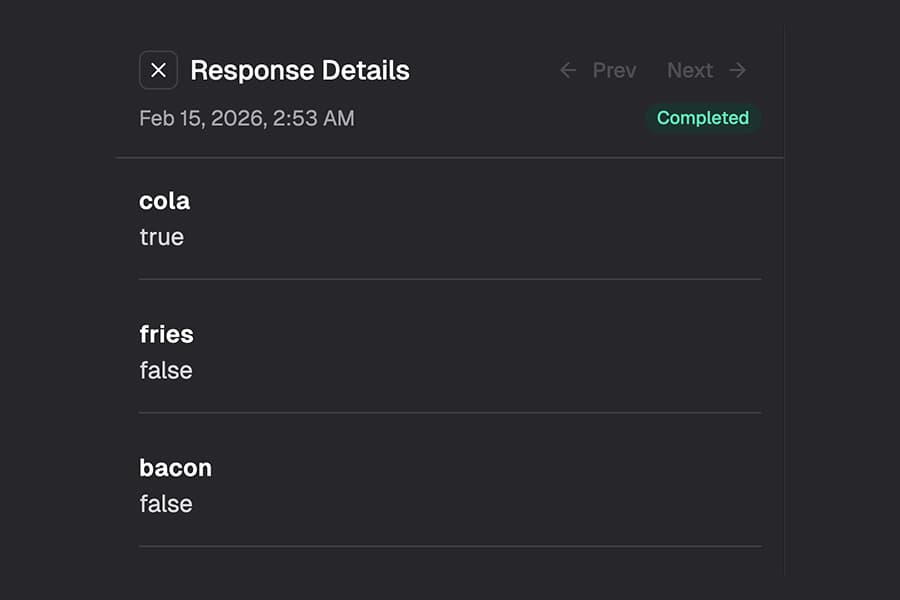
When users interact with your checkbox on the live form, FigForm records the answer as a simple true or false value:
- true means the checkbox was checked (selected)
- false means the checkbox was unchecked (not selected)
That's it - no complex values or configurations to worry about. Each checkbox records whether it was on or off when the user submitted the form.
When you view your form responses in the dashboard, you'll see "true" for checked boxes and "false" for unchecked boxes. This makes it easy to filter responses, export data, and understand what your users selected.
Step 4: Add Labels
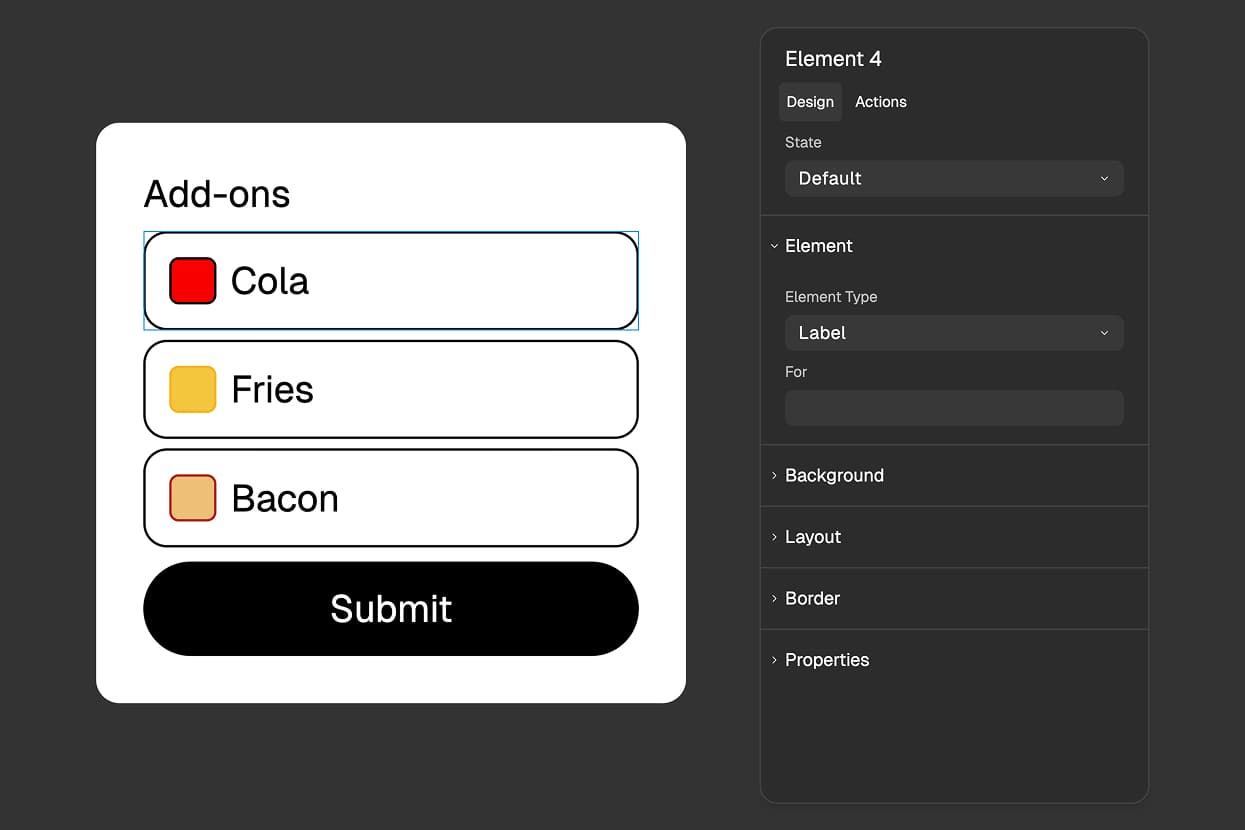
Checkboxes usually need descriptive text next to them so users know what they're selecting. The best way to add this text is to wrap your checkbox inside a label element.
Create a label element (add a container, then change its Type to "Label"), add your descriptive text inside it, and place your checkbox input inside the same label. Now when users click on the text, the checkbox toggles automatically.
This creates a better experience because users don't have to click precisely on the small checkbox - they can click anywhere on the text to select the option.
For a complete guide on labels, check out our article on label elements.
Ready to design a form?
Start creating stunning forms using an intuitive editor with a free account.
Start designingStyling Checkbox Inputs with Checked State
Checkboxes have a special Checked state that lets you customize how they look when selected. This makes it easy to create custom checkbox designs that match your brand perfectly.
Styling the Checkbox Directly
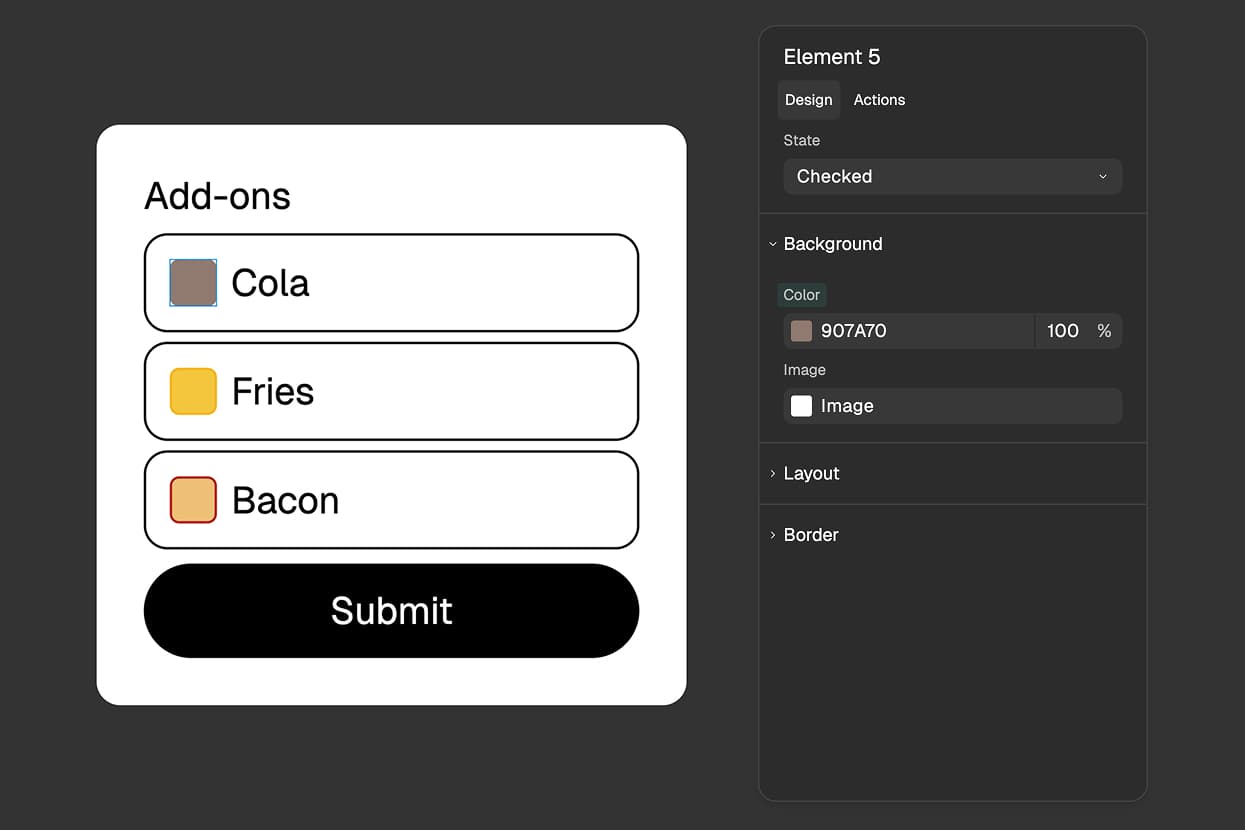
Select a checkbox input and look at the state selector in the properties panel. You'll see options for Default (unselected) and Checked (selected) states.
Switch to the Checked state and customize:
- Background color - Change the fill color when checked
- Border - Adjust border color, width, or style
- Size - Make the checkbox larger or smaller
- Custom elements - Add checkmark icons or graphics that appear only when checked
Your Checked state styles apply whenever that checkbox is selected on your live form, giving you complete control over the checked appearance.
Styling Parent Labels Based on Checked State
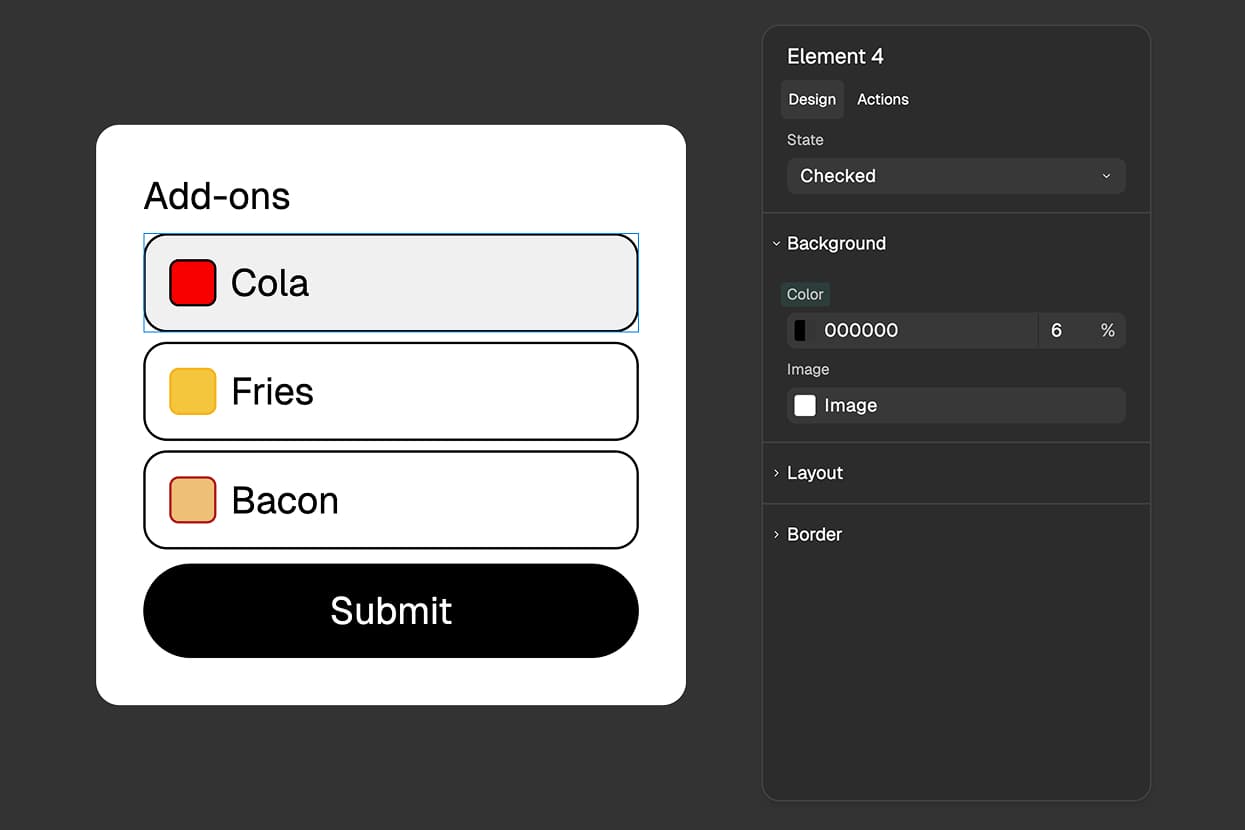
Here's a powerful feature: labels automatically inherit the Checked state from checkboxes nested inside them. This lets you style the entire label container when its checkbox is selected.
Wrap your checkbox input inside a label, select the label element, and switch to the Checked state in the properties panel. Now you can customize the label's appearance when its checkbox is checked:
- Background color - Highlight the entire option when selected
- Border - Add a colored border around checked options
- Text color - Change the label text color
- Shadows - Add depth with shadow effects
This creates a more intuitive interface where users can clearly see which options they've selected, because the entire choice area changes appearance, not just the small checkbox itself.
Best Practices for Checkbox Inputs
Use Checkboxes for Independent Choices
Only use checkboxes when each option is independent - when selecting one option doesn't affect whether other options make sense. If users should only pick one answer, use radio buttons instead.
Keep the List Manageable
While checkboxes can handle multiple selections, don't overwhelm users with too many options. If you have more than 8-10 checkboxes, consider breaking the question into multiple pages or using a different approach.
Make Labels Clear and Specific
Write checkbox labels that are immediately understandable. Each label should clearly describe what the user is agreeing to or selecting.
Good: "Send me monthly product updates"
Less clear: "Subscribe"
Consider Default States
Think carefully about whether any checkboxes should be pre-checked when the form loads. For newsletter signups or optional features, starting unchecked respects user choice. For required agreements, you might start checked to reduce friction.
Start Using Checkbox Inputs Today
Checkbox inputs in FigForm make it easy to collect multiple-choice answers from your forms. Add an input element, set its type to Checkbox, and FigForm automatically records true or false for each checkbox when users submit the form.
Style them with Checked states to match your brand, wrap them in labels for better usability, and enjoy the clean, simple data they provide.
Ready to build better forms?
Sign up for free and start creating checkbox questions that let your users select exactly what they need.