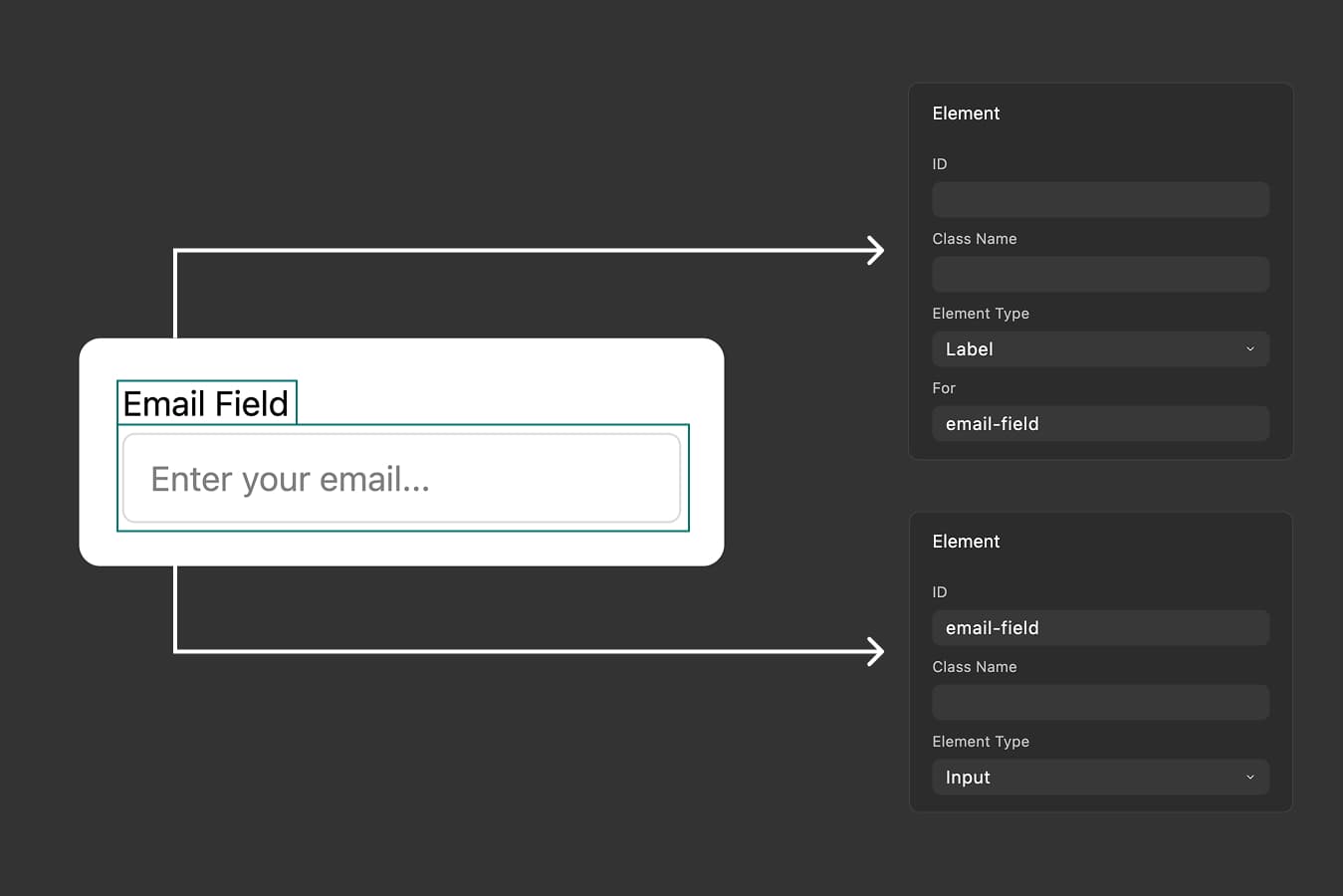
What Are Label Elements?
Label elements in FigForm work just like HTML <label> tags - they provide descriptive text for form inputs and create an association between the label and its corresponding input field. When a user clicks on a label, the connected input automatically receives focus.
In FigForm, labels are visual elements that you can style, position, and connect to inputs using the same familiar canvas-based workflow you use for everything else. They work exactly as you'd expect from HTML labels, but with FigForm's visual design flexibility.
Why Use Labels?
Better Accessibility
Labels are essential for screen readers and assistive technologies. When you properly connect a label to an input, screen reader users hear the label text when they focus on the input field, giving them context about what data to enter.
Without labels, forms can be impossible to navigate for users who rely on assistive technology.
Larger Click Area
When a label is connected to an input, clicking anywhere on the label text focuses the input. This creates a much larger clickable target than just the input field itself - especially helpful for small checkboxes, radio buttons, or touch interfaces on mobile devices.
Professional Design
Labels make your forms clearer and easier to understand. They provide context, reduce errors, and guide users through the form submission process. Every well-designed form uses labels.
How to Create a Label
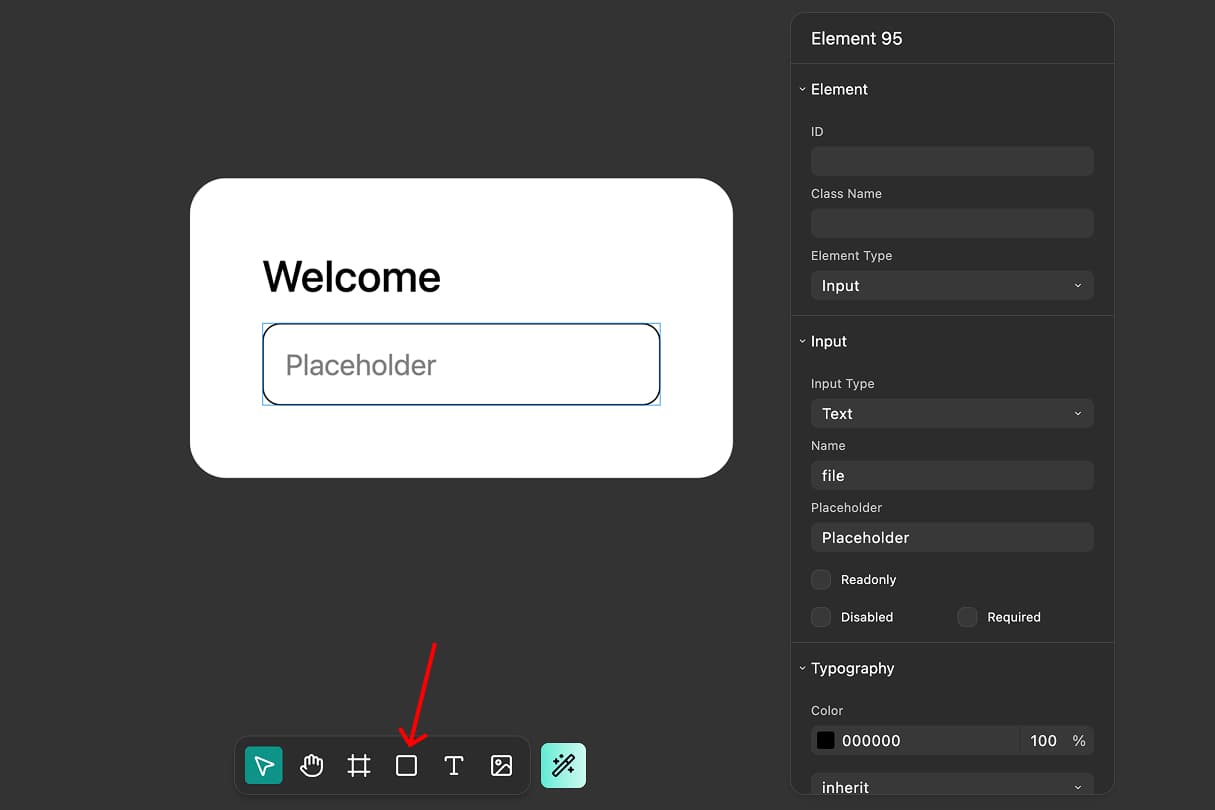
Step 1: Add a Container Element
Start by adding a container element to your form canvas. Click the add element button in the toolbar, or use the keyboard shortcut to insert a new container.
Container elements are the foundation for all elements in FigForm - you'll convert this container into a label in the next step.
Step 2: Convert to Label Type
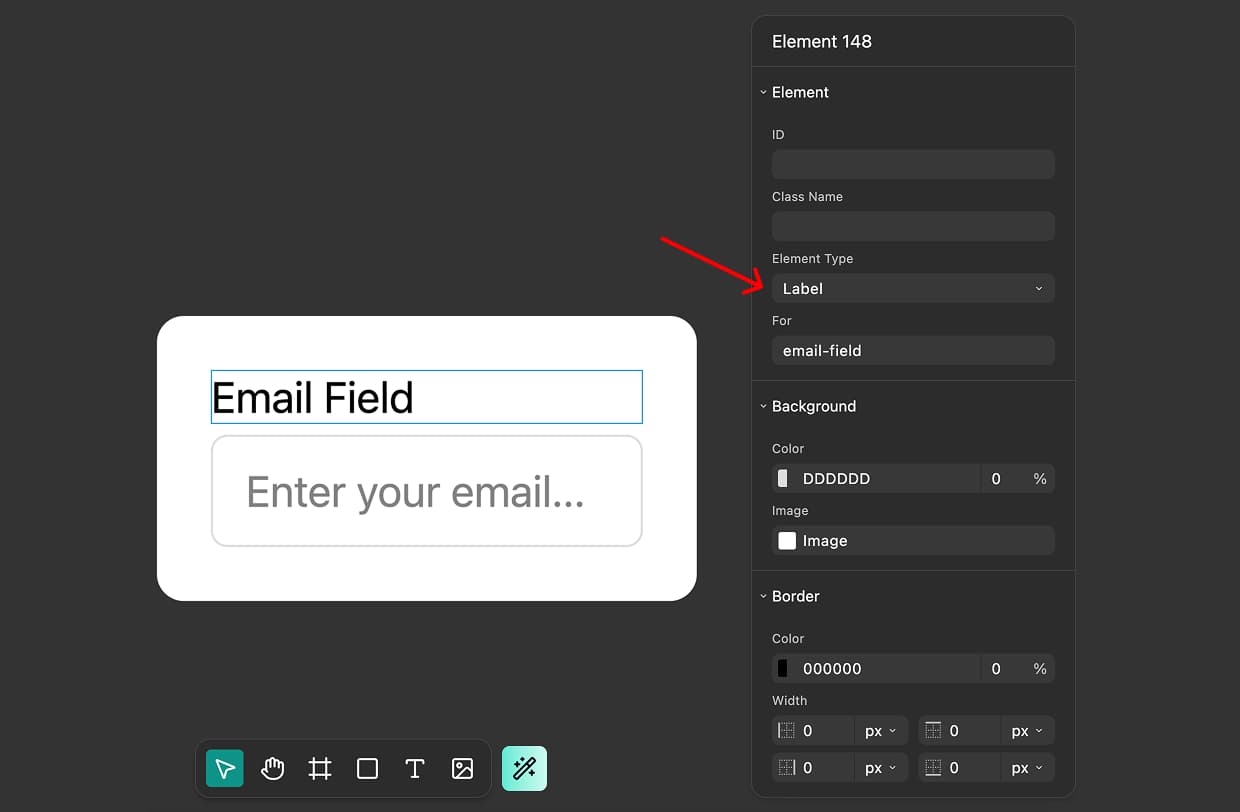
With your container selected, open the properties panel on the right side of the editor. Find the "Type" dropdown at the top of the properties panel and select "Label" from the list.
Your container is now a label element. You can add text, icons, or any other elements inside the label to create your label content.
Step 3: Add Content to Your Label
Inside your label element, add text or any other elements you want. Most commonly, you'll add a text element that describes what the input field is for - like "Email Address", "Password", or "Full Name".
You can style the text, adjust spacing, add icons, or create any visual design you need. The label is just a container that can hold other elements.
Step 4: Set the "For" Field
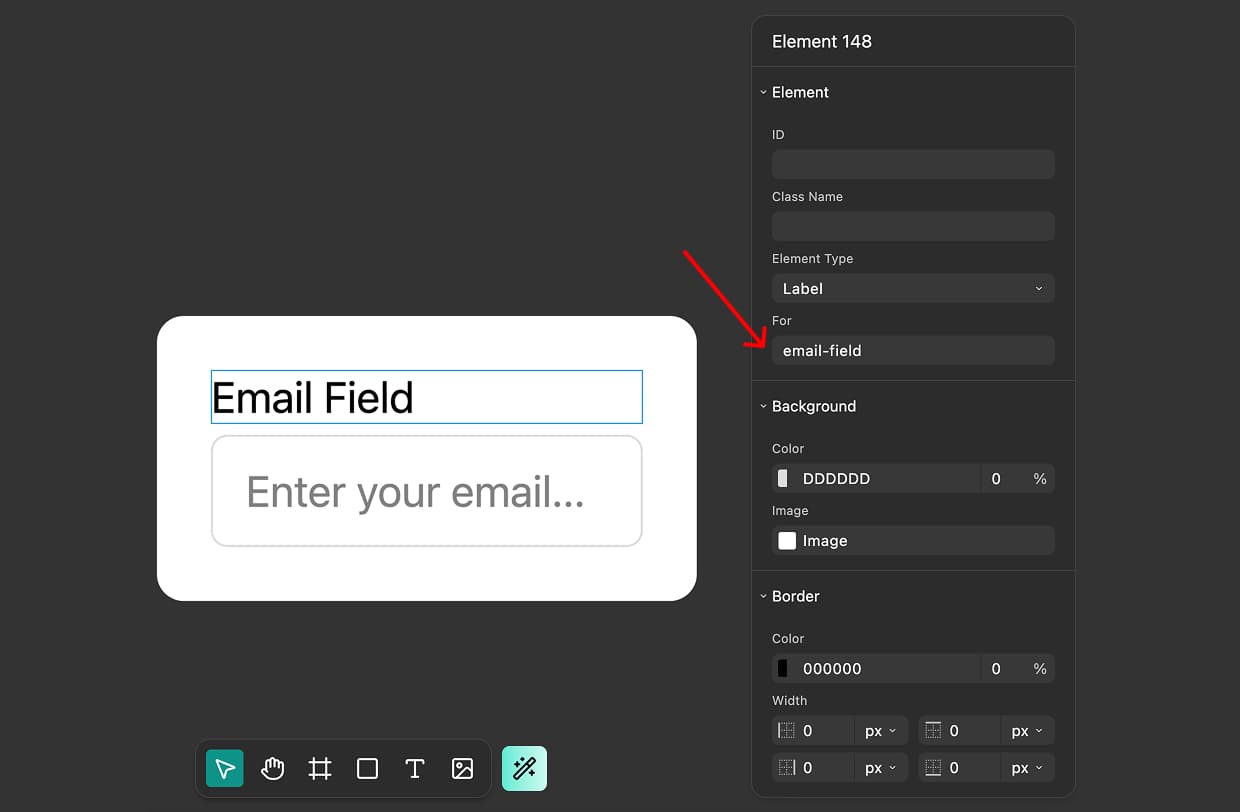
This is the crucial step that connects your label to an input. Select your label element and find the "For" field in the properties panel.
Enter the ID of the input element you want to connect to. For example, if your input element has an ID of "email-input", type "email-input" into the For field.
Now when users click on your label, the connected input will automatically receive focus, and screen readers will announce the label text when users navigate to that input.
Ready to design a form?
Start creating stunning forms using an intuitive editor with a free account.
Start designingLabel Wrapping Pattern
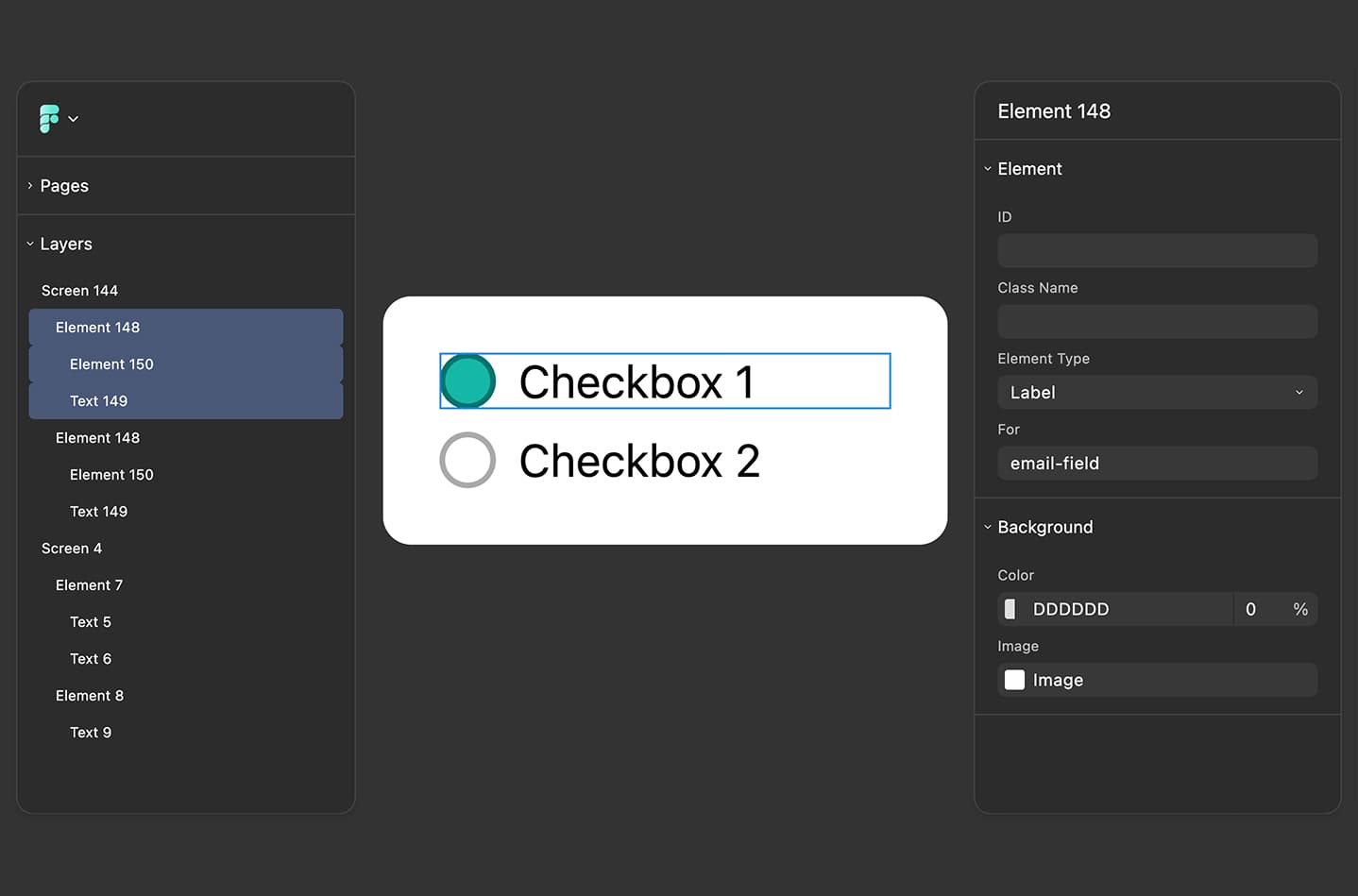
In addition to separate labels and inputs, you can wrap an input inside a label element - just like you can in HTML. This creates an implicit association without needing to set the For field.
How to Wrap an Input
- Create a label element (container converted to label type)
- Add your label text inside the label
- Add an input element inside the same label
- You don't need to set the For field - the association is automatic
This pattern is especially common for checkboxes and radio buttons, where the label text appears next to the control and the entire area is clickable.
When to Use Wrapping vs Separate
Use separate labels and inputs when:
- You want precise control over label and input positioning
- Your layout places labels above or to the left of inputs
- You're building complex multi-column layouts
Use wrapped labels when:
- Building checkboxes or radio button groups
- Creating inline label/input combinations
- Simplifying your layer hierarchy
Both patterns work identically for accessibility and functionality - choose the one that fits your design needs.
Finding Input IDs
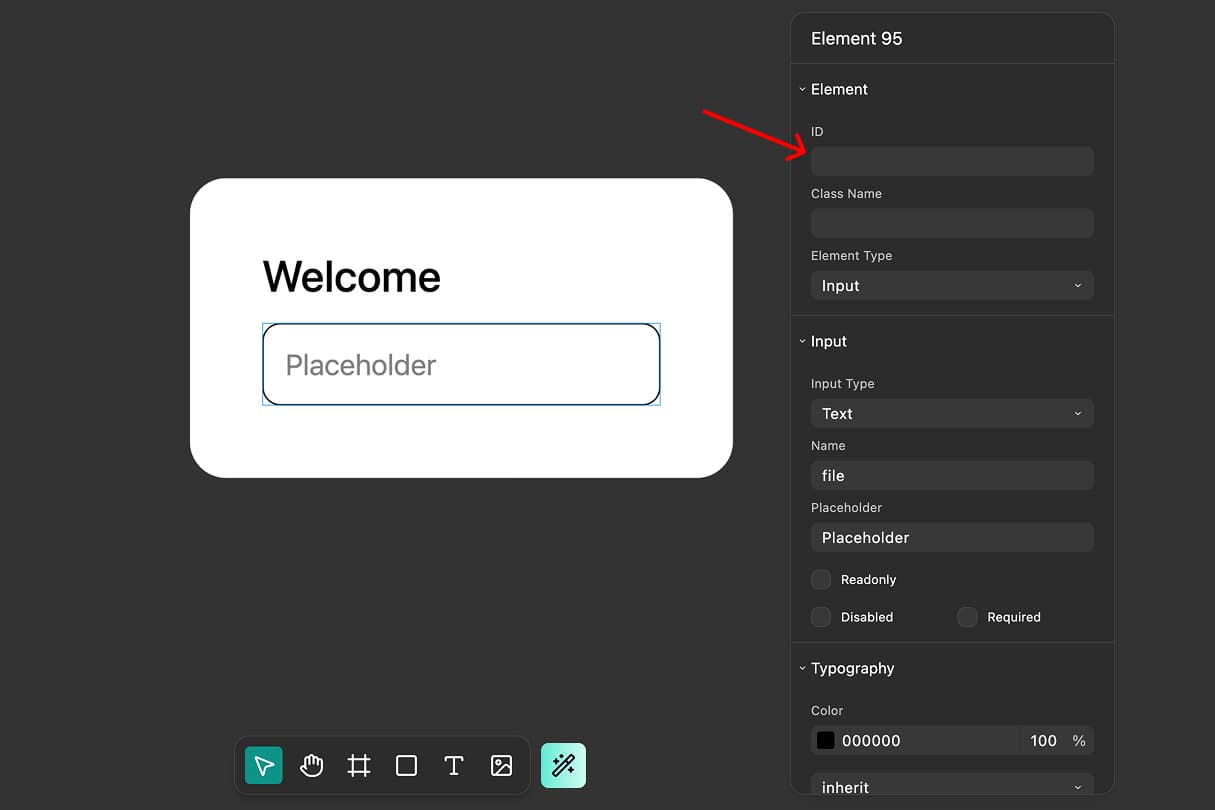
To connect a label to an input using the For field, you need to know the input's ID. Here's how to find it:
- Select the input element on your canvas
- Open the properties panel on the right
- Look for the "ID" field at the top of the properties panel
- Copy this ID value
- Paste it into the For field of your label
If your input doesn't have an ID yet, you can add one in the ID field. Use a descriptive, unique ID like "email-input" or "first-name-field".
Start Using Labels Today
Labels are fundamental to accessible, user-friendly forms. They provide context for your inputs, improve the user experience with larger click areas, and ensure your forms work for everyone, including users with assistive technologies.
In FigForm, creating labels is simple: add a container, convert it to a label type, set the For field to your input's ID, and you're done. Or wrap inputs inside labels for an even simpler pattern.
Ready to build accessible forms?
Sign up for free and start creating forms with proper labels that work for all users.