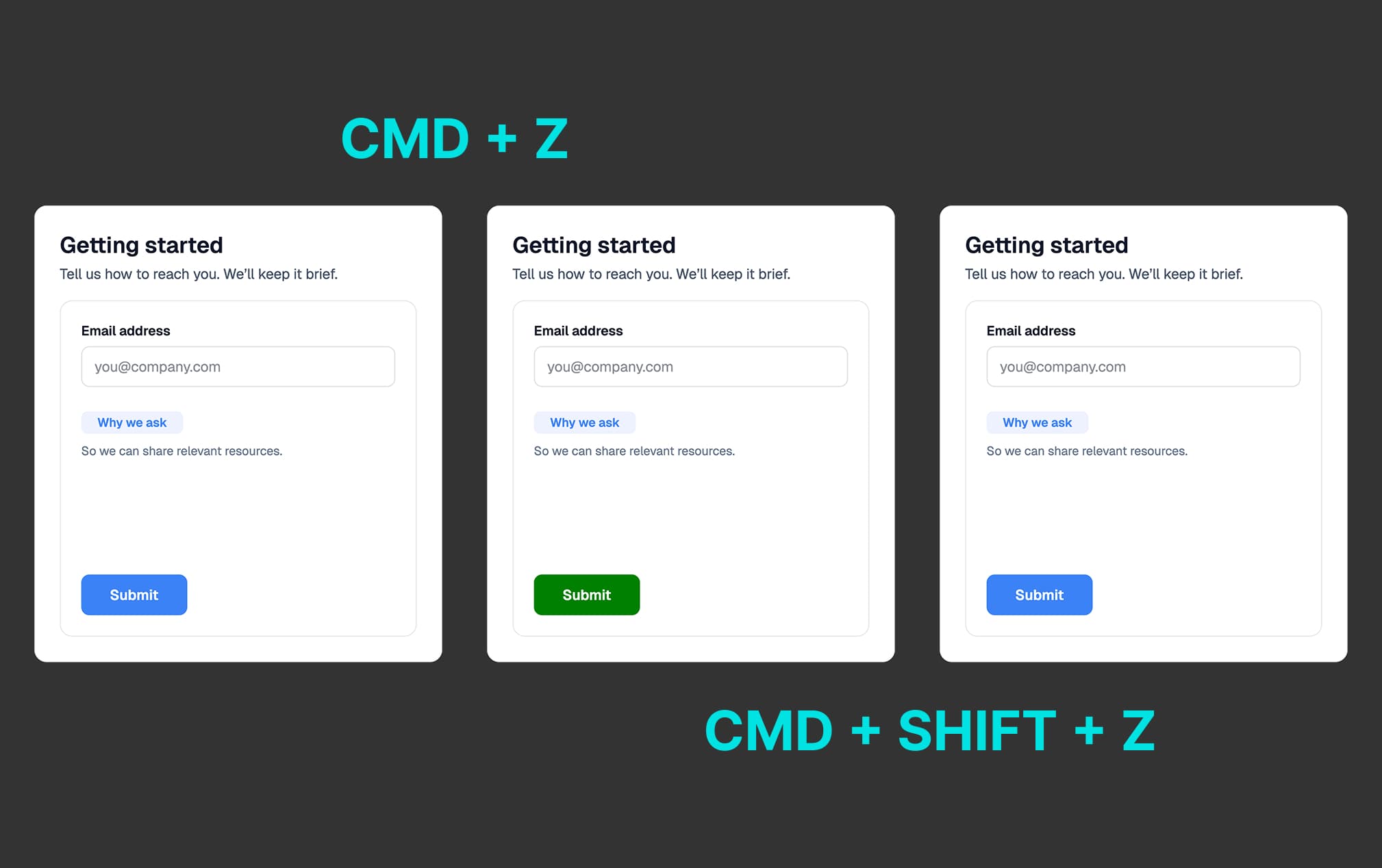
What Is Undo & Redo?
Undo and redo are your safety net when building forms in FigForm. They let you step backward through changes you've made - reversing actions, restoring deleted elements, or backing out of decisions you've changed your mind about.
Think of it like a time machine for your form. Make a change, decide you don't like it, press a keyboard shortcut, and you're back to how things were a moment ago. Changed your mind again? Redo brings that change back.
Every action you take in the Builder - moving elements, changing colors, adjusting text, deleting layers, adding new components - gets added to your undo history. You can step backward through that history as far as you need, then step forward again if you go too far.
For marketing agencies juggling client feedback, experimenting with different layouts, or simply making mistakes (we all do), undo and redo are essential productivity tools that remove the fear of "breaking" your form design.
Why Use Undo & Redo?
Experiment Without Fear
Want to try moving that button to a different position? Change the entire color scheme? Rearrange your form layout? With undo available at your fingertips, you can experiment freely. If you don't like the result, press CMD+Z (Mac) or CTRL+Z (Windows/Linux) and you're back where you started.
This freedom to experiment leads to better designs. You're not locked into your first decision - you can try multiple approaches and keep what works best.
Recover from Mistakes
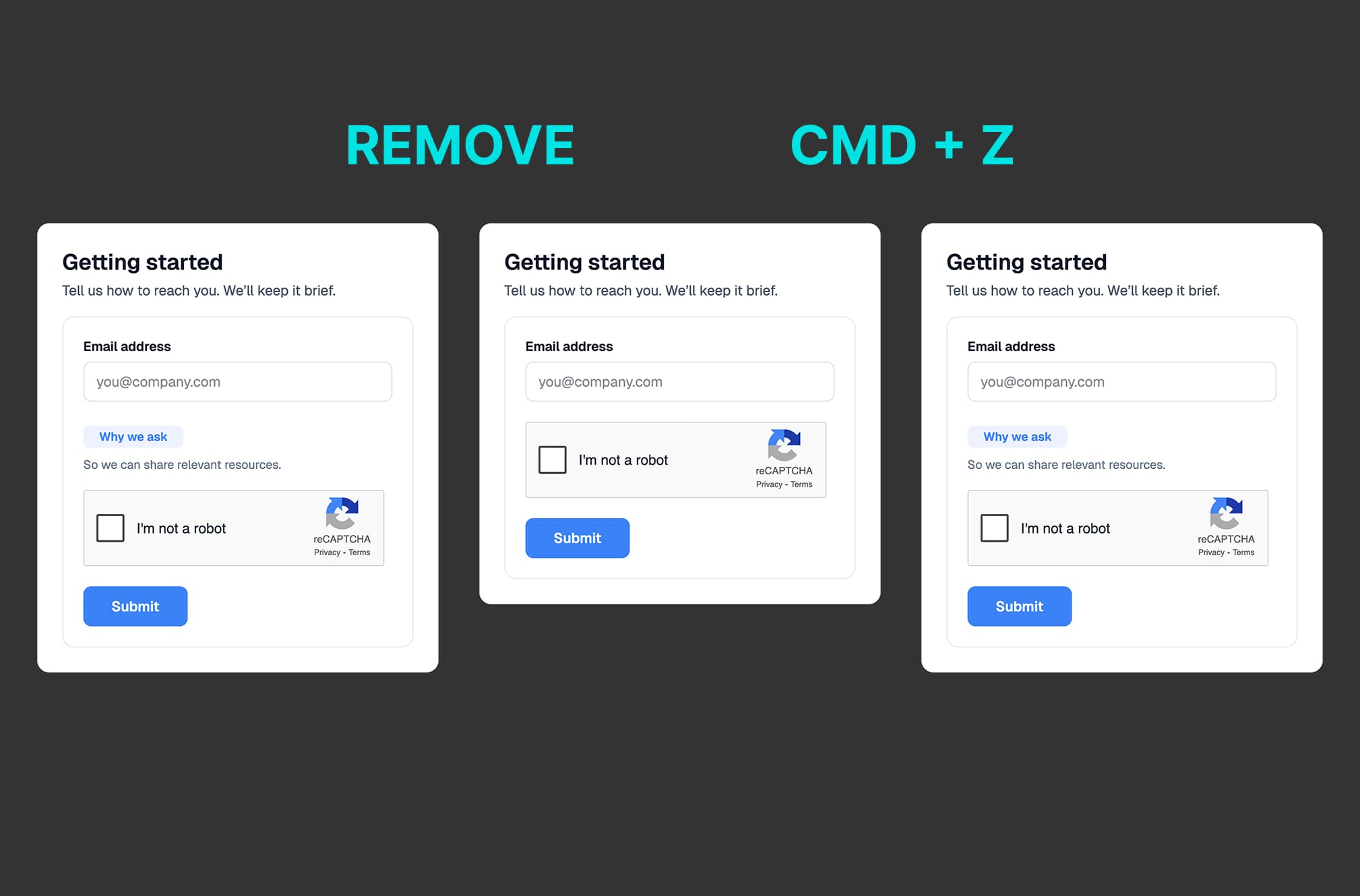
Accidentally deleted a form element you spent time styling? Moved something and lost track of where it was? Changed text and can't remember the original wording? Undo fixes all of these mistakes instantly.
Instead of panicking or trying to manually recreate what you had, just press the undo shortcut and your work comes back exactly as it was.
Fine-Tune Your Designs
Undo and redo aren't just for fixing mistakes - they're tools for refinement. Make a change, look at it, undo it, try something slightly different, compare, and decide which works better. This back-and-forth iteration is how great designs emerge.
Ready to design a form?
Start creating stunning forms using an intuitive editor with a free account.
Start designingHow to Use Undo
Undo reverses your most recent change and steps backward through your editing history.
The Keyboard Shortcut
To undo your last action:
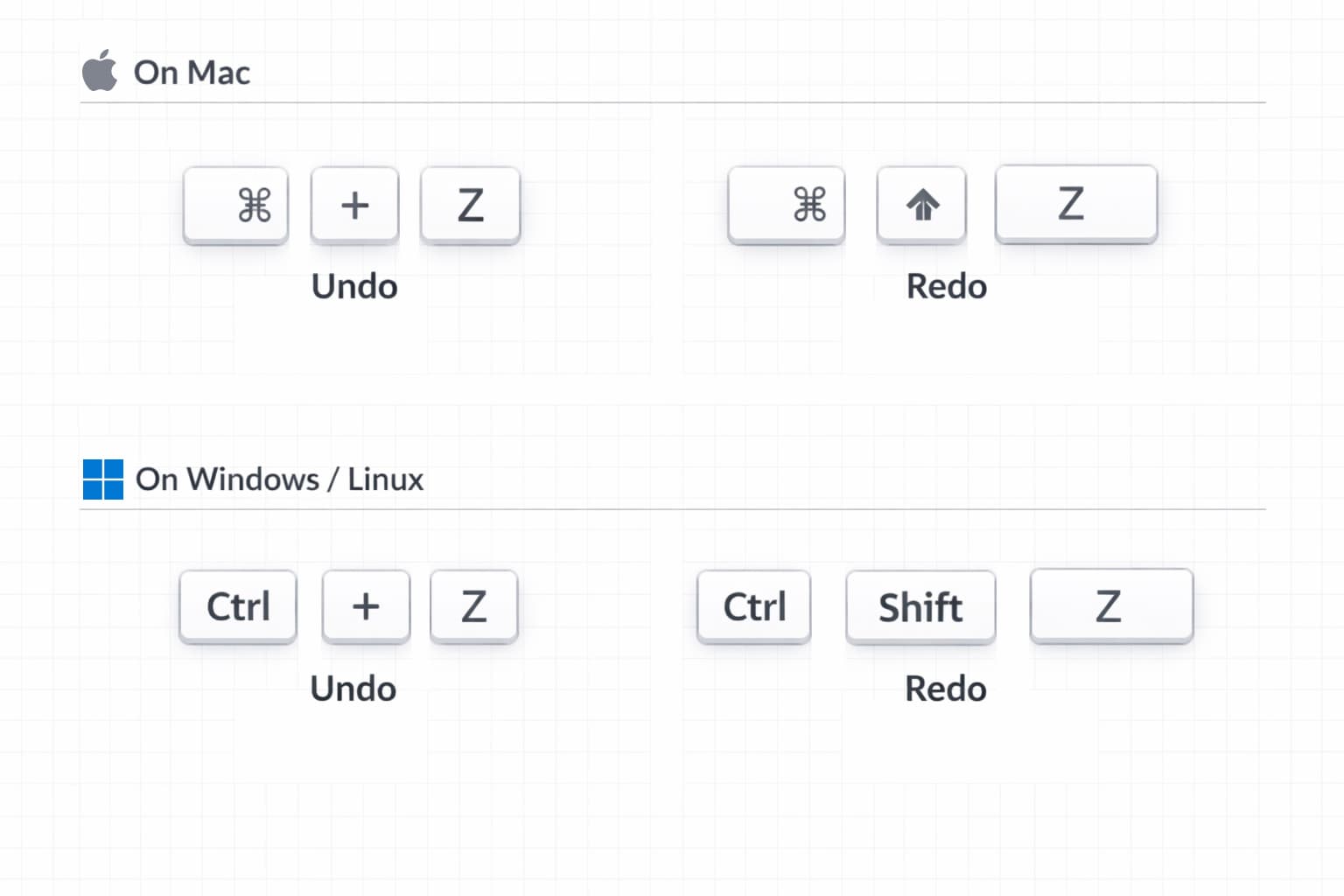
- On Mac: Press CMD+Z
- On Windows or Linux: Press CTRL+Z
You can press the shortcut multiple times to continue stepping backward through your changes. Each press undoes one more action, taking you further back in your editing history.
What Gets Undone
Undo works for virtually every action in the FigForm Builder:
Element changes - Moving, resizing, or rotating elements
Style changes - Colors, fonts, borders, shadows, spacing
Content changes - Text edits, form field names, placeholder text
Layer operations - Adding elements, deleting elements, duplicating
Property changes - IDs, classes, validation rules, input types
If you can change it in the Builder, you can undo it.
How to Use Redo
Redo moves forward through changes you've undone. If you pressed undo but then changed your mind, redo brings that change back.
The Keyboard Shortcut
To redo an action you just undone:
- On Mac: Press CMD+SHIFT+Z
- On Windows or Linux: Press CTRL+SHIFT+Z
Like undo, you can press redo multiple times to step forward through all the changes you previously undid.
When Redo Is Available
Redo only works after you've used undo. It moves forward through the same history that undo moves backward through.
The moment you make a new change after undoing, the redo history is cleared. You can't redo past a new action - the new action becomes your current state, and the undone changes are gone.
How Far Back Can You Go?
FigForm stores your last 100 changes in the undo history. This means you can press undo up to 100 times to step backward through your recent work. For most form-building sessions, this is more than enough - it covers hours of work and hundreds of individual edits.
The history is session-based, so it persists as long as you have the Builder open. Close the Builder tab or navigate away, and the history resets when you return.
Important Limitation: AI Assistant Changes
Undo and redo work seamlessly when you're working alone or collaborating with your team in real-time. However, there's one important limitation: your undo/redo sequence breaks when the AI assistant makes changes to the form.
Why This Happens
When you're editing a form, FigForm tracks all your changes in order - this history is what undo steps backward through. When you're collaborating with other people on your team, everyone's changes are synchronized in real-time, and each person maintains their own separate undo history. You can undo your changes without affecting what your teammates are doing.
But the AI assistant works differently. When the AI makes changes, it can modify multiple elements at once, restructure entire sections, or make complex edits that touch many parts of your form. Mixing AI-generated changes with your personal undo history could create unpredictable results or conflicts.
To keep everything safe and predictable, your undo history is cleared when the AI assistant makes changes to the form.
What This Means for Your Workflow
When working solo: Undo and redo work without limitation. Step backward and forward through your changes as much as you need, up to the last 100 actions.
When collaborating in real-time with your team: Everyone maintains their own undo history. You can undo your changes while teammates continue working. Your undo history remains intact even when others are editing - you're only undoing your own actions, not theirs.
When using the AI assistant: After the AI makes changes, your undo history resets. You can still undo changes you make after that point, but you can't undo past where the AI edited. Think of it as a checkpoint - the AI makes its changes, and then you start fresh from there.
For more about working with your team in the Builder, check out our real-time collaboration help article.
Build with Confidence
Undo and redo remove the fear of making mistakes. Move elements freely, experiment with colors, try different layouts, and adjust your designs knowing you can always step backward through your last 100 changes if something doesn't work out.
Press CMD+Z (Mac) or CTRL+Z (Windows/Linux) when you want to reverse a change. Press CMD+SHIFT+Z or CTRL+SHIFT+Z to bring it back. It's that simple.
Work solo or collaborate with your team - your undo history remains intact and independent. The only limitation is when the AI assistant makes changes, which creates a fresh starting point for your undo history.
Ready to build forms without fear of mistakes?
Sign up for free and start designing with the confidence that undo gives you.