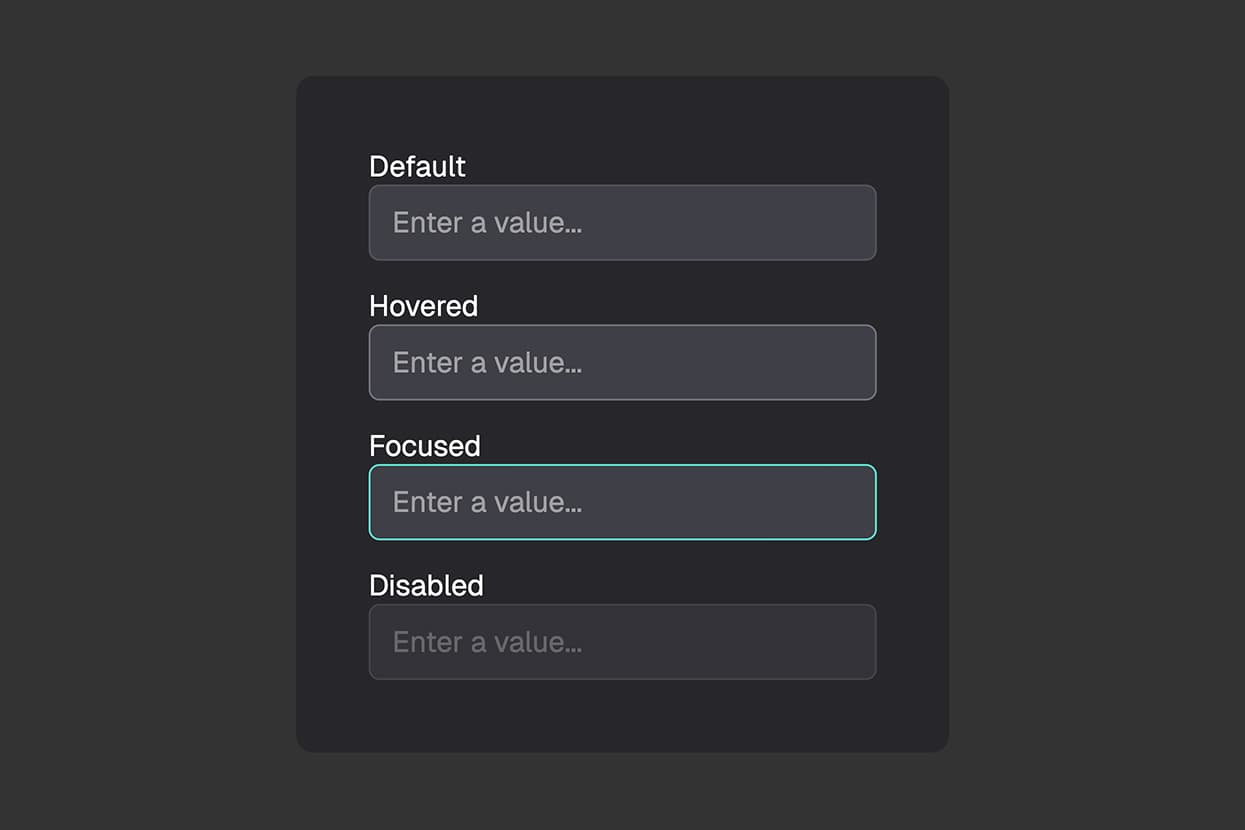
What Are States?
When someone fills out a form, things happen. They move their mouse over a button, click an input field, check a box, or a field becomes unavailable. In each of these moments, the element is in a different state.
States in FigForm let you define how an element looks in each of those moments. You design the normal appearance once, then switch to a state and adjust any property - color, border, shadow, size - to create a different look for that specific situation. Those adjustments are called overrides, and they only apply when the state is active on the live form.
Think of it like this: your submit button normally has a blue background. You switch to the Hover state, change the background to a darker blue, and now whenever a user moves their mouse over the button on the live form, it darkens automatically. You never had to write a single line of code.
Why Use States?
Make Forms Feel Polished
A form that responds to user actions feels professional and intentional. When buttons visibly react to a hover, inputs highlight when focused, and checkboxes transform when selected, users trust the form more and are more likely to complete it.
For marketing agencies presenting forms to clients, that polish is the difference between a form that feels custom-built and one that feels generic.
Guide Users Through the Form
Visual feedback reduces confusion. When an input field changes appearance on focus, users know exactly which field is active. When a disabled field looks clearly unavailable, users don't waste time trying to interact with it. States communicate the right information without any text explanation.
Match Your Brand Completely
Every brand has specific colors, interaction styles, and visual language. States give you full control over every interactive moment - so your forms don't just look like your brand at rest, they feel like your brand when users interact with them.
The Five States
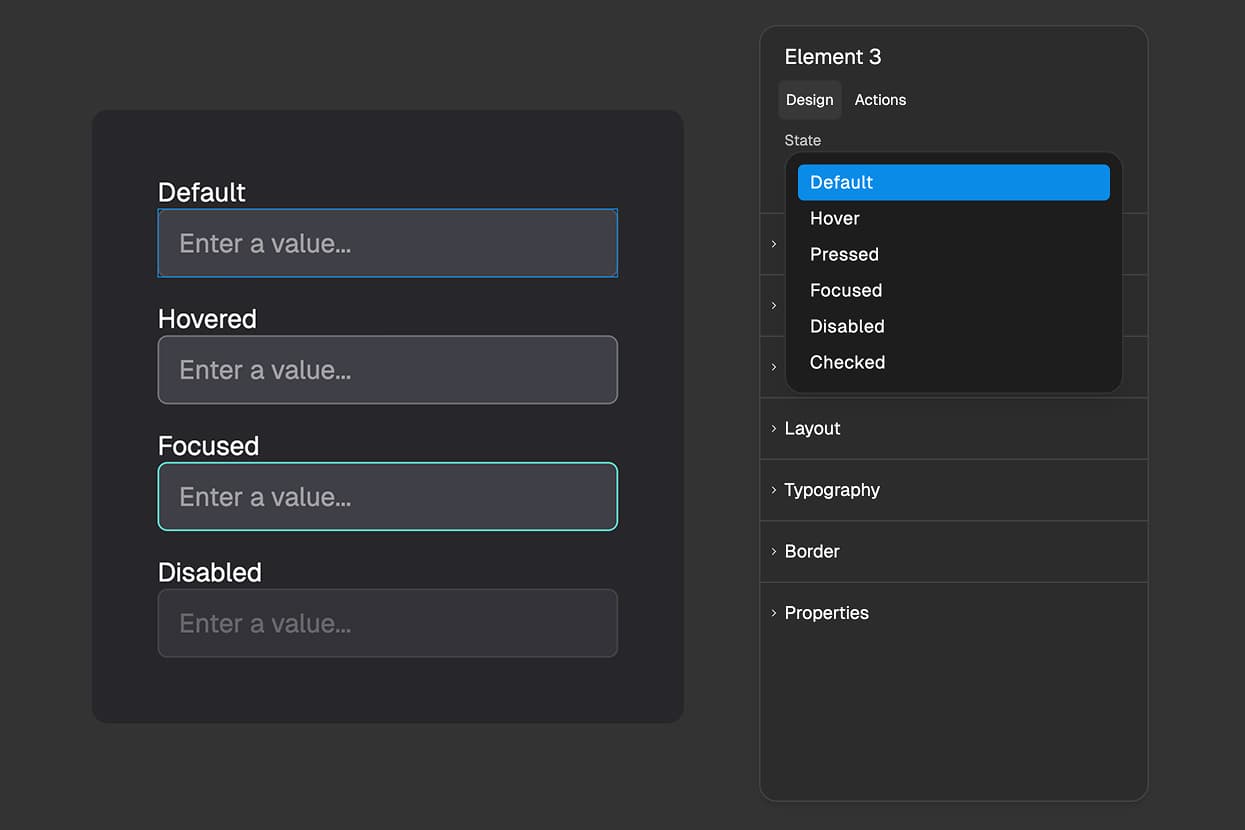
FigForm offers five states. You can apply them to elements from the state selector in the right panel whenever an element is selected.
Hover applies when a user moves their cursor over the element. Available on any element type.
Pressed applies the moment a user clicks or taps the element. Available on any element type.
Focused applies when a user clicks into an input field and it becomes active. Available on input elements only.
Disabled applies when an input is marked as unavailable. Available on input elements only.
Checked applies when a checkbox or radio input is selected. Available on input elements and label elements (more on this below).
Ready to design a form?
Start creating stunning forms using an intuitive editor with a free account.
Start designingHow to Apply a State
Step 1: Select an Element
Click any element on your form canvas. The right panel will show its properties in the Default state - this is how the element looks normally.
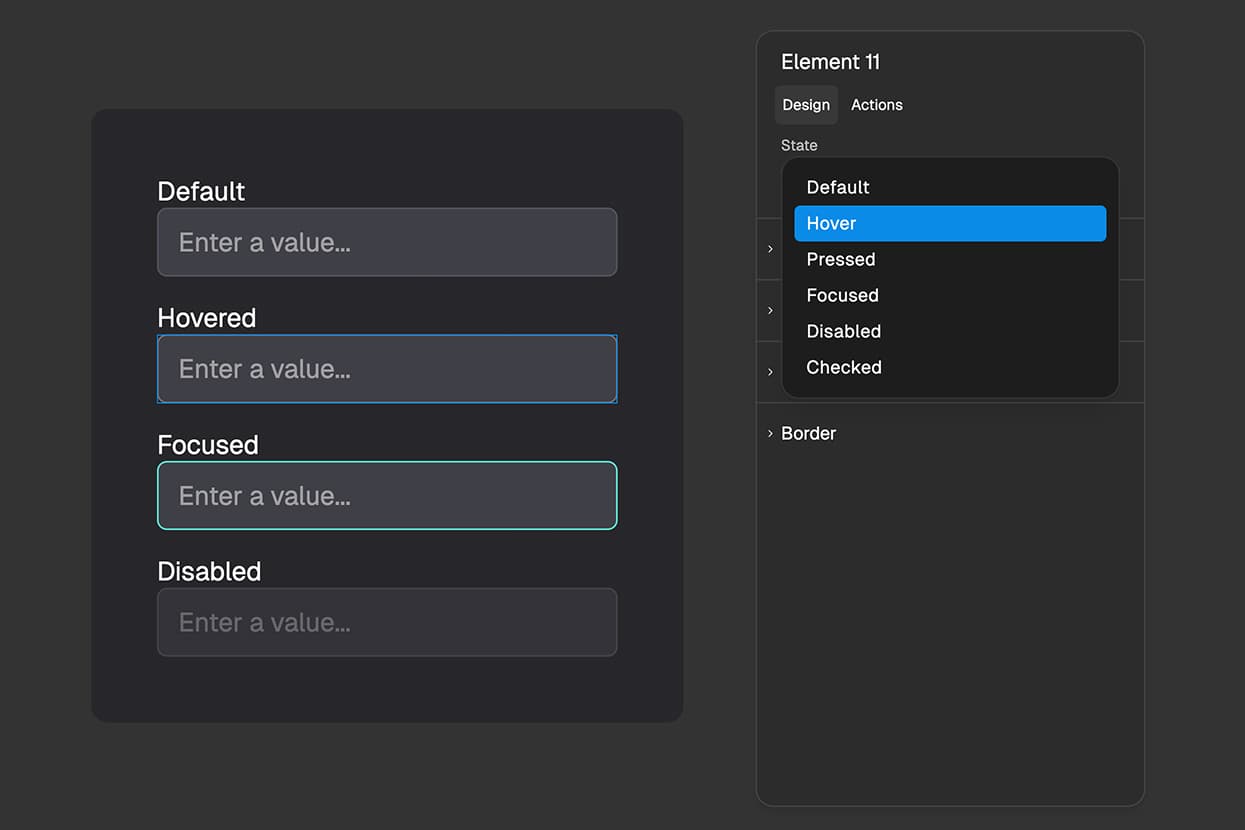
Step 2: Switch to a State
At the top of the right panel, you'll see the state selector showing the available states for that element. Click the state you want to design - for example, Hover.
The editor immediately shows you a live preview of what the element will look like in that state. This makes it easy to see exactly what you're designing without needing to constantly preview the live form.
Step 3: Change a Property
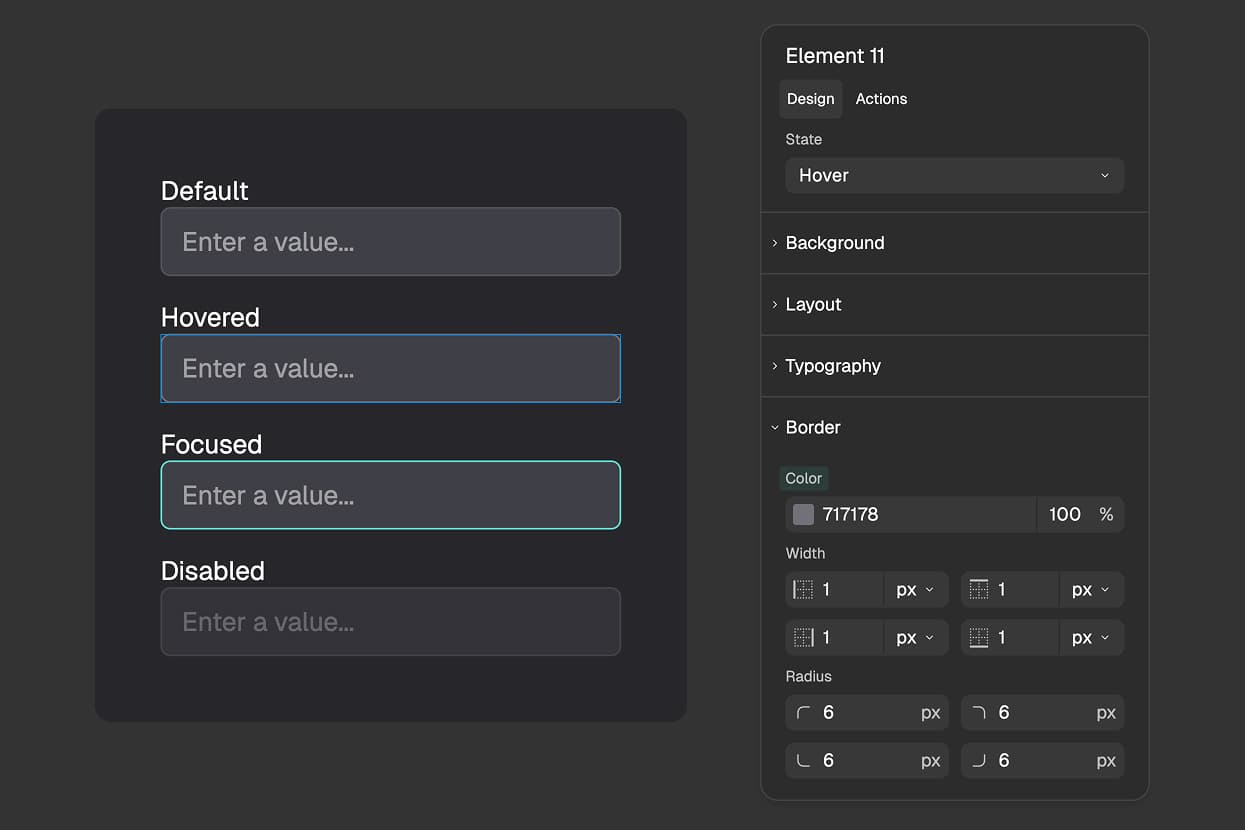
With a state selected, adjust any property in the right panel - background color, border, text color, shadow, opacity, or anything else. The moment you change something, an override is created.
That override is saved to the state. It will only apply on the live form when the state is triggered - for Hover, that means when a user moves their cursor over the element.
Step 4: Switch Back to Default
Click Default in the state selector to return to the normal appearance. Your overrides are saved automatically and will apply correctly on the live form.
You can also simply click anywhere on the canvas to deselect all elements - the state selector resets to Default automatically whenever nothing is selected.
The Checked State and Labels
The Checked state has a special behavior that makes it especially powerful for checkbox and radio button designs.
Checked State on Inputs
When you select a checkbox or radio input and switch to the Checked state, you can customize its appearance when selected. Change the background, border, size, or even add a custom checkmark graphic that only appears when the input is active.
Checked State on Labels
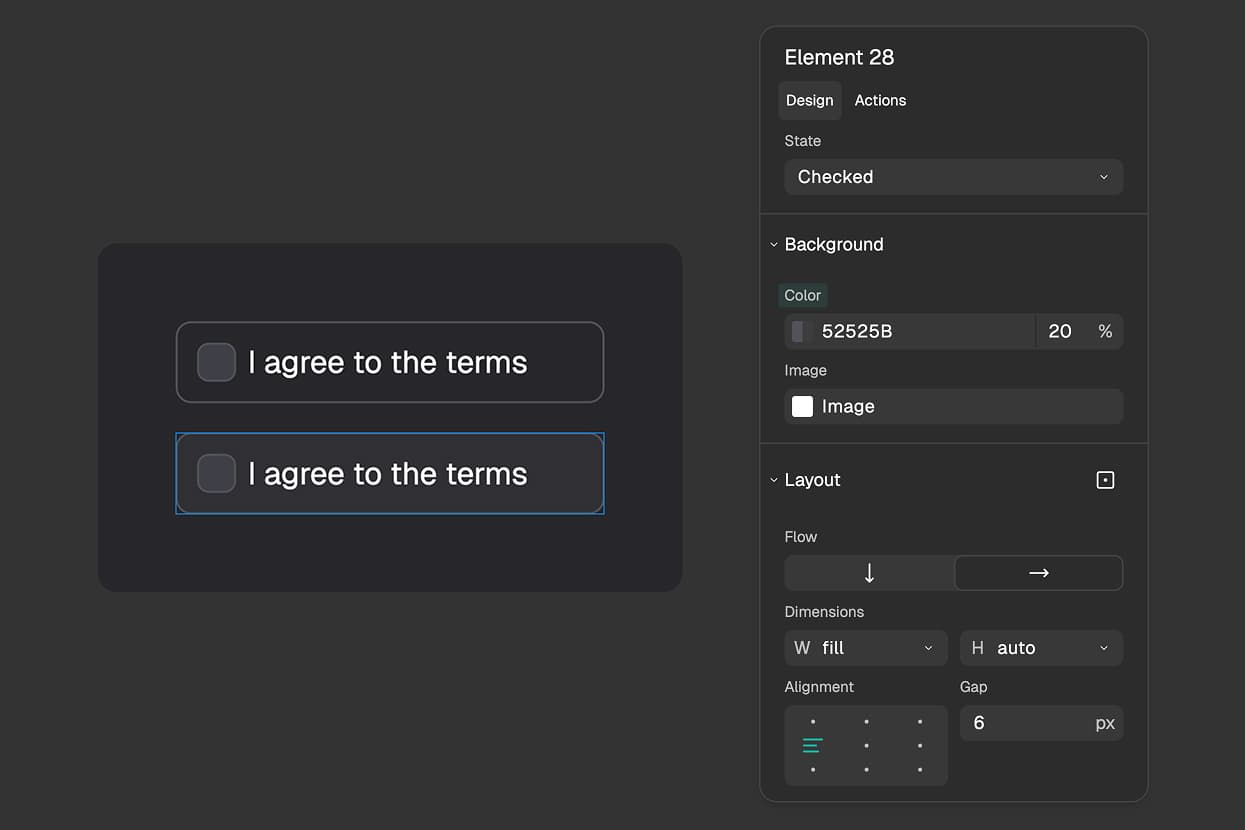
Labels can also use the Checked state - and here's what makes it powerful: a label automatically inherits the Checked state from any input nested inside it.
When you wrap a checkbox inside a label element and a user checks that checkbox, the Checked state activates on both the checkbox and its parent label simultaneously. This means you can style the entire label container - not just the small checkbox itself - to change when the option is selected.
For example: you want a card-style checkbox where the entire card gets a green border and tinted background when selected. You wrap the checkbox inside a label, switch the label to its Checked state, apply the green border and background - and it works automatically on the live form whenever the user checks that option.
Build Forms That Feel Alive
States are what separate a flat, static form from one that feels designed, responsive, and intentional. Every hover, every click, every selection becomes an opportunity to reinforce your brand and guide your users.
Select an element, pick a state, change a property. That's it. FigForm handles everything else - no code, no CSS, no developer needed.
Ready to design forms that respond to your users?
Sign up for free and start creating interactive form designs with states today.