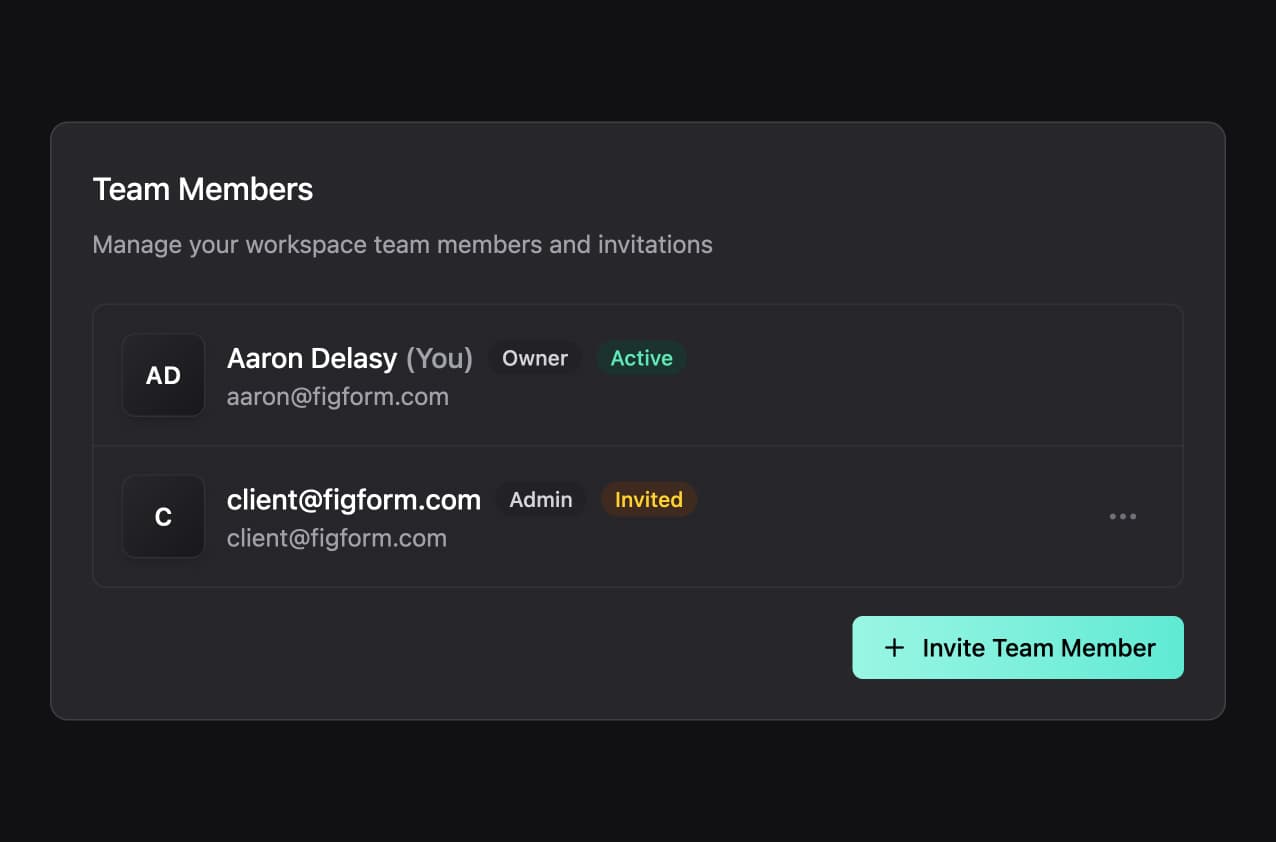
What Are Team Members?
Team members in FigForm allow you to collaborate with your colleagues, clients, or partners in a shared workspace. When you invite someone to your workspace, they get access to all the forms in that workspace and can work alongside you to create, edit, and manage forms together.
This is perfect for agencies managing client forms, marketing teams building landing pages, product teams collecting user feedback, or any situation where multiple people need to work together on forms.
Plan Limitations
Team collaboration is available on FigForm's paid plans:
- Free Plan - No team members (workspace owner only)
- Pro Plan - Invite up to 3 team members
- Business Plan - Invite up to 10 team members
When you reach your plan's team member limit, you'll be prompted to upgrade to invite more people. Business plan users who need more than 10 team members can contact sales for custom pricing.
How to Invite Team Members
Inviting team members to your workspace is straightforward. Here's the complete process:
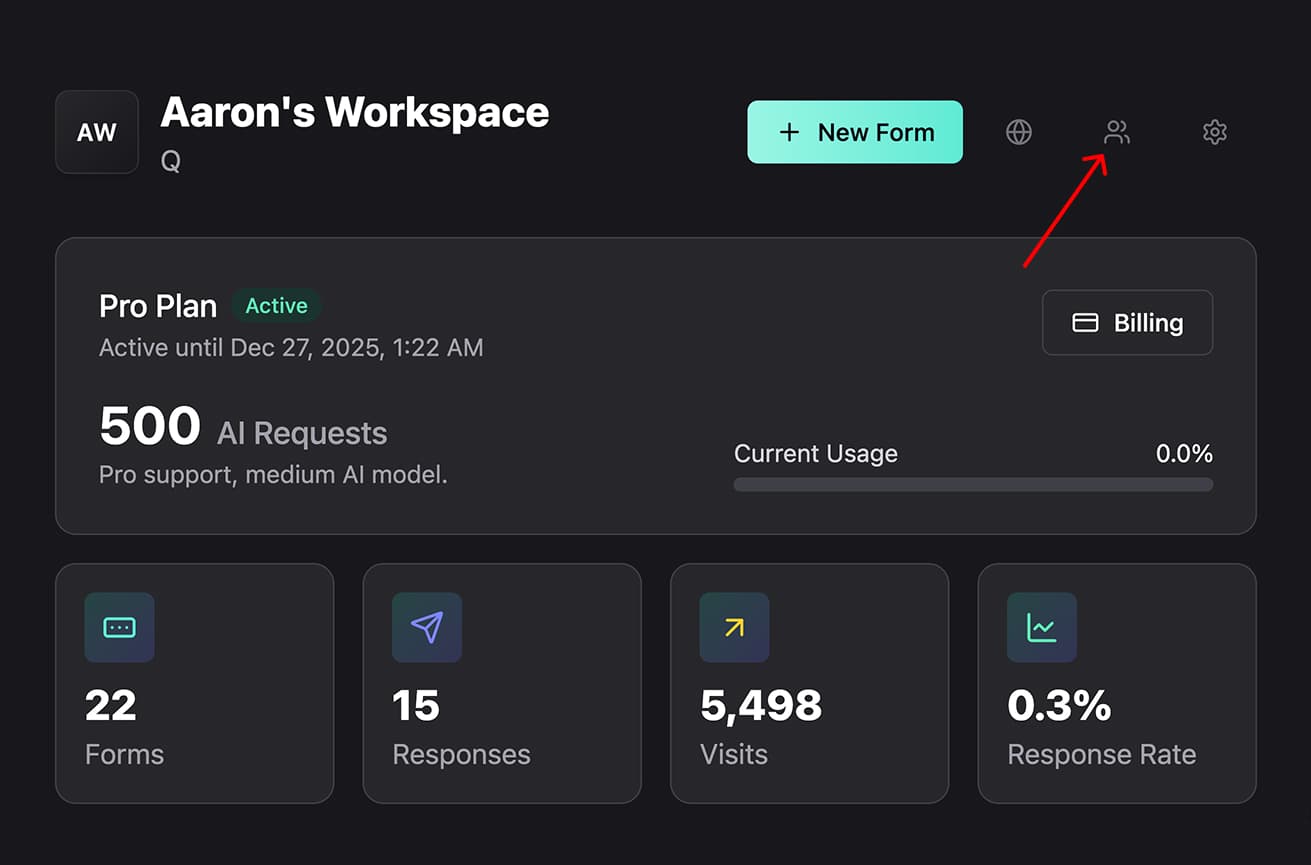
Step 1: Open the Team Members Modal
From your workspace page, click the users icon button in the navigation. This opens the Team Members modal where you can see all current members and pending invitations.
Step 2: Click Invite Team Member
At the bottom right of the Team Members modal, click the Invite Team Member button. This opens the invitation dialog.

Step 3: Enter Email Addresses
In the invitation dialog, enter the email address of the person you want to invite. You can add multiple email addresses by clicking the Add Email button to create additional input fields.
Enter each person's email address carefully - they'll receive their invitation at this address.
Step 4: Send Invitations
Once you've entered all the email addresses, click the Send Invitations button. FigForm sends an email to each person with a link to join your workspace.
You'll see the invited users appear in your Team Members list with an "Invited" status badge in orange.
Ready to design a form?
Start creating stunning forms using an intuitive editor with a free account.
Start designingThe Invitation Flow
When you invite someone to your workspace, here's what happens from their perspective:
Email Invitation
The invited person receives an email invitation with your workspace name and a prominent "Join Workspace" button. The email clearly explains who invited them and what workspace they're joining.

The invitation expires in 7 days. If they don't accept within that time, you'll need to resend the invitation.
Login or Signup Required
When they click the "Join Workspace" button, they're taken to a page where they need to either sign up for a FigForm account or log in if they already have one.
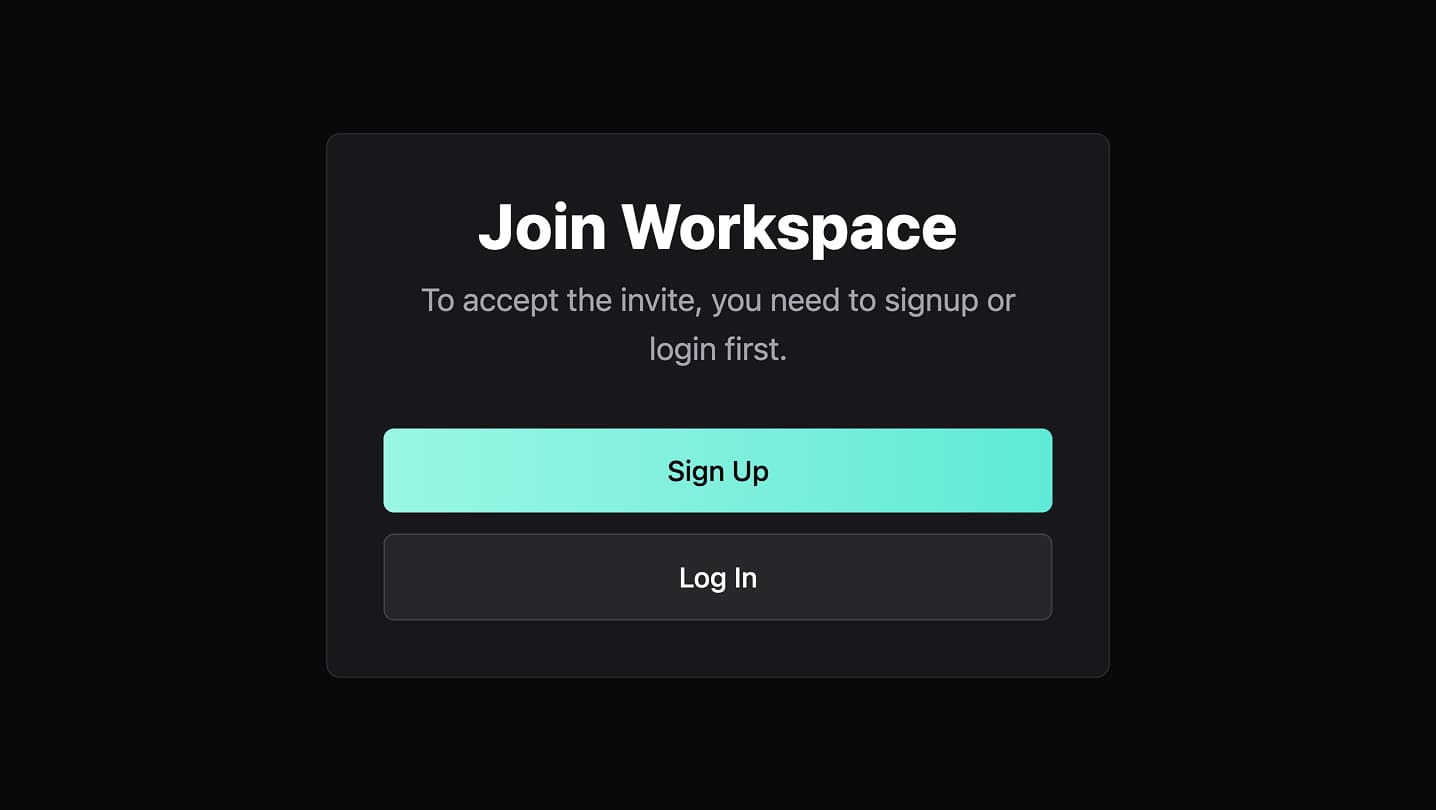
New users can quickly create an account, and existing users simply log in with their credentials.
Accept the Invitation
Once they're logged in, they see a confirmation page asking them to accept the invitation to join your workspace.

When they click Accept Invite, they're immediately added to your workspace as an active team member.
The Admin Role
Currently, FigForm supports one role for team members: Admin. When you invite someone to your workspace, they're automatically invited as an Admin.
What Admins Can Do
Admins have nearly full access to the workspace:
- Create, edit, and delete forms
- View form responses and analytics
- Manage integrations and settings
- Manage billing and subscription
- Invite additional team members (within plan limits)
- Remove other team members from the workspace
What Admins Cannot Do
There are only two restrictions for Admin users:
- Cannot delete the workspace owner - Admins can remove other admins, but they cannot remove the person who owns the workspace
- Cannot leave the workspace - Currently, team members cannot remove themselves from a workspace (there's no "leave workspace" option)
For most teams, the Admin role provides all the permissions needed for effective collaboration.
Managing Invitations and Members
As the workspace owner, you have full control over who has access to your workspace.
Viewing Invitation Status
In the Team Members modal, you can see the status of each person:
- Active (green badge) - The person has accepted the invitation and is an active workspace member
- Invited (orange badge) - The person has been invited but hasn't accepted yet
Resending Invitations
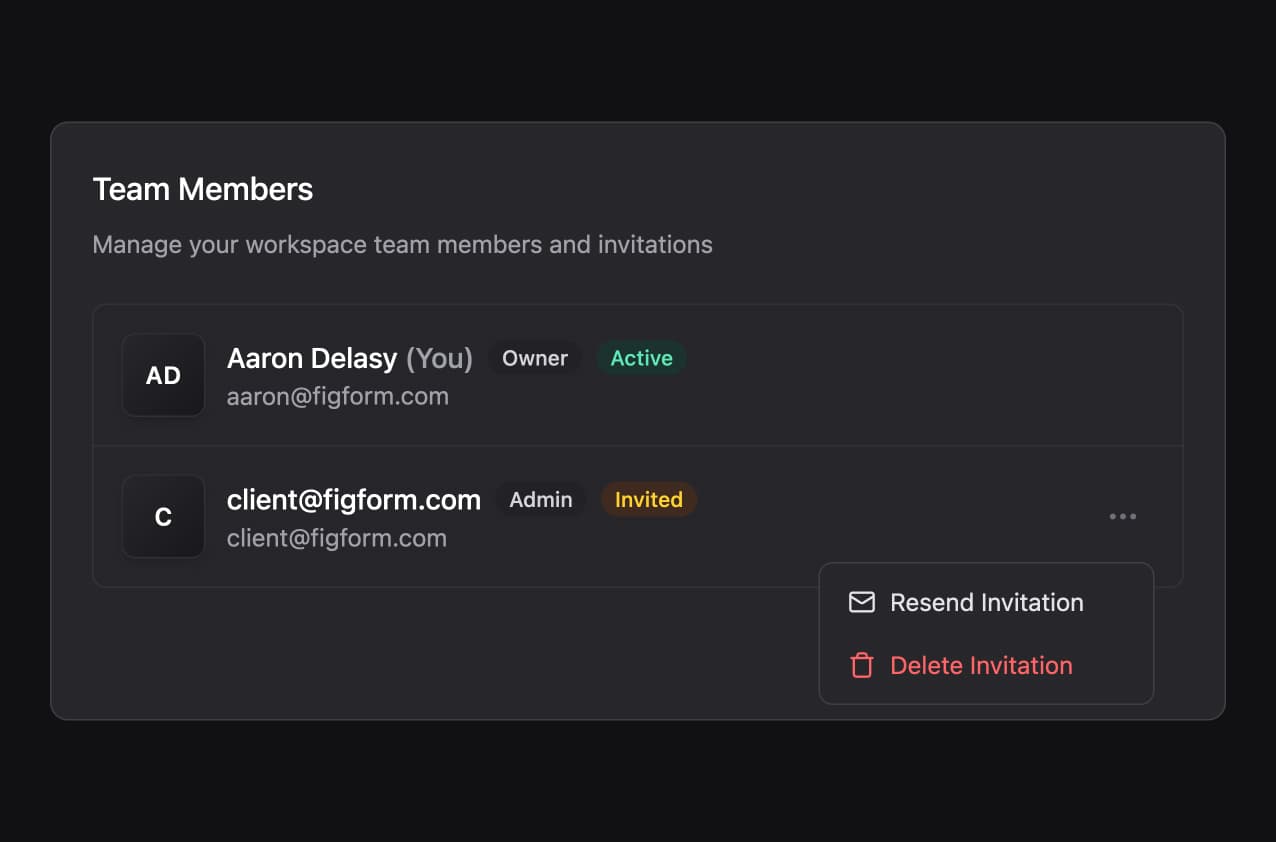
If someone hasn't received their invitation email or the invitation expired, you can resend it. Click the three-dot menu next to their name and select Resend Invitation.
FigForm sends a fresh invitation email with a new 7-day expiration period.
Deleting Invitations
If you invited someone by mistake or they no longer need access, you can delete the invitation before they accept it. Click the three-dot menu next to their name and select Delete Invitation.
This cancels the invitation and removes them from your Team Members list. They won't be able to join using the old invitation link.
Removing Active Members
Once someone has accepted their invitation and become an active member, you can remove them from the workspace if needed.
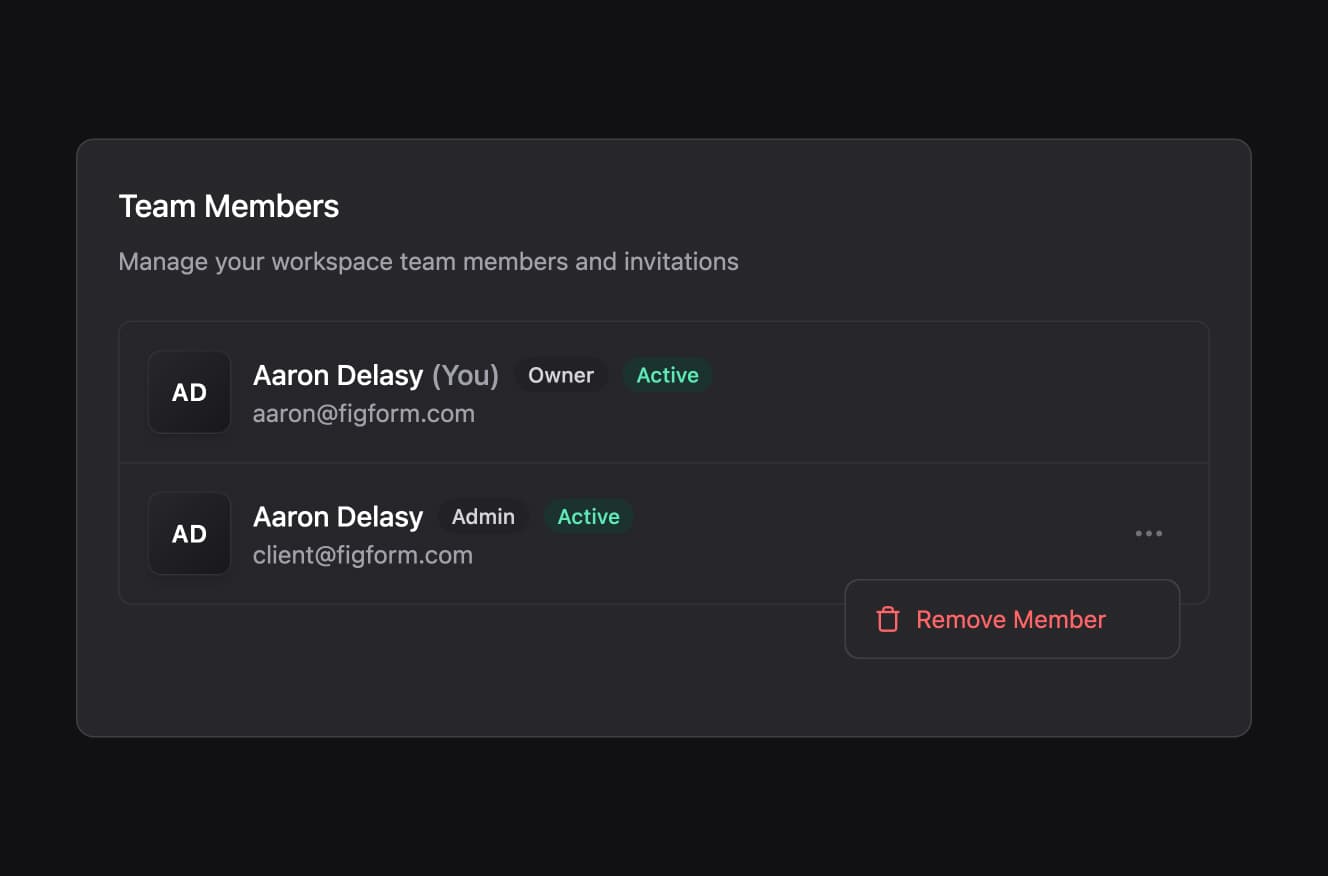
Click the three-dot menu next to their name and select Remove Member. You'll see a confirmation dialog warning you that they'll immediately lose access to all forms and data.
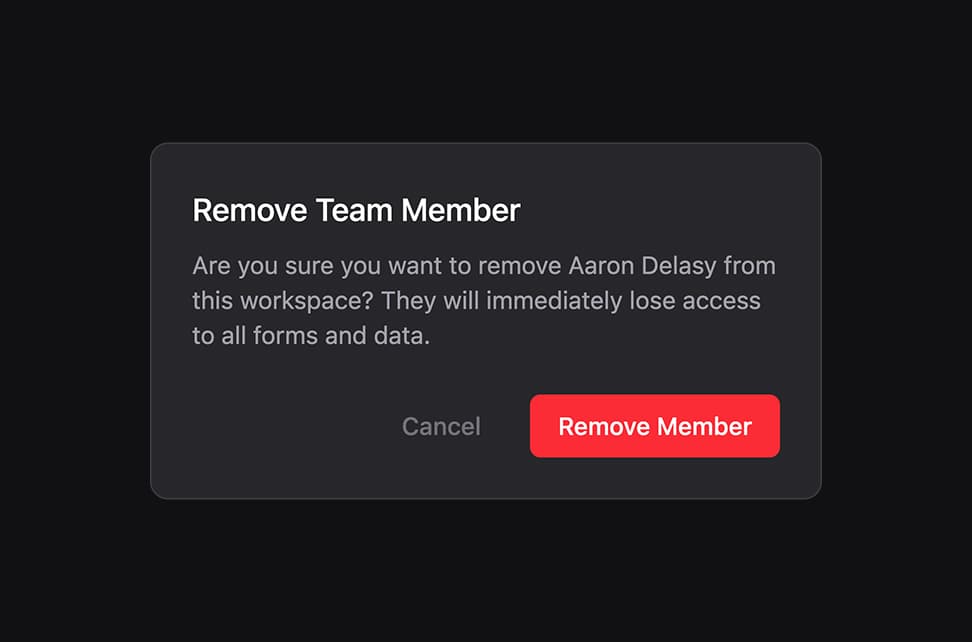
Click Remove Member to confirm. The person is immediately removed from the workspace and loses all access.
Important: Removing a member doesn't send them a notification. If you need to communicate with them about the removal, do so separately.
Start Collaborating Today
Team members make it easy to work together on forms without sharing passwords or juggling multiple accounts. Invite your colleagues, assign them admin access, and start building forms together in a shared workspace.
Every workspace starts with the owner, and you can add as many team members as your plan allows.
Ready to invite your team?
Sign up for FigForm and start collaborating with your team today.