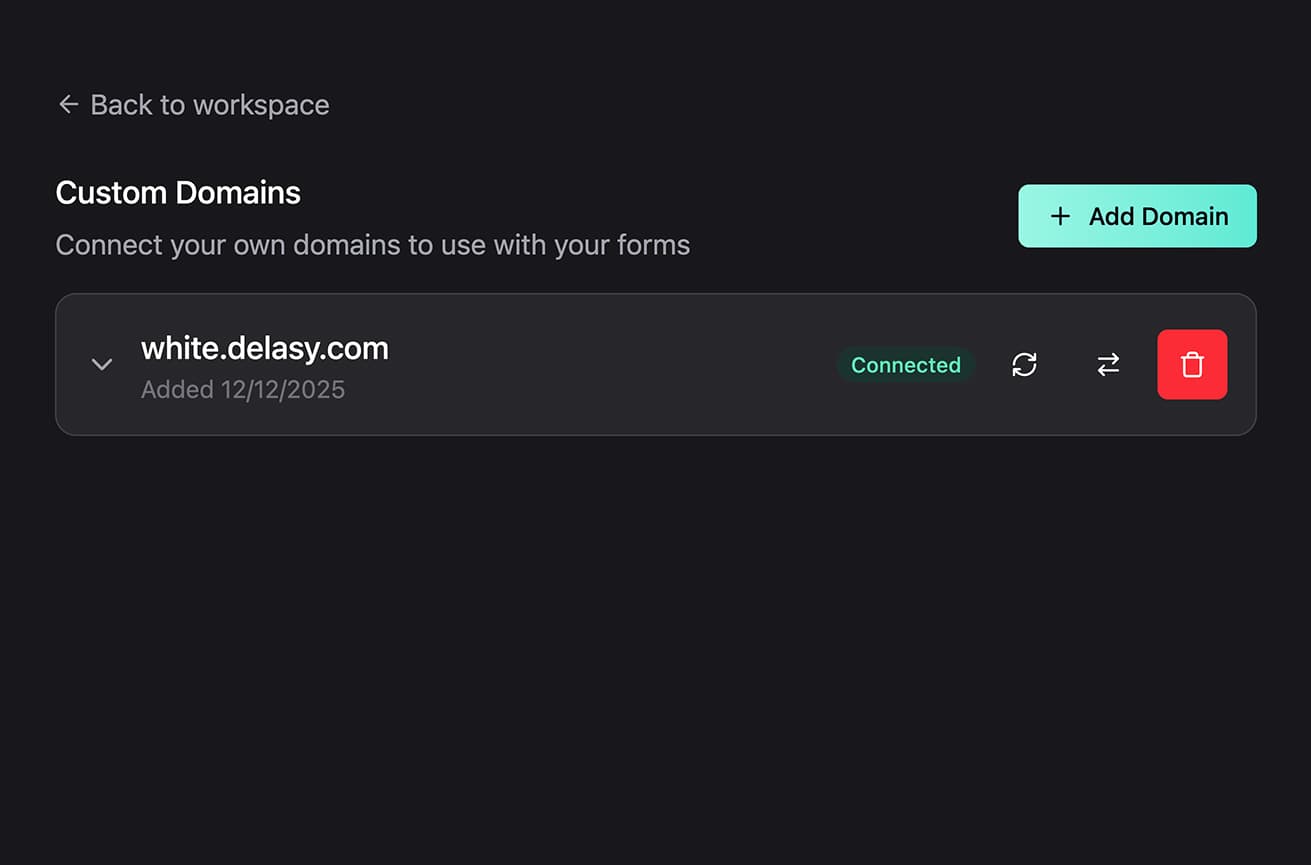
What Are Custom Domains?
Custom domains let you host your FigForm forms on your own domain instead of the default FigForm URLs. When you connect a custom domain, your forms can be accessed at URLs like https://forms.yourdomain.com/f/newsletter instead of https://figform.com/f/FORM-ID.
This gives you complete control over your branding and creates a more professional, trustworthy experience for your users. Your forms stay on your domain, reinforcing your brand at every touchpoint.
Custom domains are perfect for agencies white-labeling forms for clients, SaaS companies maintaining brand consistency, or any business that wants forms to feel like a native part of their website.
How to Add a Custom Domain
Step 1: Open the Domains Page
From your workspace page, click the Domains button in the top navigation (next to the Members button). This opens the Custom Domains page where you can manage all your domains.
If you don't have any domains yet, you'll see an empty state inviting you to add your first domain.
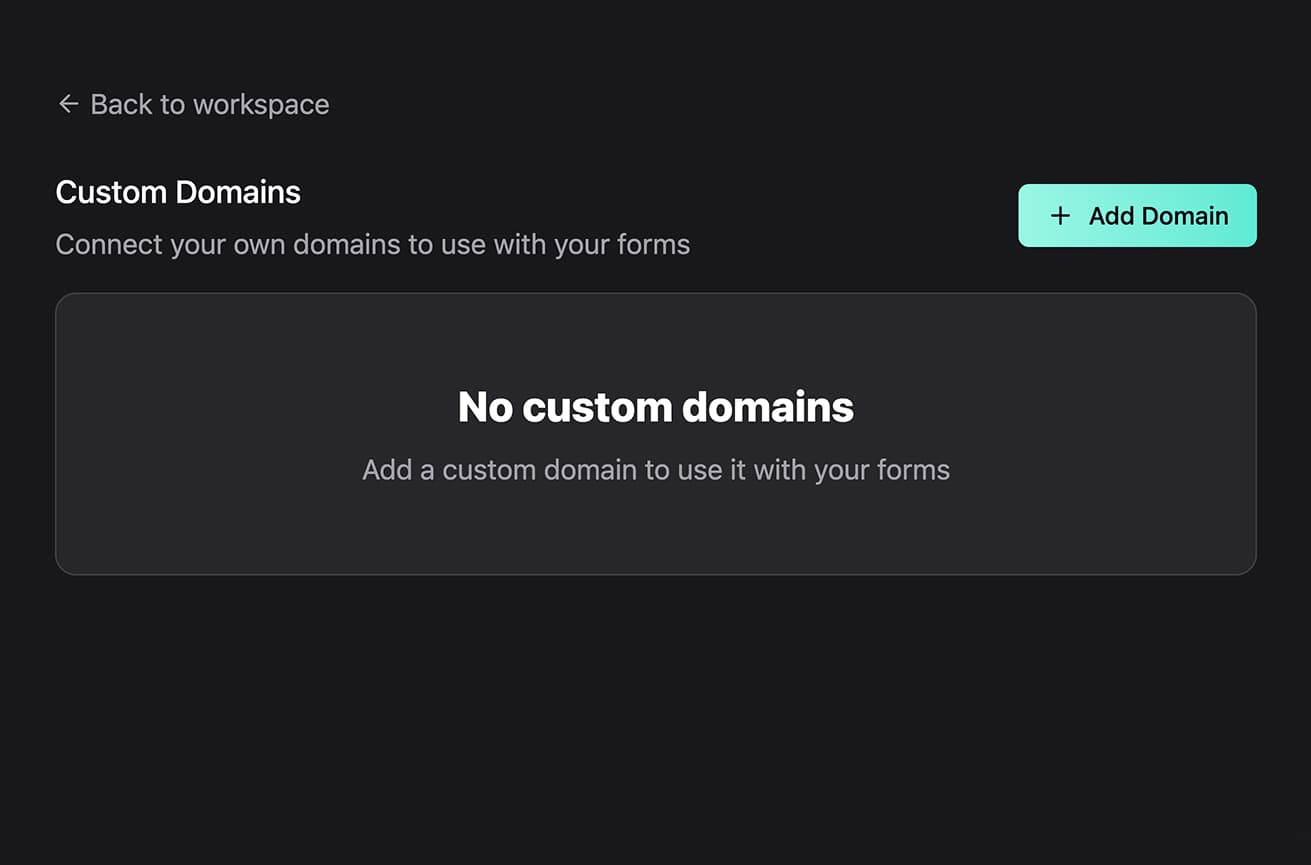
Step 2: Click Add Domain
Click the Add Domain button in the top right corner. A modal appears asking for your domain name.
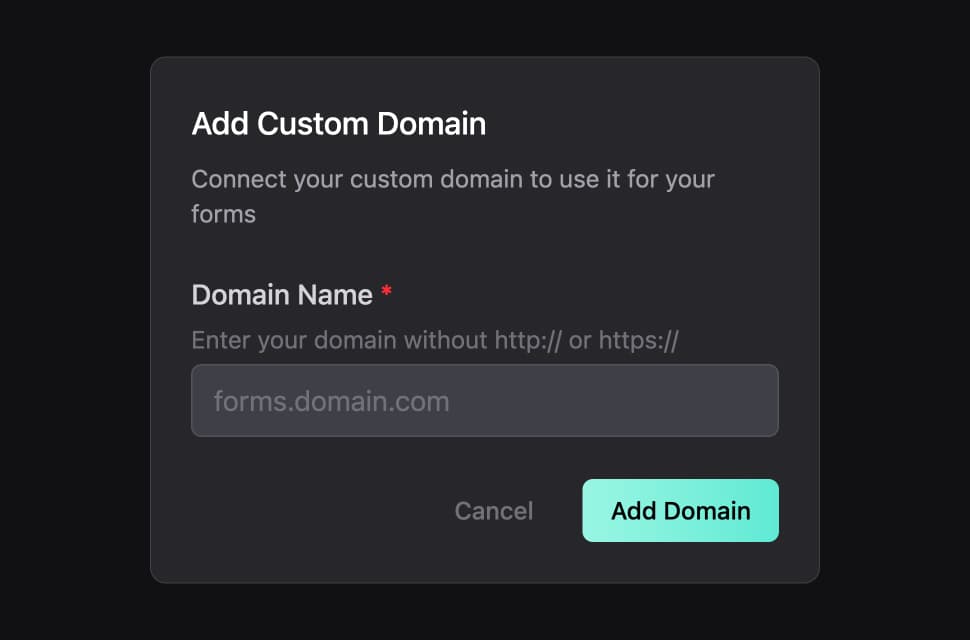
Step 3: Enter Your Domain Name
Enter your domain name without the http:// or https:// prefix.
You can use a root domain or a subdomain. Most users choose a subdomain like forms.yourdomain.com to keep their main site separate from their forms.
Click Add Domain to continue.
Ready to design a form?
Start creating stunning forms using an intuitive editor with a free account.
Start designingConfigure DNS Settings
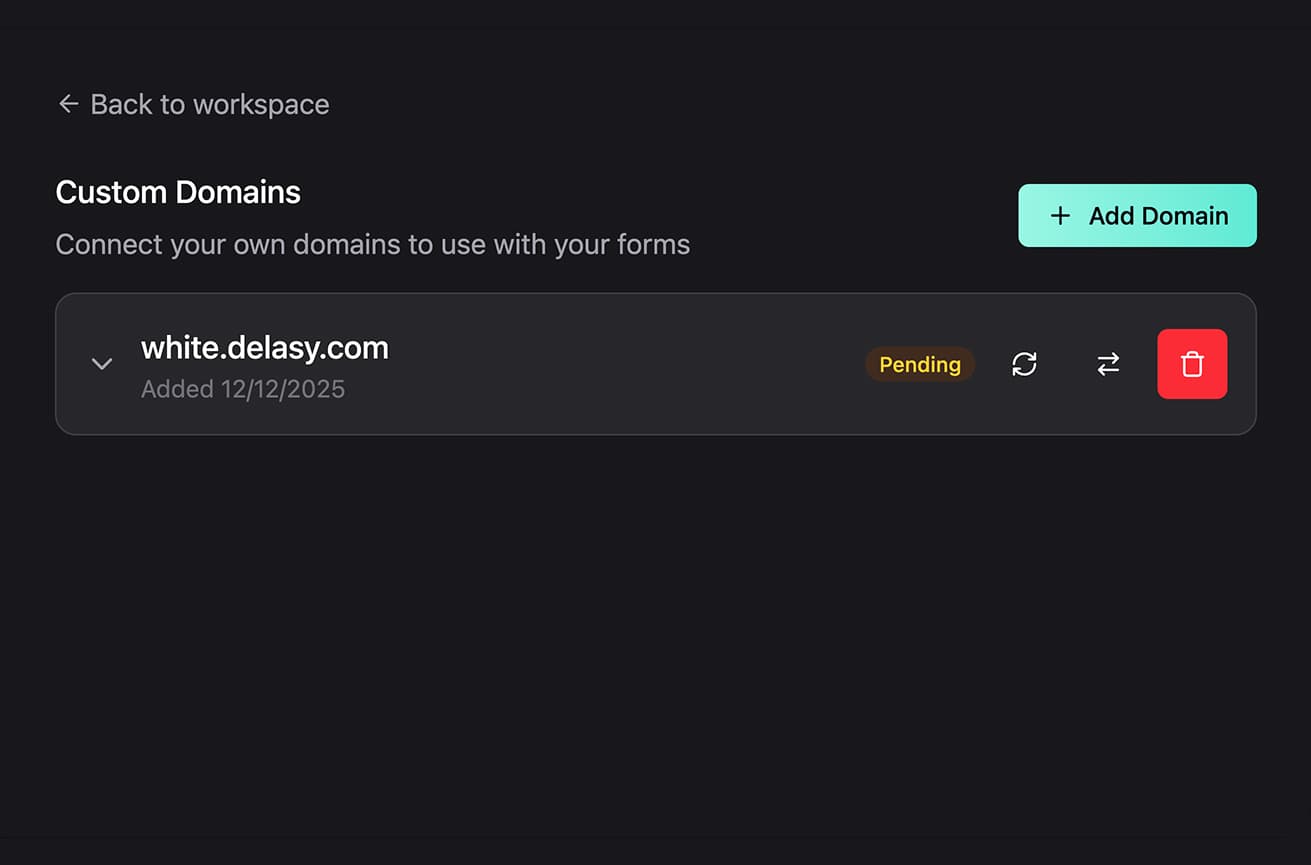
After adding your domain, it appears in your domains list with a Pending status. Click the domain row to expand it and see the DNS configuration instructions.
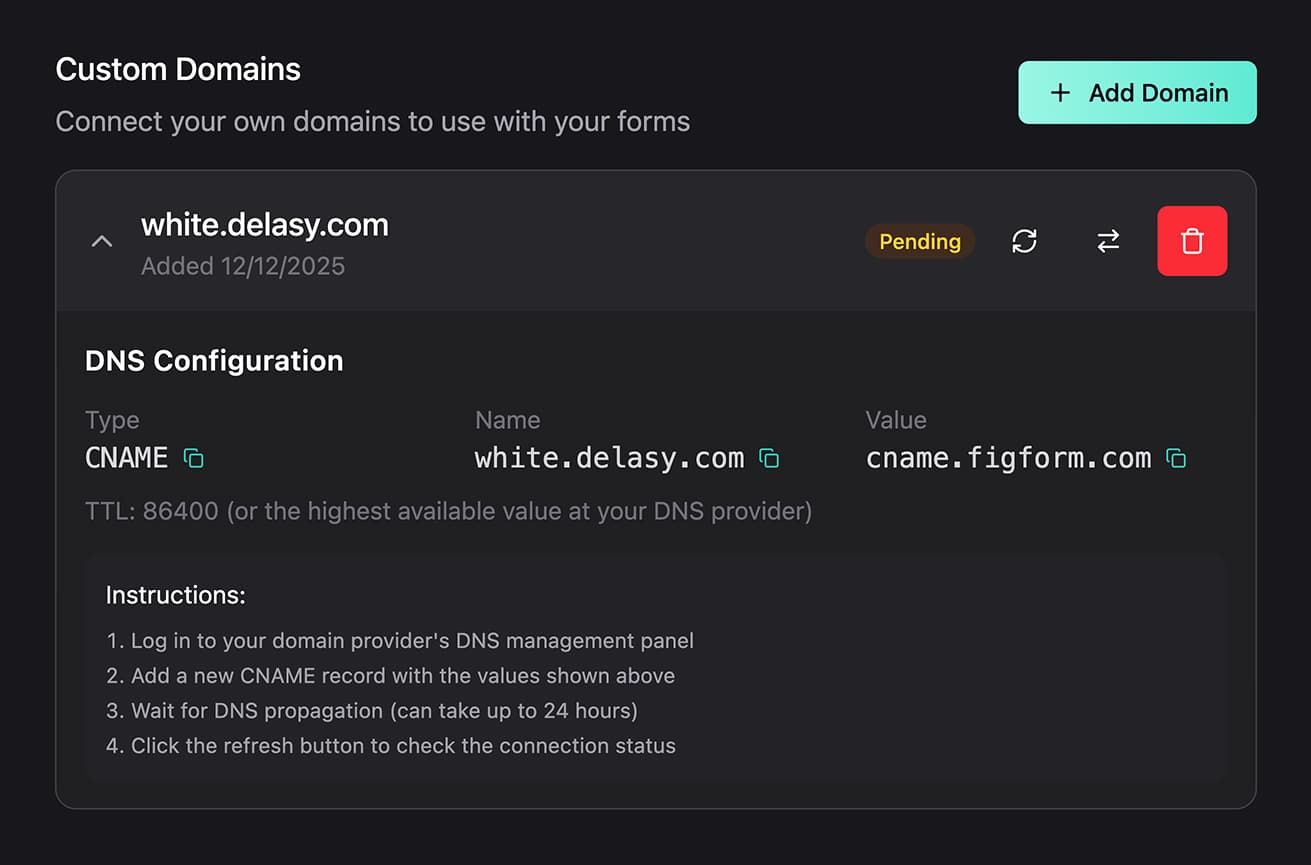
DNS Configuration Steps
FigForm provides you with a CNAME record that you need to add at your DNS provider:
Type: CNAME
Name: Your domain (e.g., forms.yourdomain.com)
Value: cname.figform.com
TTL: 86400 (or the highest value your provider allows)
Setting Up the CNAME Record
- Log in to your domain provider's DNS management panel (GoDaddy, Cloudflare, Namecheap, etc.)
- Add a new CNAME record with the values shown in FigForm
- Wait for DNS propagation - This can take up to 24 hours, but usually completes within a few minutes
- Click the refresh button in FigForm to check the connection status
FigForm automatically handles SSL certificate provisioning through Cloudflare once your DNS is configured correctly. You don't need to manage certificates yourself.
Understanding Domain Status
Your custom domain can have one of three statuses:
Pending (Orange)
The domain is added but the DNS configuration isn't complete yet. This means:
- The CNAME record hasn't been added to your DNS provider
- DNS hasn't propagated yet (can take up to 24 hours)
- The SSL certificate is still being provisioned
Click the refresh button periodically to check if the connection has been established.
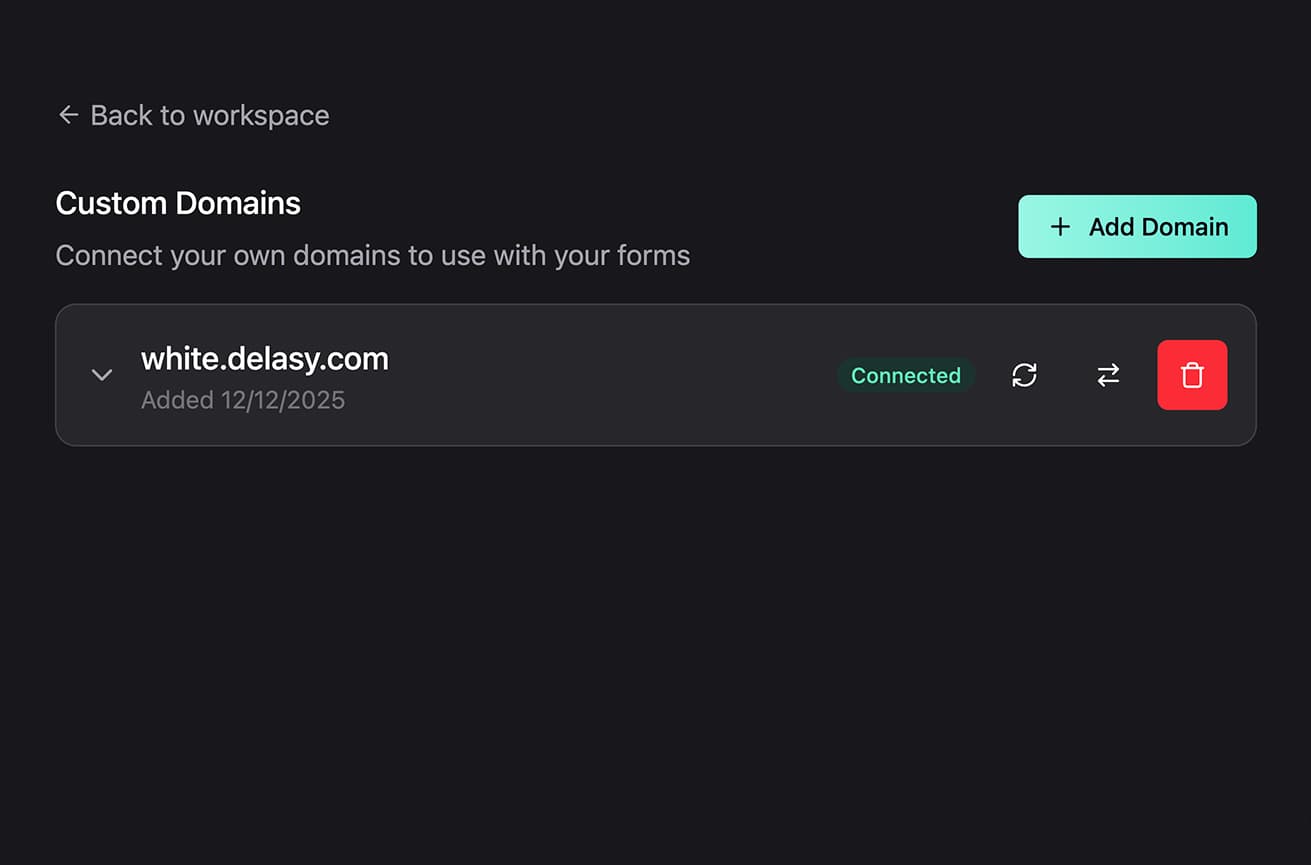
Connected (Green)
The domain is fully configured and working correctly. Forms mapped to this domain are accessible at their custom URLs. SSL certificates are active, and everything is ready to go.
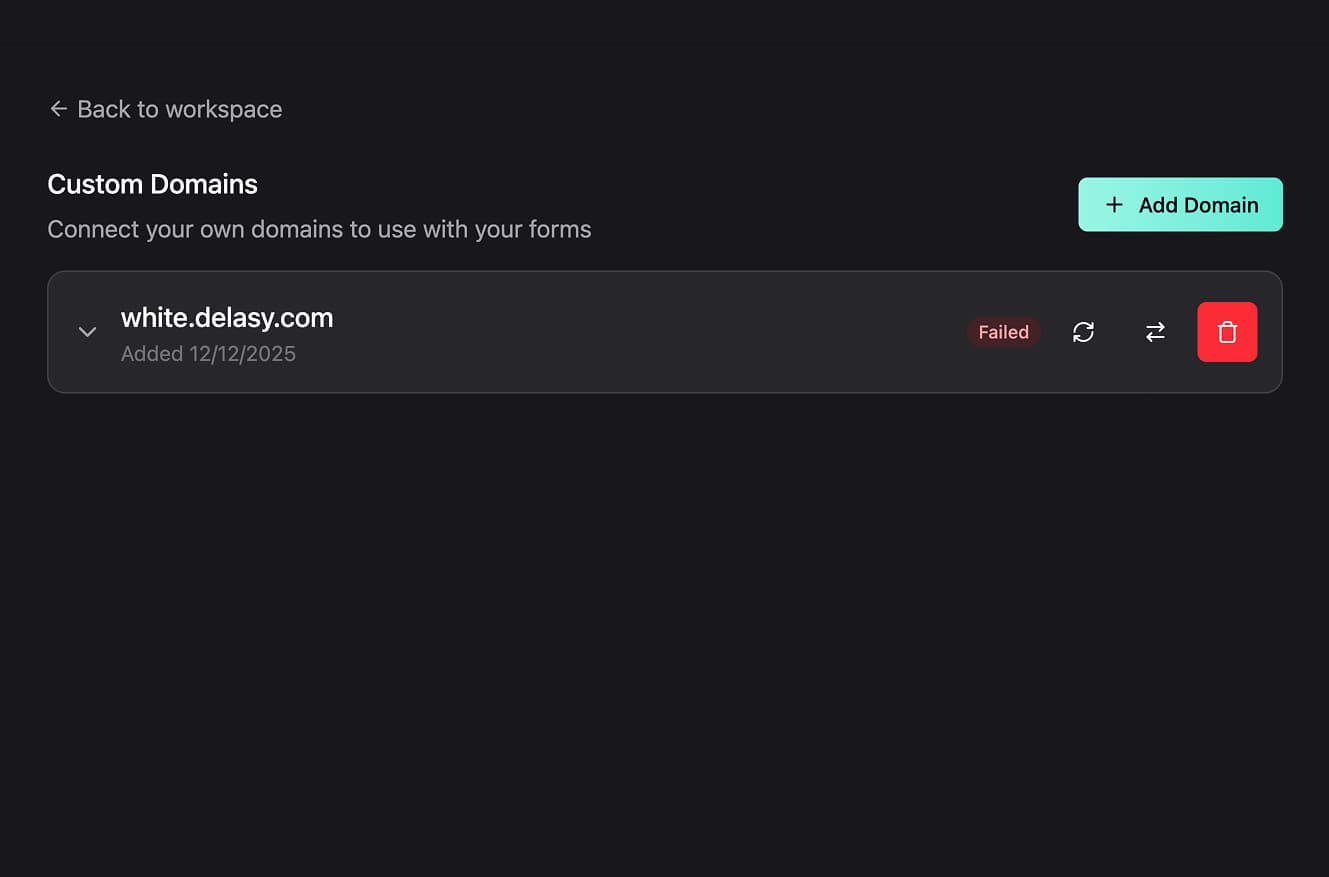
Failed (Red)
The domain was previously connected but is no longer working. This usually means:
- The CNAME record was removed or modified incorrectly
- DNS settings changed at your provider
- The domain expired or transferred to a new registrar
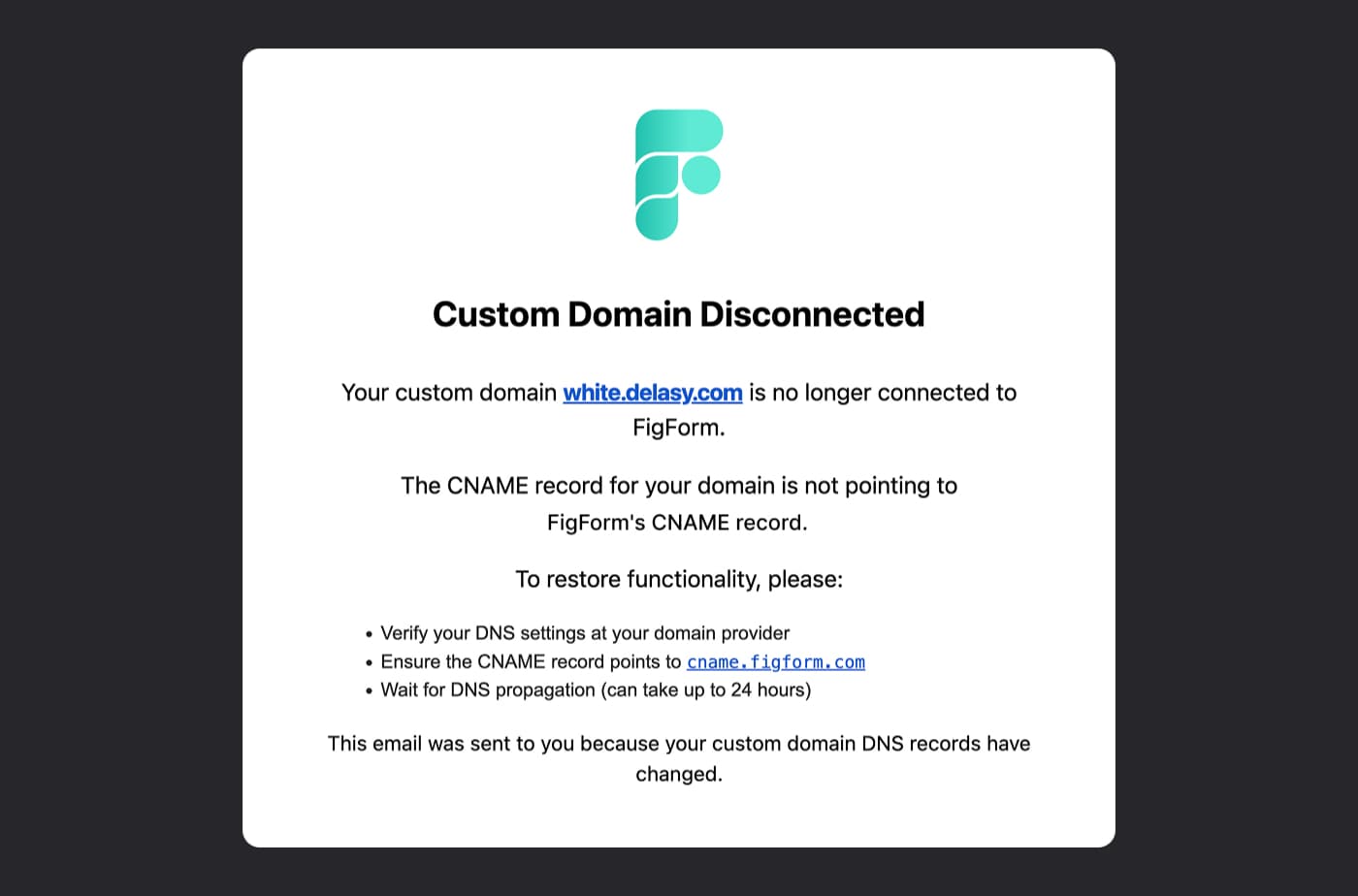
When a domain fails, FigForm sends an email notification to the workspace owner so you can take immediate action.
Mapping Forms to Your Domain
Once your domain status is Connected, you can map forms to custom URLs on that domain.
Step 1: Open Form Mappings
Click the mapping icon (two arrows) next to your connected domain. This opens the Form Mappings modal.
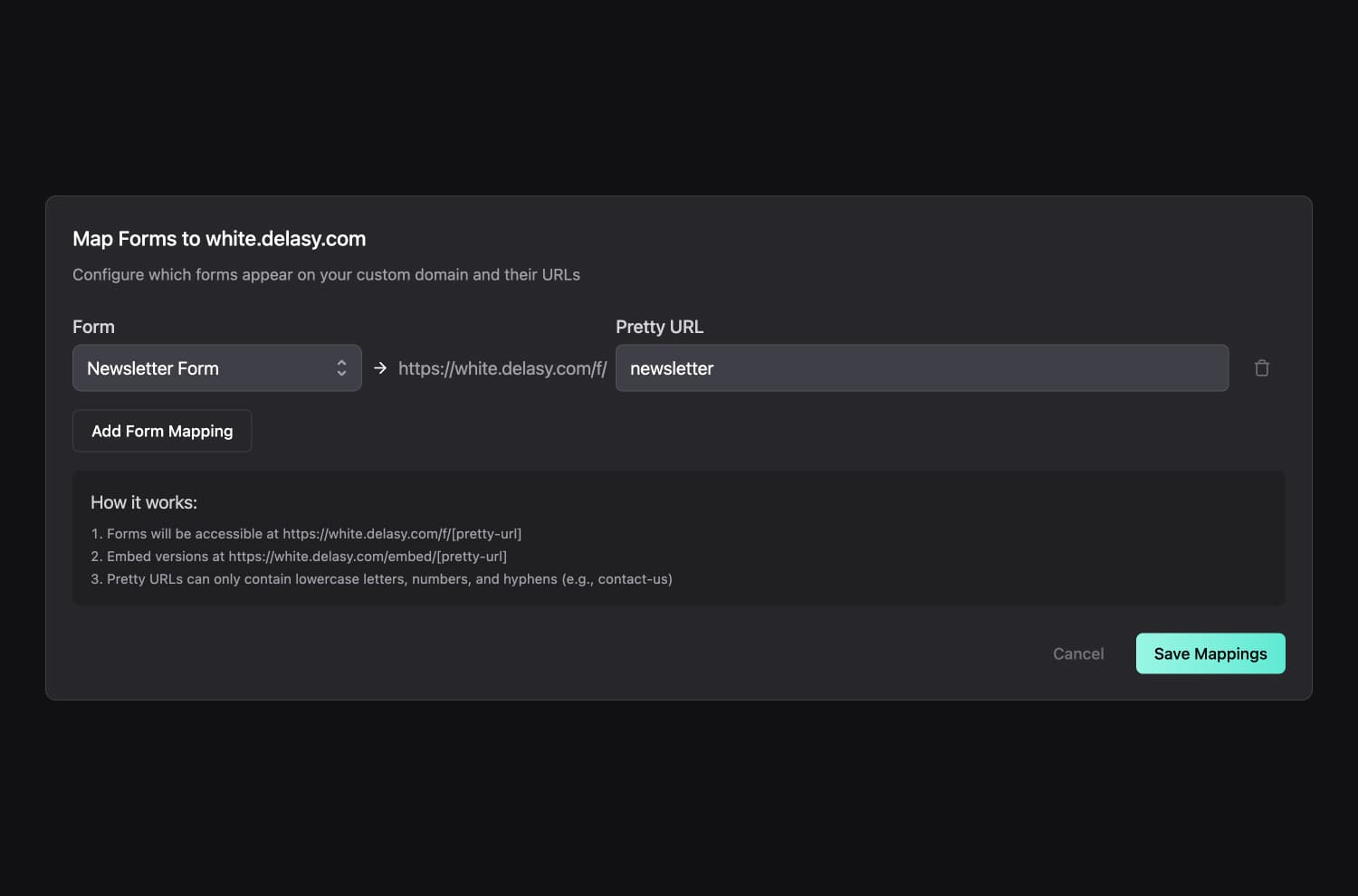
Step 2: Select a Form and Pretty URL
In the Form Mappings modal:
- Choose a form from the dropdown - Only forms in the current workspace are available
- Enter a pretty URL - This is the path that will be appended after
/f/or/embed/
For example, if you enter newsletter as the pretty URL:
- Widget version:
https://forms.yourdomain.com/f/newsletter - Embed version:
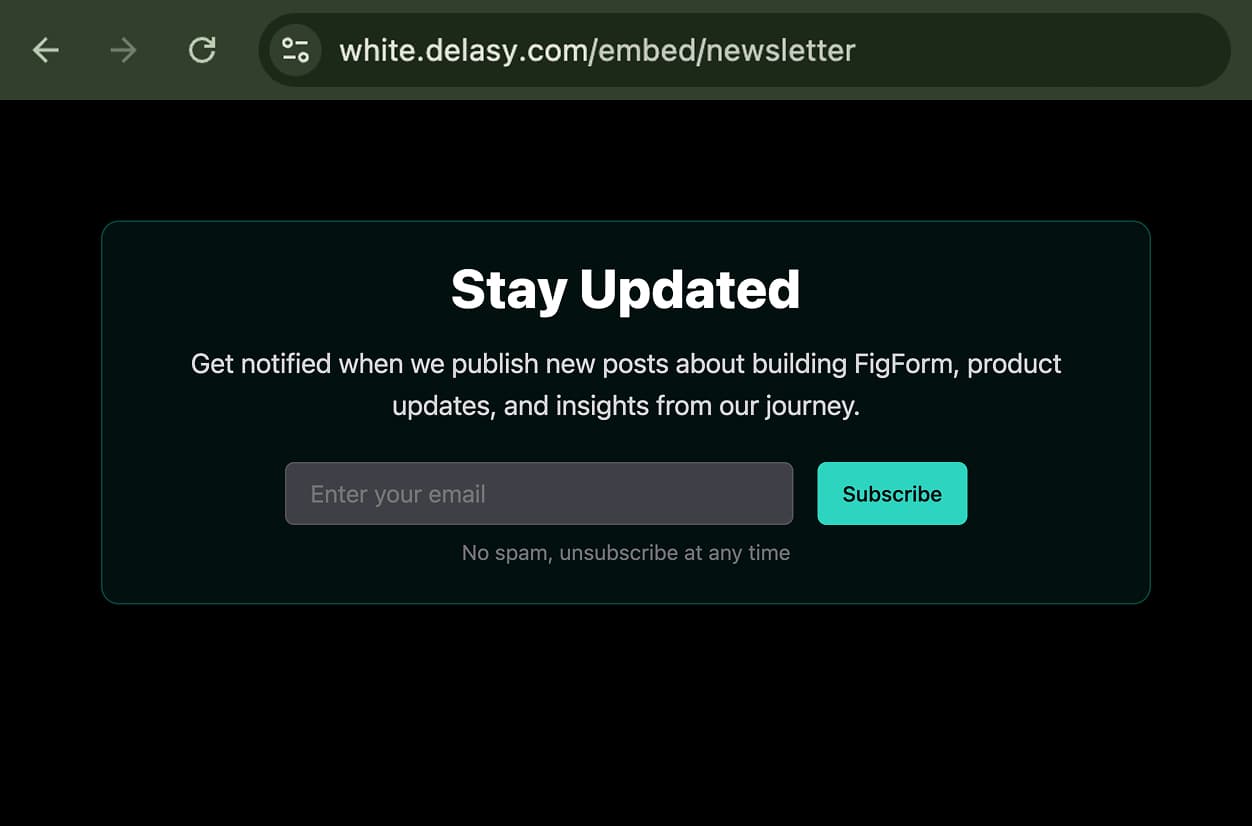
https://forms.yourdomain.com/embed/newsletter
Pretty URLs can only contain lowercase letters, numbers, and hyphens (e.g., contact-us, signup-2024).
Step 3: Add Multiple Mappings
Click Add Form Mapping to create additional mappings. You can map as many forms as you need to the same domain, each with its own unique pretty URL.
Step 4: Save Mappings
Click Save Mappings to apply your configuration. Your forms are now accessible at their custom URLs.
Ready to design a form?
Start creating stunning forms using an intuitive editor with a free account.
Start designingThe Visitor Experience
When someone visits your custom domain, here's what they see:
Mapped Forms
When visitors access a URL that matches a form mapping (e.g., https://forms.yourdomain.com/f/newsletter), they see your form displayed on that page. The form looks and behaves exactly as it does on FigForm's default URLs, but now it's on your branded domain.
Domain Homepage
If someone visits the root of your custom domain without a specific form path (e.g., https://forms.yourdomain.com), they see a generic "Powered by FigForm" page.
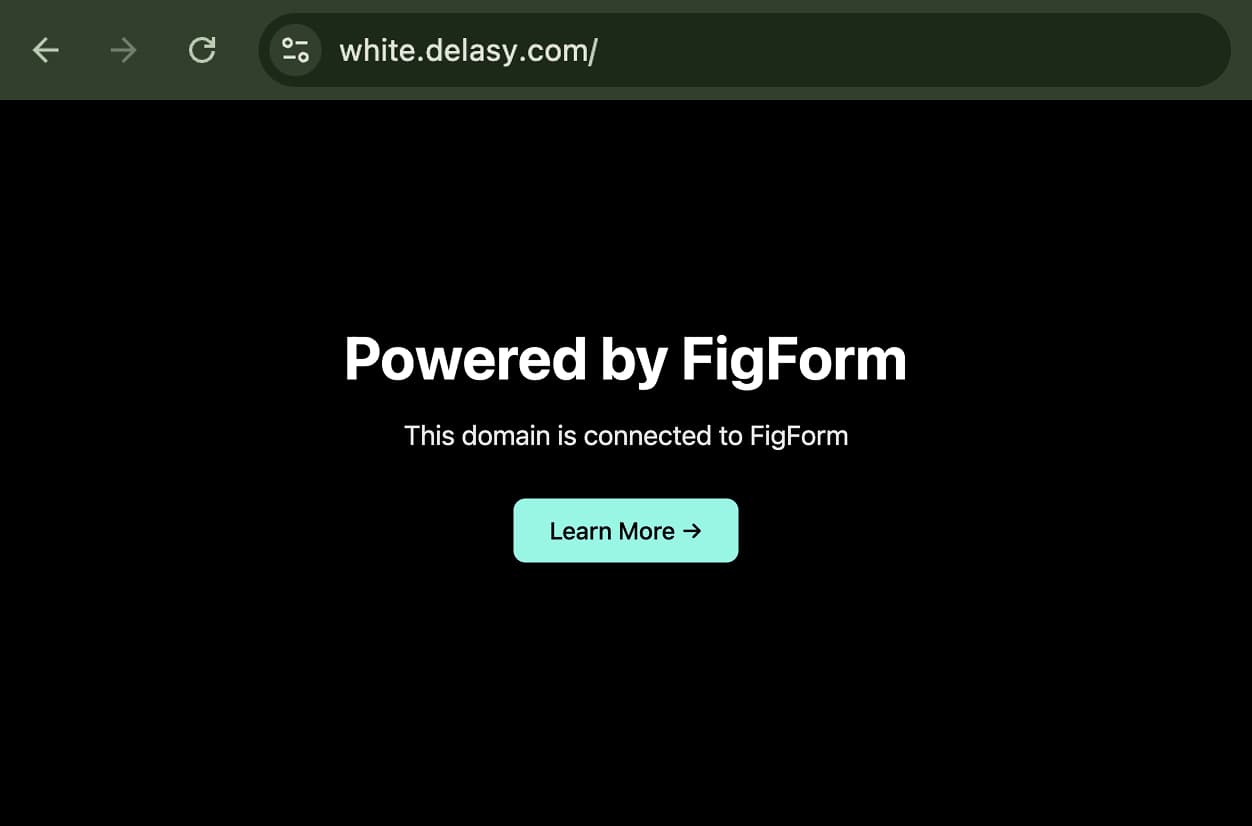
This landing page includes a "Learn More" button that links to FigForm's website.
Asset Delivery
All form images are served from cdn.figform.com, not from your custom domain. This ensures fast, reliable loading through FigForm's CDN infrastructure.
Managing Your Domains
Refreshing Domain Status
If you've just configured your DNS or made changes, click the refresh button next to your domain to check the latest status. FigForm queries your DNS records and updates the status accordingly.
Status checks happen automatically in the background, but the manual refresh button gives you immediate feedback.
Deleting a Domain
If you no longer need a custom domain, click the delete button (trash icon) next to the domain name.
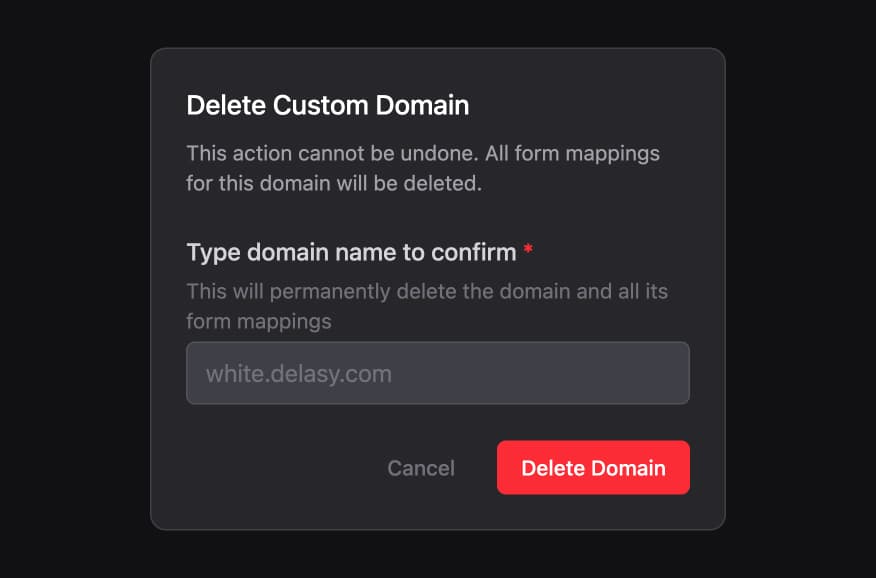
You'll see a confirmation modal warning you that:
- This action cannot be undone
- All form mappings for this domain will be deleted
- You need to type the domain name to confirm
Once deleted, forms will no longer be accessible at that domain's URLs. If users try to visit the old URLs, they'll see an error page.
Domain Limits
The Business plan allows up to 10 custom domains per workspace. If you try to add an 11th domain, you'll see a message prompting you to contact sales for Enterprise pricing.
Most teams find that 10 domains is more than enough - you can map unlimited forms to each domain using different pretty URLs.
Why Use Custom Domains?
Professional Branding
Your forms appear on your domain, not FigForm's. This builds trust with users who see a consistent brand experience throughout their journey.
White Label Solution
Agencies can host client forms on the client's domain without any FigForm branding visible in the URL. Perfect for maintaining the agency's invisible hand.
Better Trust Signals
Users are more likely to fill out forms on domains they recognize. A form at yourbusiness.com/contact feels more legitimate than a form on a third-party domain.
SEO Benefits
Forms on your domain can contribute to your site's overall SEO footprint, keeping traffic and engagement metrics on your domain.
Consistent User Experience
Keep users on your domain throughout their entire journey - from landing on your site to submitting a form to receiving confirmation emails.
Start Using Custom Domains Today
Custom domains give you complete control over how users experience your forms. Connect your domain, map your forms, and provide a fully branded experience that builds trust and reinforces your professional image.
Ready to brand your forms?
Brand your forms and connect your custom domain today.