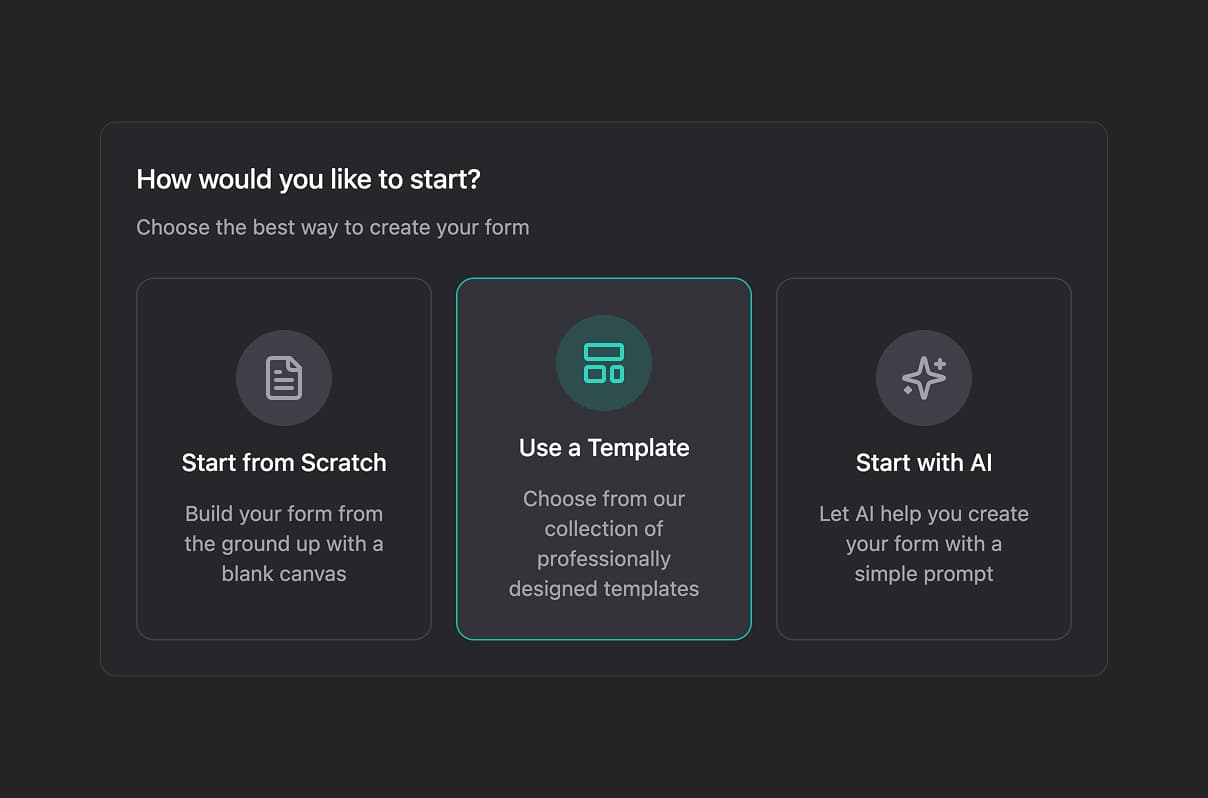
What Is the Starting Options Modal?
When you create a new form in FigForm and open the Design page for the first time, you're greeted with a modal window that asks: "How would you like to start?"
This modal presents three paths to begin building your form:
- Start from Scratch - Build your form from the ground up with a blank canvas
- Use a Template - Choose from professionally designed form templates
- Start with AI - Let AI help you create your form with a simple prompt
Each option is designed to match different workflows and preferences. Whether you want complete creative control, need inspiration from existing designs, or want AI guidance, FigForm has you covered.
Why Three Starting Options?
Not everyone builds forms the same way. Some designers prefer a blank canvas to express their creative vision without constraints. Others want a head start with a proven template they can customize. And some want conversational guidance from AI to explore possibilities.
FigForm gives you the flexibility to choose your starting point based on your current project, experience level, and time constraints.
The modal appears once when you first open the Design page - after you make your choice, you're taken directly into the editor. You can always access templates later through the templates page, but this modal ensures you never face a blank screen wondering where to begin.
Start from Scratch
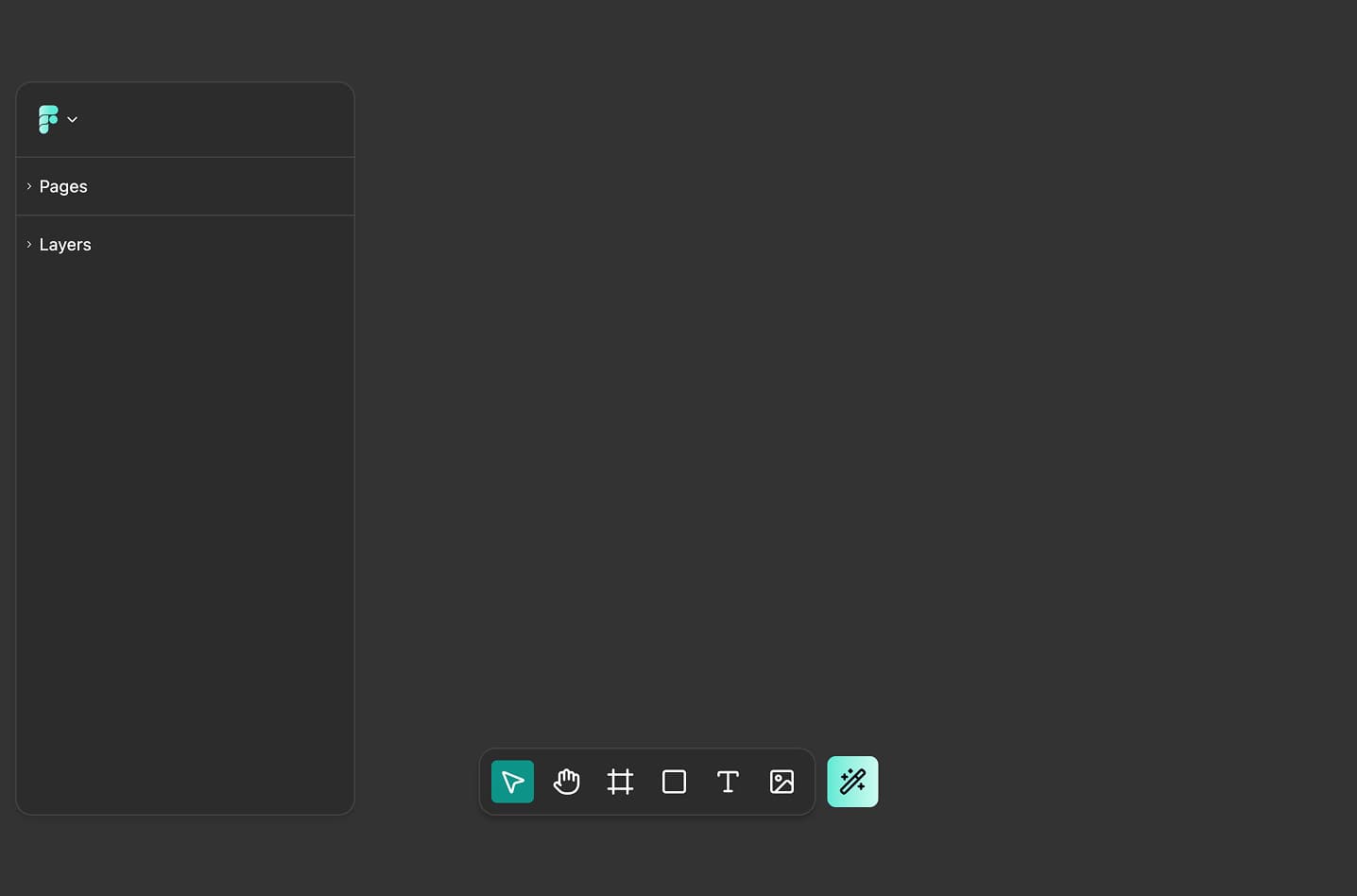
The first option, Start from Scratch, opens the FigForm editor with a completely blank canvas. This is perfect when you:
- Have a clear vision for your form's design
- Want to build something unique from the ground up
- Prefer complete creative freedom without starting constraints
- Are experienced with form builders and know exactly what you need
Click this option and you'll land directly in the editor with an empty canvas, ready to add your first element. The toolbar, layers panel, and properties panel are all available - you're in full control from the very first click.
There's no template structure to work around, no existing elements to delete, and no predefined styling to override. Just you, the canvas, and unlimited possibilities.
Start with AI
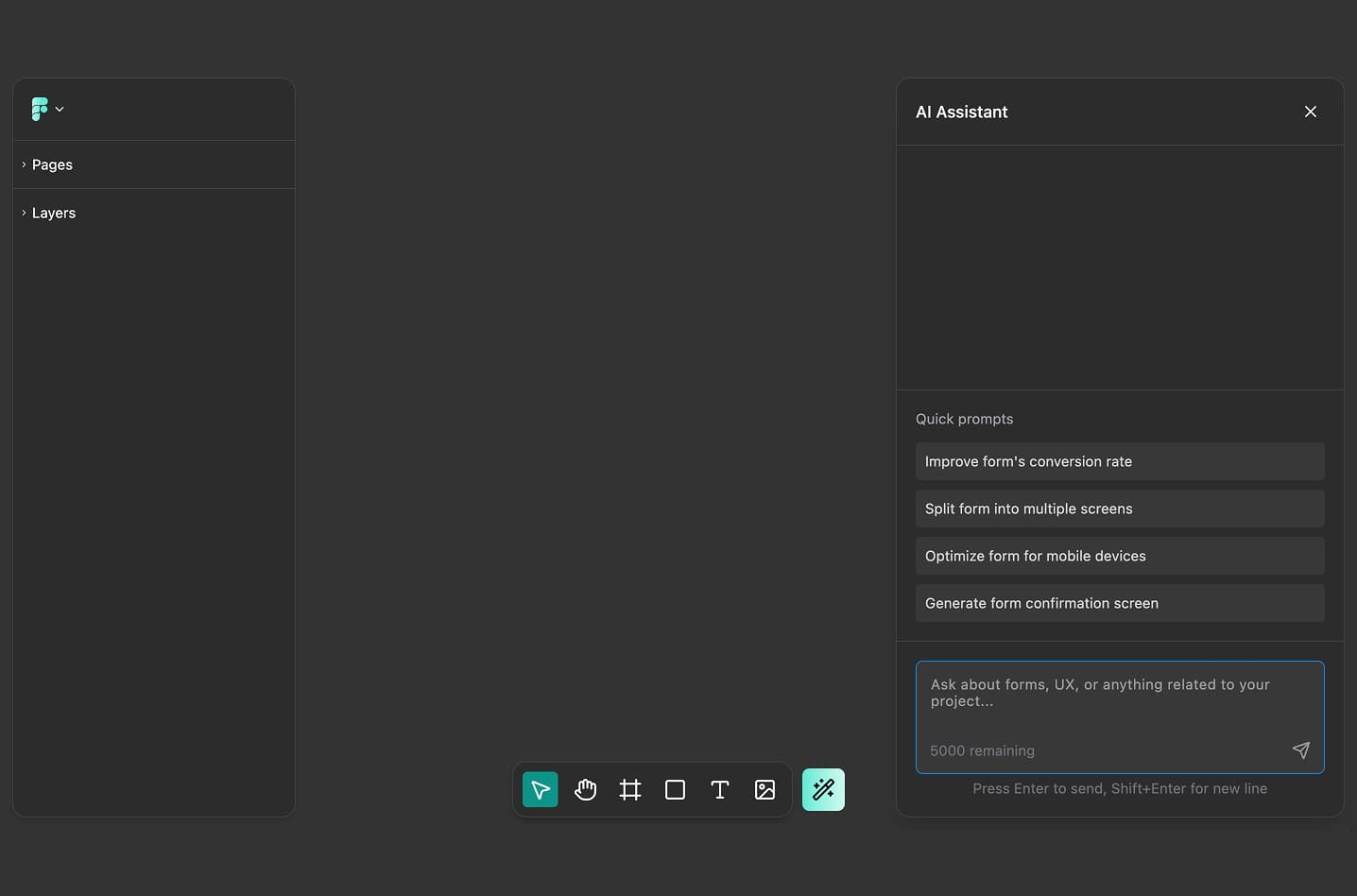
The second option, Start with AI, also opens the editor with a blank canvas - but with one key difference: the AI assistant chat panel opens automatically on the right side of the screen.
This option is ideal when you:
- Want conversational guidance while building your form
- Need help deciding what fields to include
- Want AI suggestions for layout, copy, and structure
- Prefer to describe what you want and let AI help implement it
The AI assistant can help you add elements, suggest field types, write copy, organize your form structure, and answer questions as you build. You still have full manual control over the canvas - the AI is there to assist, not take over.
How It Works
When you select "Start with AI", the editor loads and the AI chat panel appears immediately. You can start chatting right away:
- "I need a contact form for my agency website"
- "Add an email field with validation"
- "What fields should I include for a job application form?"
- "How do I make this form look more professional?"
The AI responds with suggestions, adds elements to your canvas when requested, and guides you through the building process. You can minimize the chat panel at any time and continue building manually.
Note: Detailed information about the AI assistant's capabilities and features is covered in separate documentation. This article focuses on the starting options modal itself.
Ready to design a form?
Start creating stunning forms using an intuitive editor with a free account.
Start designingUse a Template
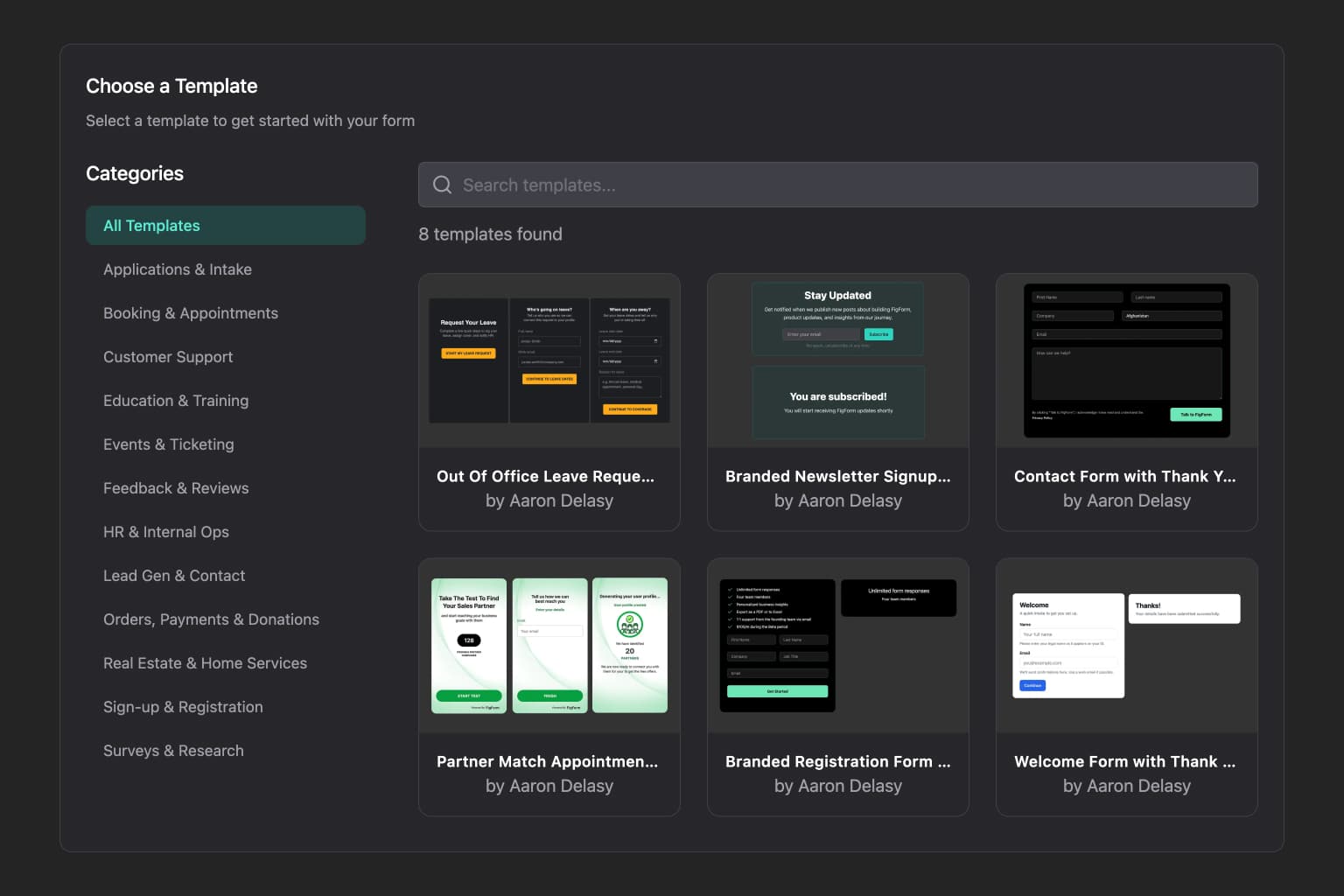
The third option, Use a Template, opens a completely different modal: the template browser. This is your gateway to FigForm's library of professionally designed form templates.
This option is perfect when you:
- Want to start with a proven, professional design
- Need inspiration for structure and layout
- Want to save time on initial setup
- Plan to customize an existing design rather than start from zero
The template browser is the primary place to discover and apply templates when starting a new form. While you can also visit the templates page at figform.com/templates, the template browser within the starting modal gives you immediate access without leaving the editor context.
Previewing Templates
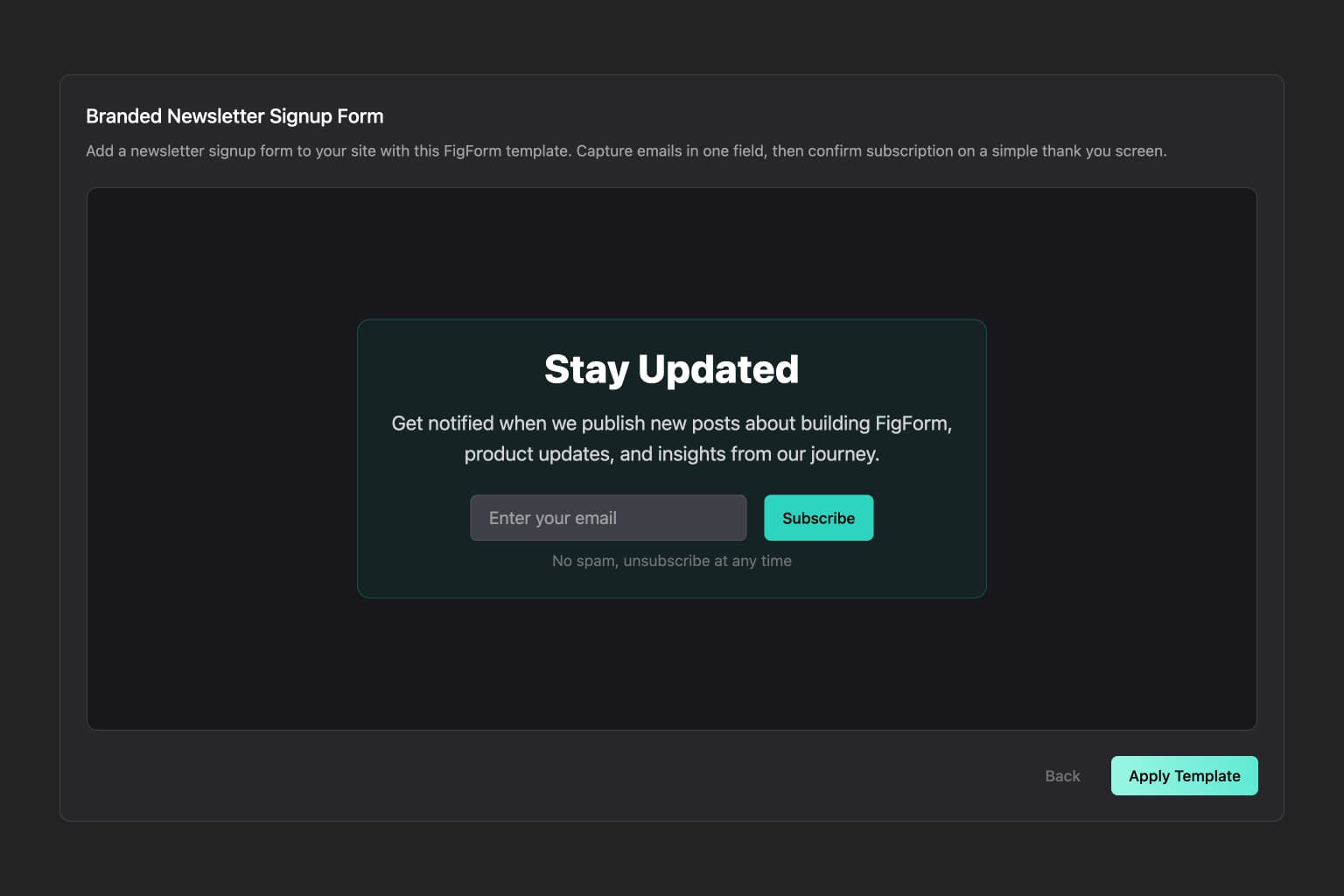
Click on any template card to see a full preview. The preview modal displays:
- Full template design - See exactly what the form looks like before applying it
- Template name and description - Understand the template's purpose
- Back button - Return to the template browser to keep looking
- Apply Template button - Load this template onto your canvas
You can navigate back and forth between the template browser and individual previews as many times as you want. Browse templates, preview different options, go back, search for more - there's no rush to commit.
Applying a Template
When you find a template you like, click the Apply Template button at the bottom right of the preview modal.
FigForm loads the template onto your canvas, and the modal automatically closes. You're now in the editor with a fully designed form ready to be customized.
Remember: Once you apply a template, it's yours to modify completely. There are no restrictions or limitations on what you can change.

Start Building Your Form Today
The starting options modal is designed to meet you wherever you are in your form-building journey. Whether you're a designer who wants a blank canvas, a product manager who wants to start with a proven template, or someone who prefers AI guidance, FigForm adapts to your workflow.
Create a form, open the Design page, choose your starting option, and start building. Every form begins with this simple choice - and every choice leads to powerful, customizable forms.
Ready to build your form?
Sign up for free and choose how you want to start building today.