What Is Layer Duplication?
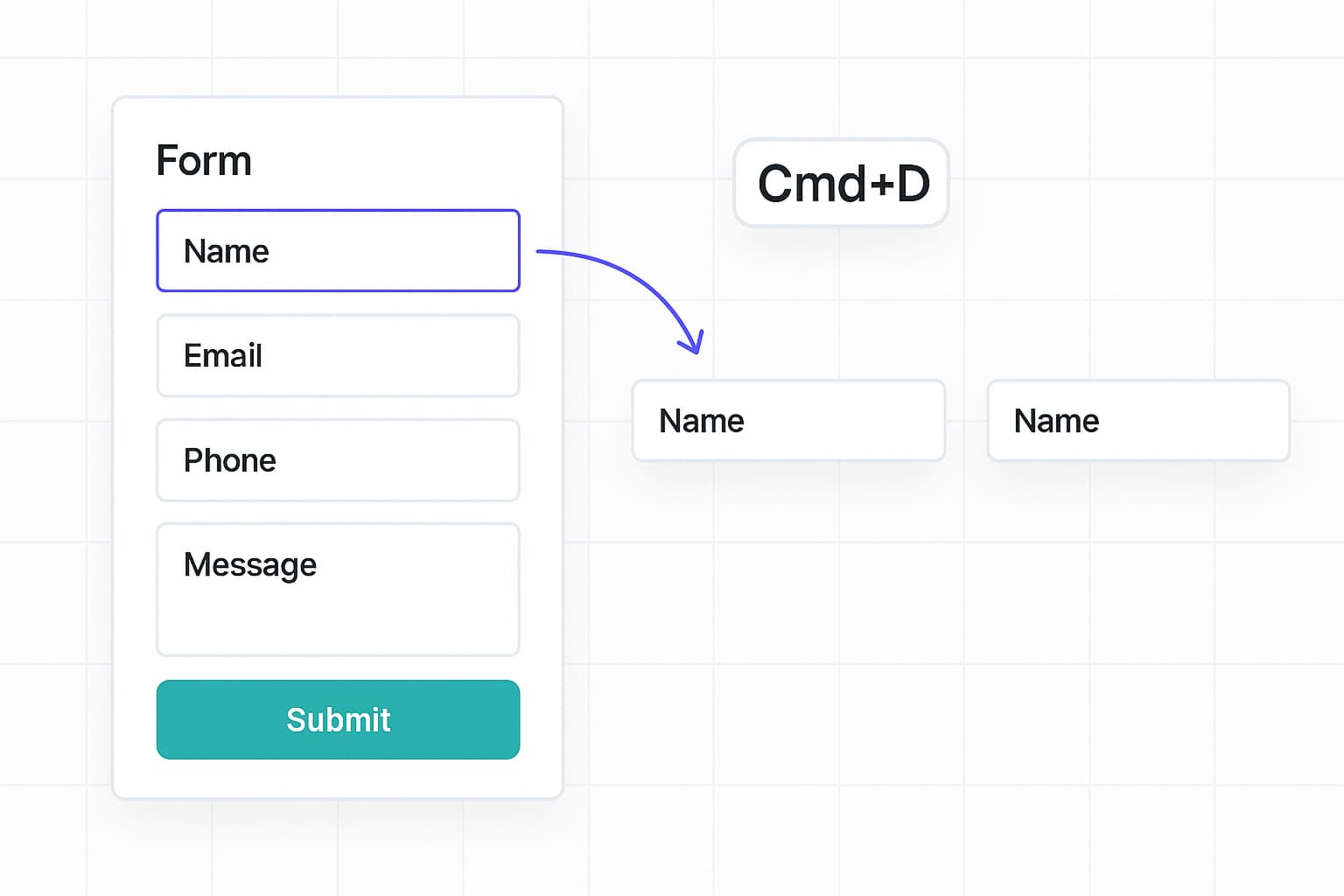
Layer duplication lets you create an exact copy of any form element with a single keyboard shortcut. Instead of manually recreating elements or using copy-paste, you can press CMD+D (Mac) or CTRL+D (Windows/Linux) to instantly duplicate your selection.
This works for single elements or multiple selections - duplicate a button, a text field, or an entire group of elements at once.
Why Use Duplication?
Speed Up Your Workflow
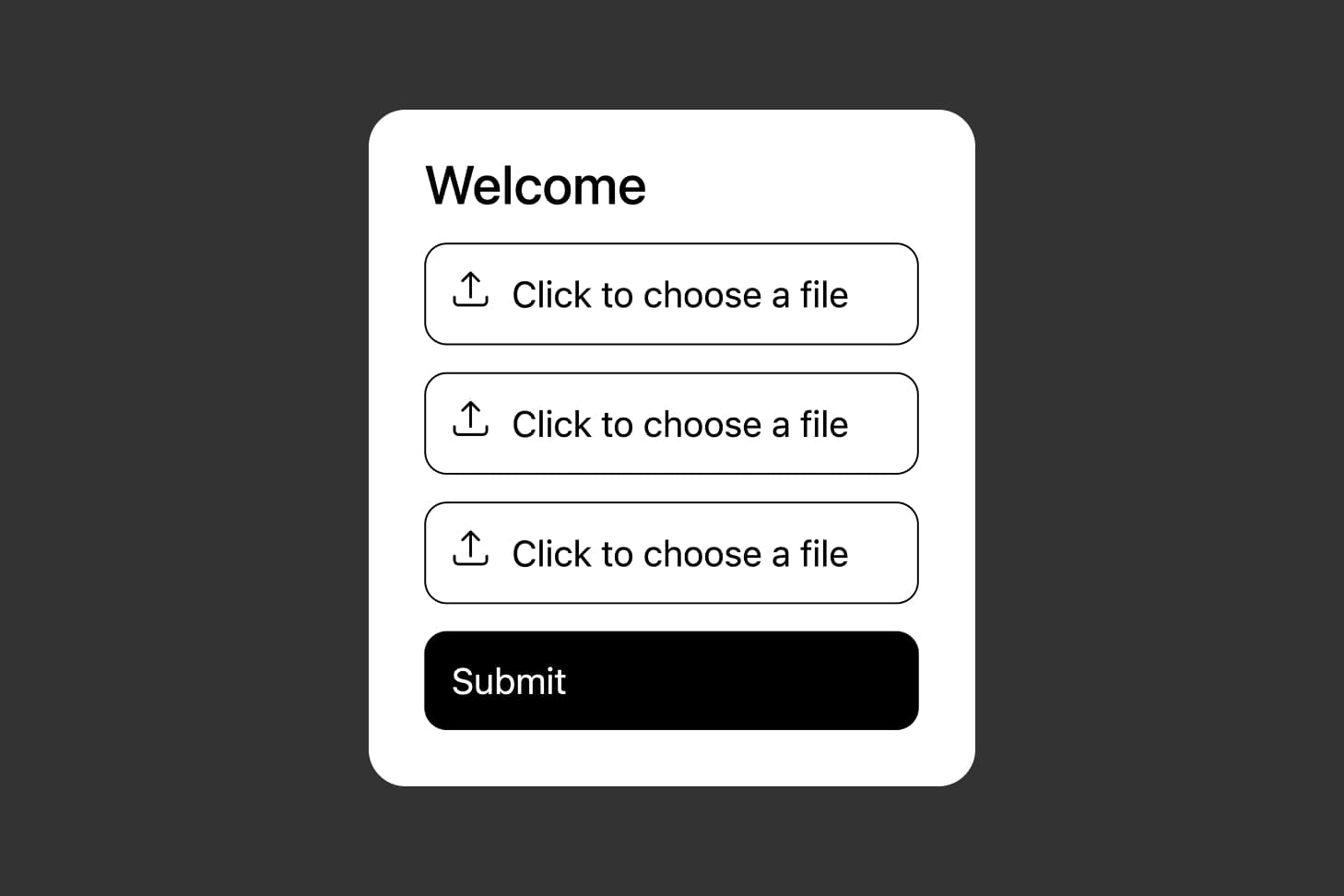
Building forms often requires creating similar elements - multiple text inputs, repeated buttons, or sets of fields that follow the same pattern. Duplication lets you create these elements in seconds instead of rebuilding them from scratch.
Maintain Consistency
When you duplicate an element, the copy inherits all the original's properties - colors, typography, spacing, border radius, validation rules, and more. This ensures visual consistency across your form without manual tweaking.
Iterate Faster
Experimenting with different layouts? Duplicate an element, move it to a new position, and compare the two options side by side. Keep what works best and delete the rest.
Ready to design a form?
Start creating stunning forms using an intuitive editor with a free account.
Start designingHow to Duplicate Layers
Step 1: Select What You Want to Duplicate
Click on any element on the canvas or in the layers panel to select it. You'll see the selection outlined on the canvas.
To select a single layer: Click once on the element.
To select multiple layers: Hold CMD (Mac) or CTRL (Windows/Linux) while clicking additional elements.
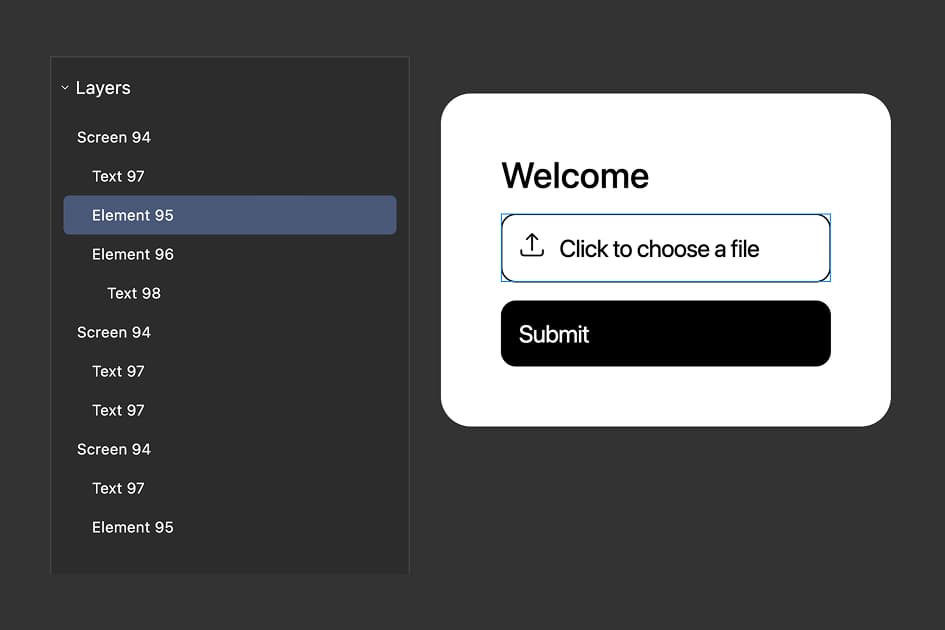
Step 2: Press CMD+D or CTRL+D
With your element(s) selected, press:
- CMD+D on Mac
- CTRL+D on Windows or Linux
The duplicate is created immediately and inserted right after the selected element(s) in the layers panel. On the canvas, it appears slightly offset from the original so you can see both elements clearly.
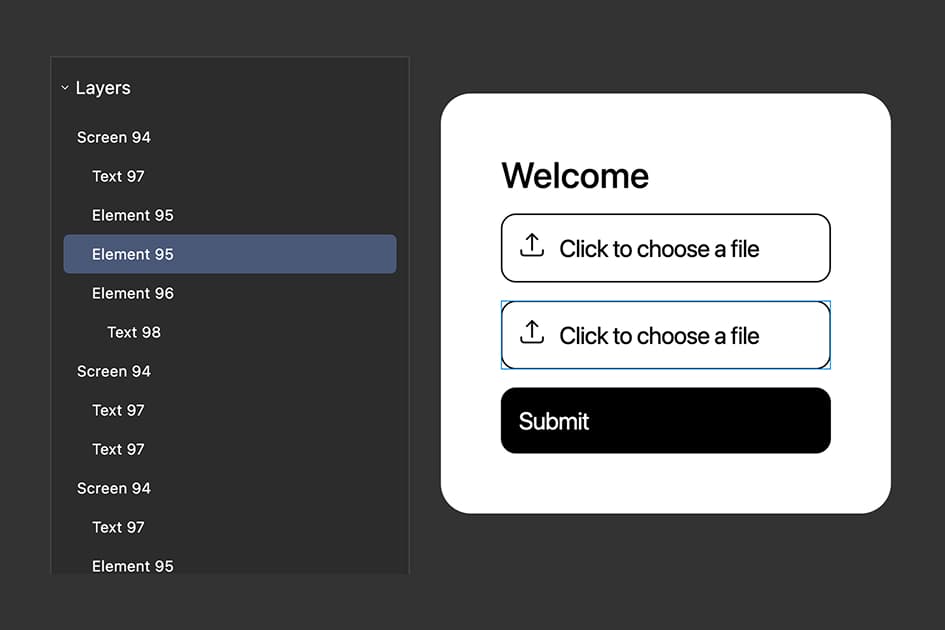
Step 3: Position the Duplicate
The duplicated element is automatically selected after creation, so you can immediately drag it to its final position.
If you duplicated multiple elements, all the duplicates are inserted right after their originals in the layers panel, and the entire duplicated group moves together on the canvas, maintaining their relative positions.
Start Duplicating Today
Duplication is one of the fastest ways to build forms in FigForm. Select any element (or multiple elements), press CMD+D / CTRL+D, and instantly create a copy with all the same properties.
Use it to maintain consistency, speed up repetitive tasks, and iterate on designs without starting from scratch.
Ready to build faster?
Sign up for free and start using keyboard shortcuts to design forms in record time.