What Are File Inputs?
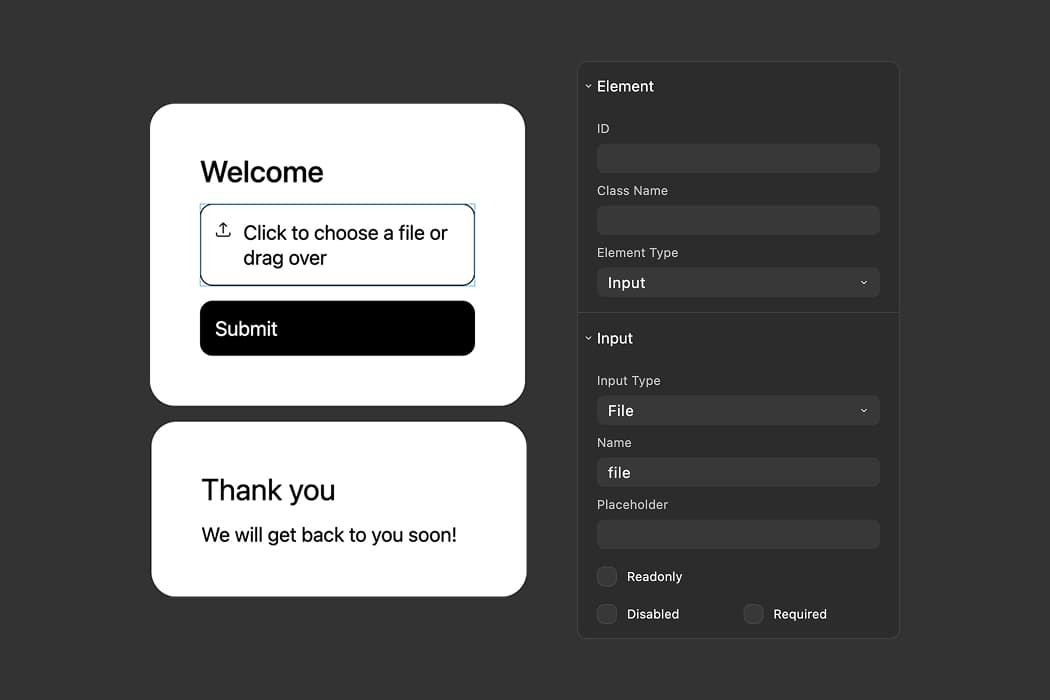
File inputs let respondents upload files as part of their form submission. Whether you're collecting resumes, screenshots, portfolios, or any other type of document, file inputs give your users a simple way to attach files directly in your form.
FigForm's file inputs support drag and drop, show upload progress in real-time, and let users replace files before submitting. The interface is clean, intuitive, and works just like file uploads in any modern web application.
How to Add a File Input
Step 1: Add an Input Element
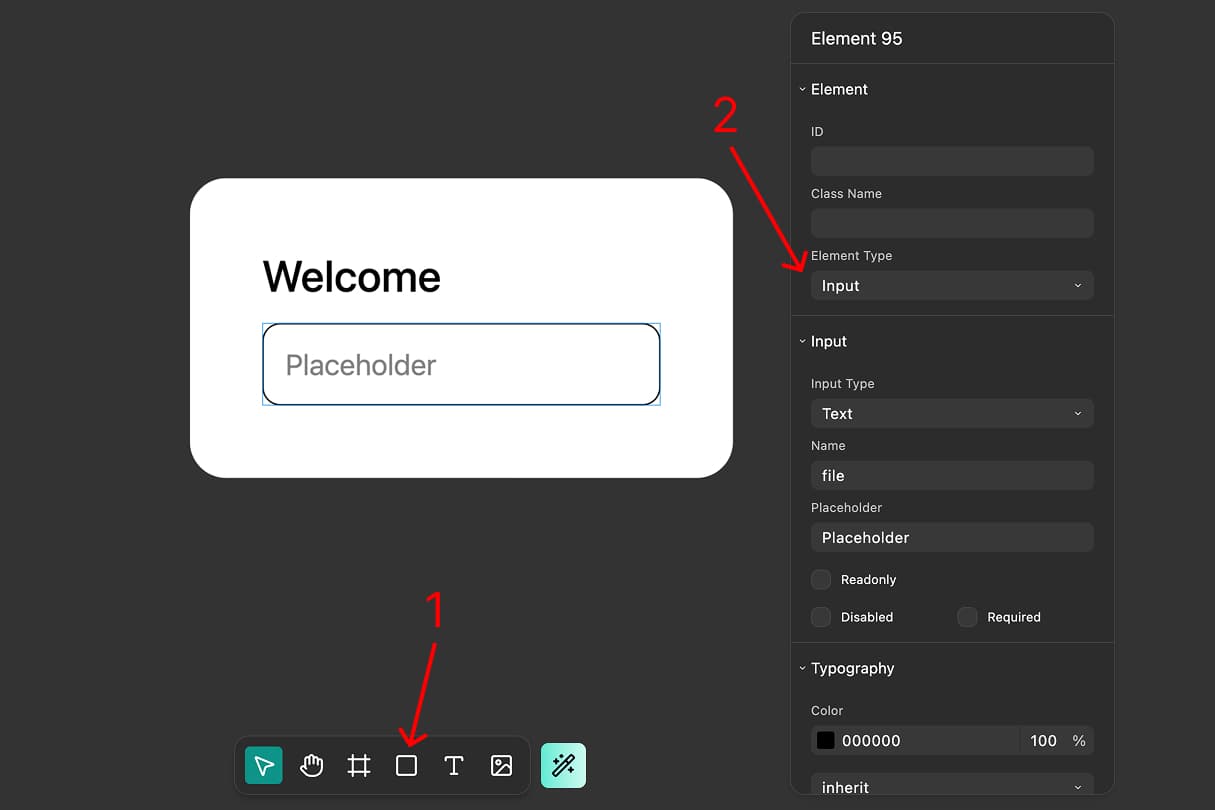
In the FigForm editor, add a new container element to your form. Convert it to an input element by selecting it and opening the properties panel on the right side of the editor. Find the "Type" dropdown and select "Input" from the list of available input types.
Input elements are the building blocks of your form - they collect data from respondents.
Step 2: Change the Input Type to "File"
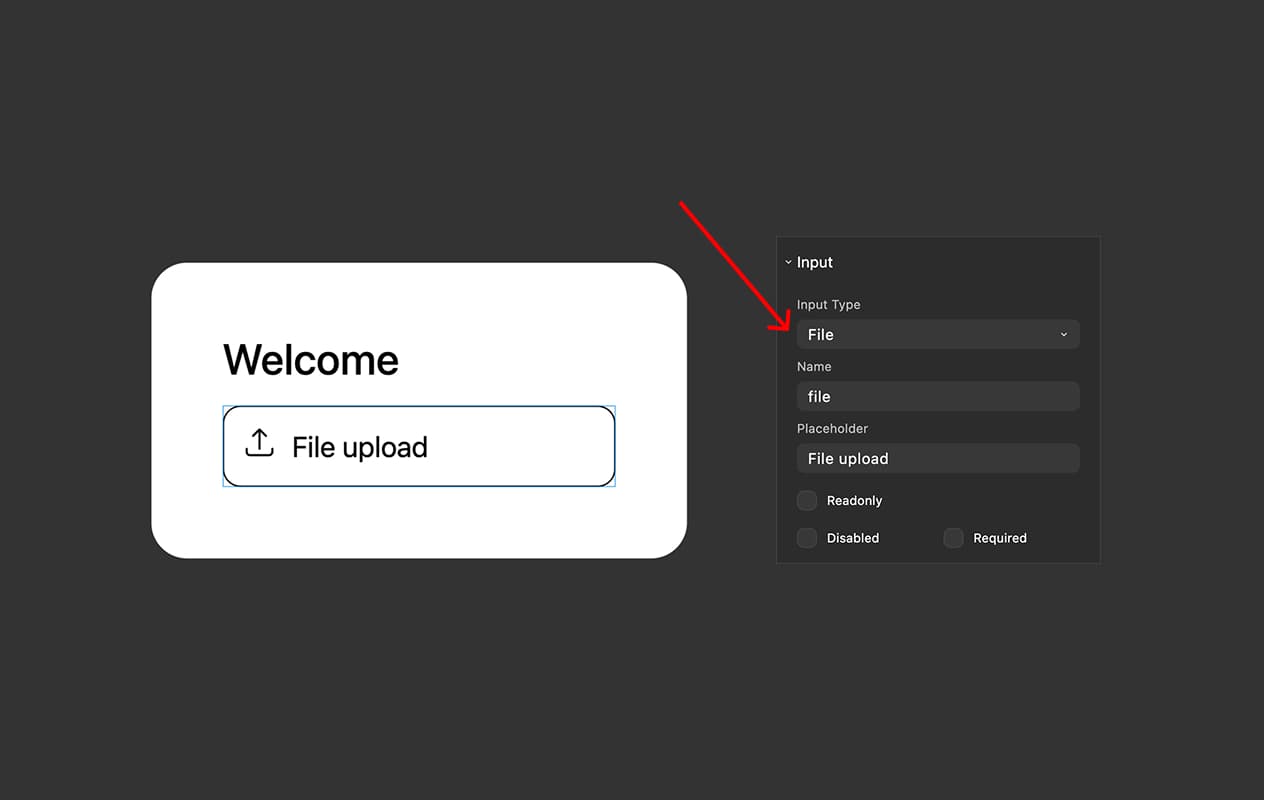
Once you've added an input element, select it and open the properties panel on the right side of the editor. Find the "Type" dropdown and select "File" from the list of available input types.
This transforms the input into a file upload field with drag and drop support.
Ready to design a form?
Start creating stunning forms using an intuitive editor with a free account.
Start designingStep 3: Customize the Appearance
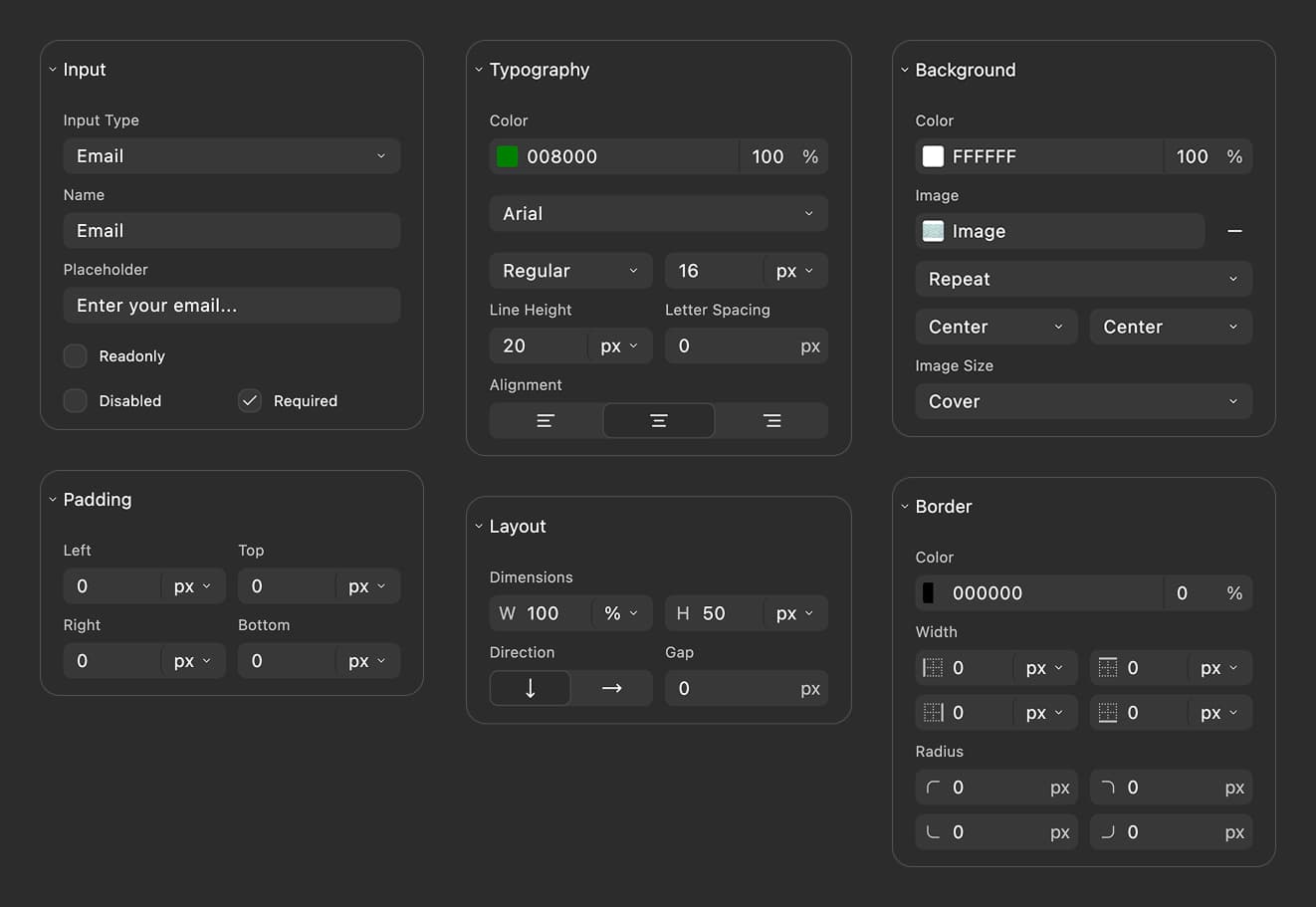
With the file input selected, you can customize its appearance just like any other FigForm element:
- Placeholder text - Change the text that appears before a file is selected (e.g., "Drop your resume here or click to browse")
- Typography - Adjust font family, size, weight, and color
- Spacing - Control padding and margins around the input
- Border and background - Customize colors, radius, and border styles
- Dimensions - Set width and height to fit your form layout
These customization options let you match the file input perfectly to your brand and design system.
Customization Limitations
While FigForm gives you extensive control over the visual appearance of file inputs, there are a few elements that are currently hardcoded:
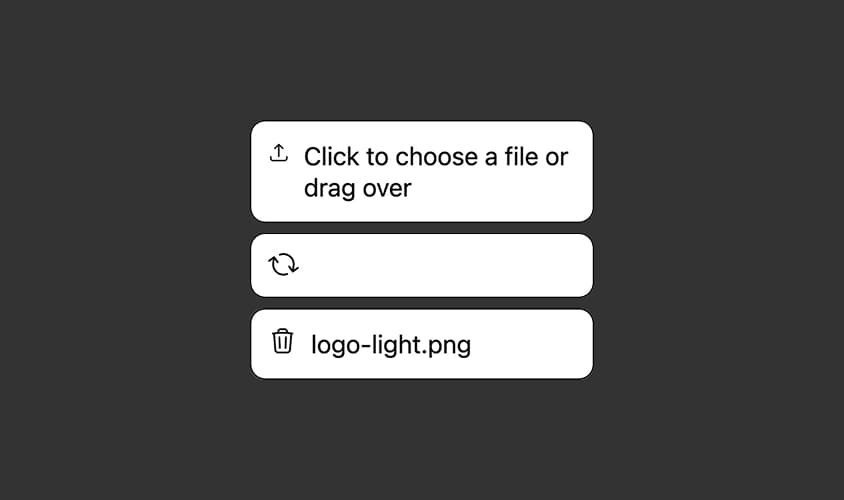
Icons - The file input uses three built-in icons that cannot be customized:
- Upload icon (shown in the initial state)
- Progress/spinning icon (shown during upload)
- Delete icon (shown next to uploaded files for removal)
Error messages - When a file upload fails or validation errors occur, error messages are displayed without ability to customize the text.
These limitations ensure a consistent, predictable experience across all FigForm file inputs while we maintain compatibility with all browsers and devices.
The Upload Experience
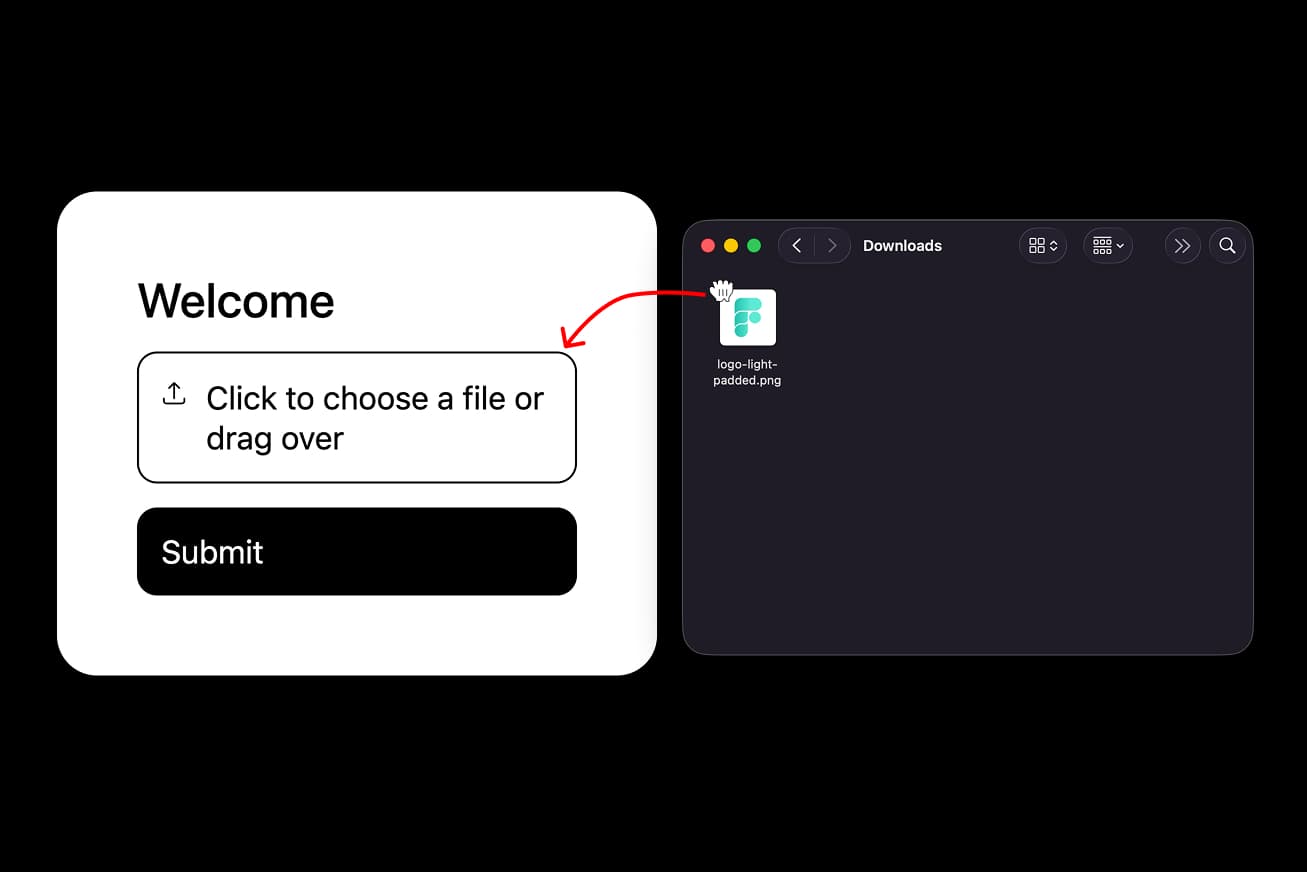
Drag and Drop
Respondents can drag files from their computer directly onto the file input field. As they drag a file over the input, visual feedback indicates that the drop zone is active and ready to accept the file.
This drag-and-drop interaction makes file uploads feel modern and effortless, especially for users who already have files open in their file manager.
Upload Progress
When a file is being uploaded to FigForm's servers, a spinning progress icon appears in the file input. This gives respondents immediate feedback that their file is being processed.
The upload happens in the background, so respondents can continue filling out other fields in your form while the file uploads.
Managing Uploaded Files
Once a file finishes uploading, the file input displays the file name and shows a delete icon next to it. Respondents can:
- See the file name - Confirm they uploaded the correct file
- Remove the file - Click the delete icon to detach the file and upload a different one
- Replace the file - Upload a new file to replace the current one
This flexibility ensures respondents have full control over their submission before they click the final submit button.
Start Collecting Files Today
File inputs in FigForm work just like you'd expect - drag and drop, upload progress, and easy file management. Add a file input to your form, customize it to match your brand, and start collecting files from your respondents.
Ready to collect files?
Sign up for free and add file uploads to your forms in minutes.