What Is Layer Reordering?
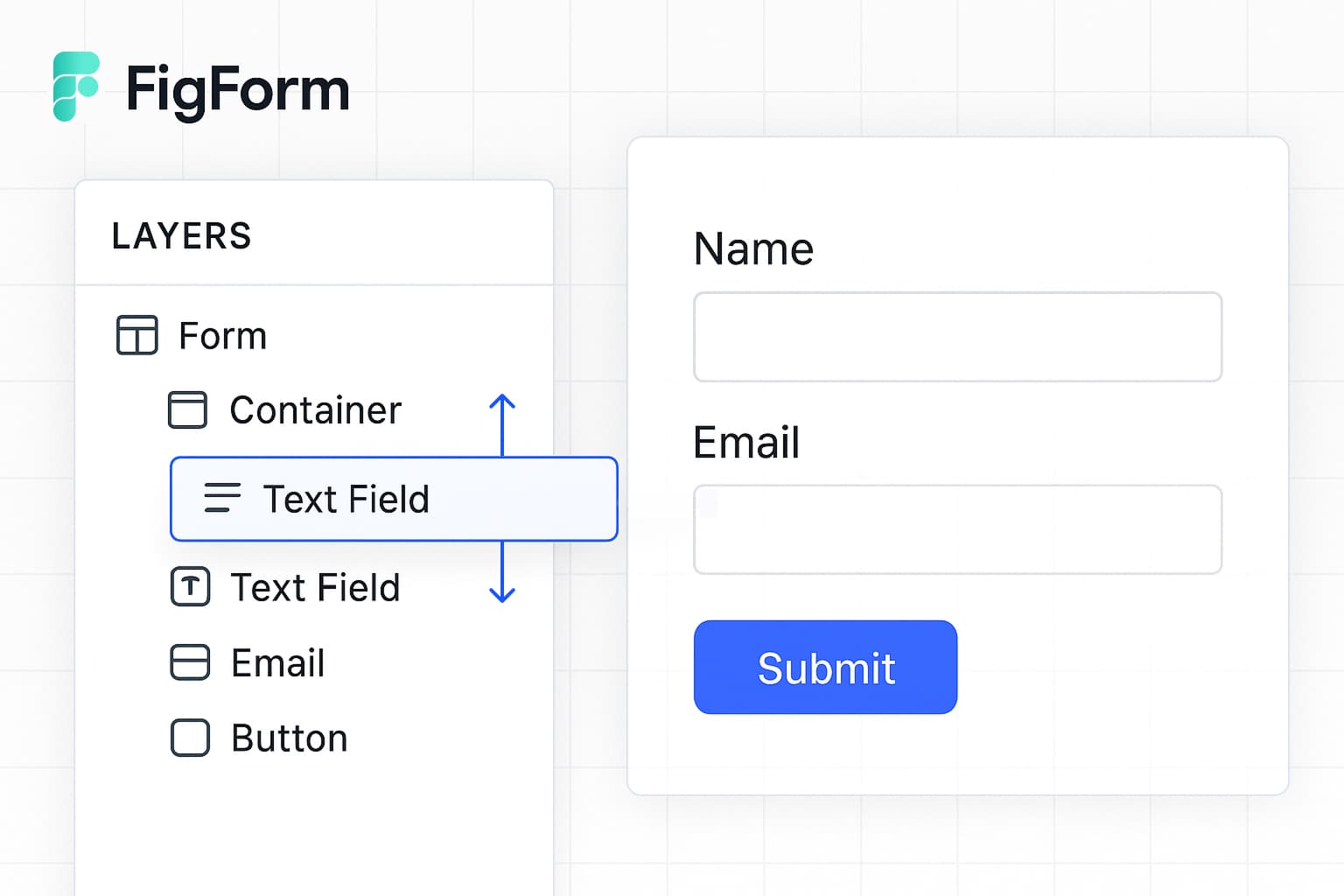
Layer reordering lets you change the order of form elements by dragging them in the layers panel on the left side of the FigForm editor. Just like in any design tool, you can reorganize your form structure by moving layers up or down in the hierarchy without touching the canvas.
This approach gives you precise control over element ordering, especially when working with complex forms that have many overlapping or closely spaced elements.
FigForm does not currently support dragging elements directly on the canvas to reorder them.
How to Reorder Layers
Step 1: Open the Layers Panel
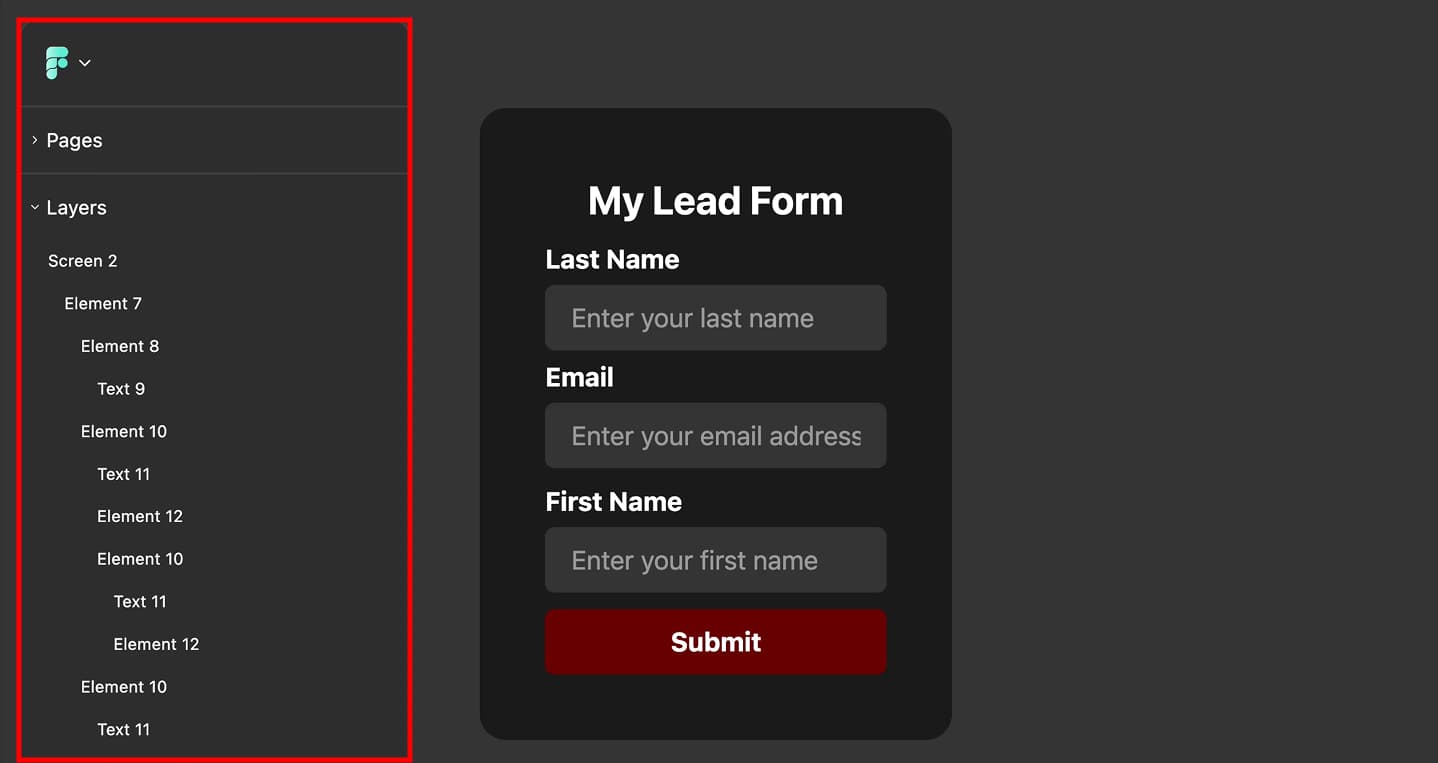
The layers panel is located on the left side of the FigForm editor. It displays all form elements in a hierarchical tree structure.
Every element in your form appears as a row in the layers panel labeled with its name or type.
Step 2: Select the Layer You Want to Move
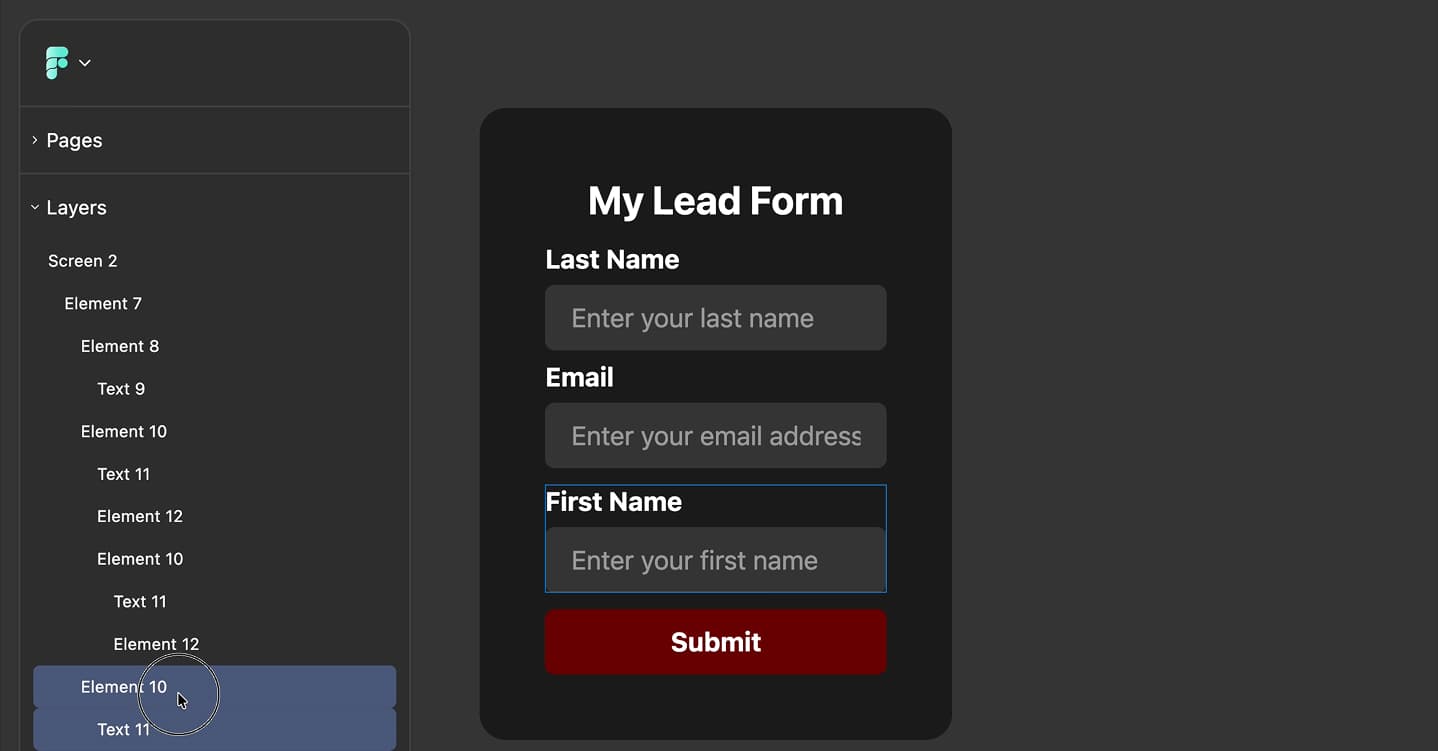
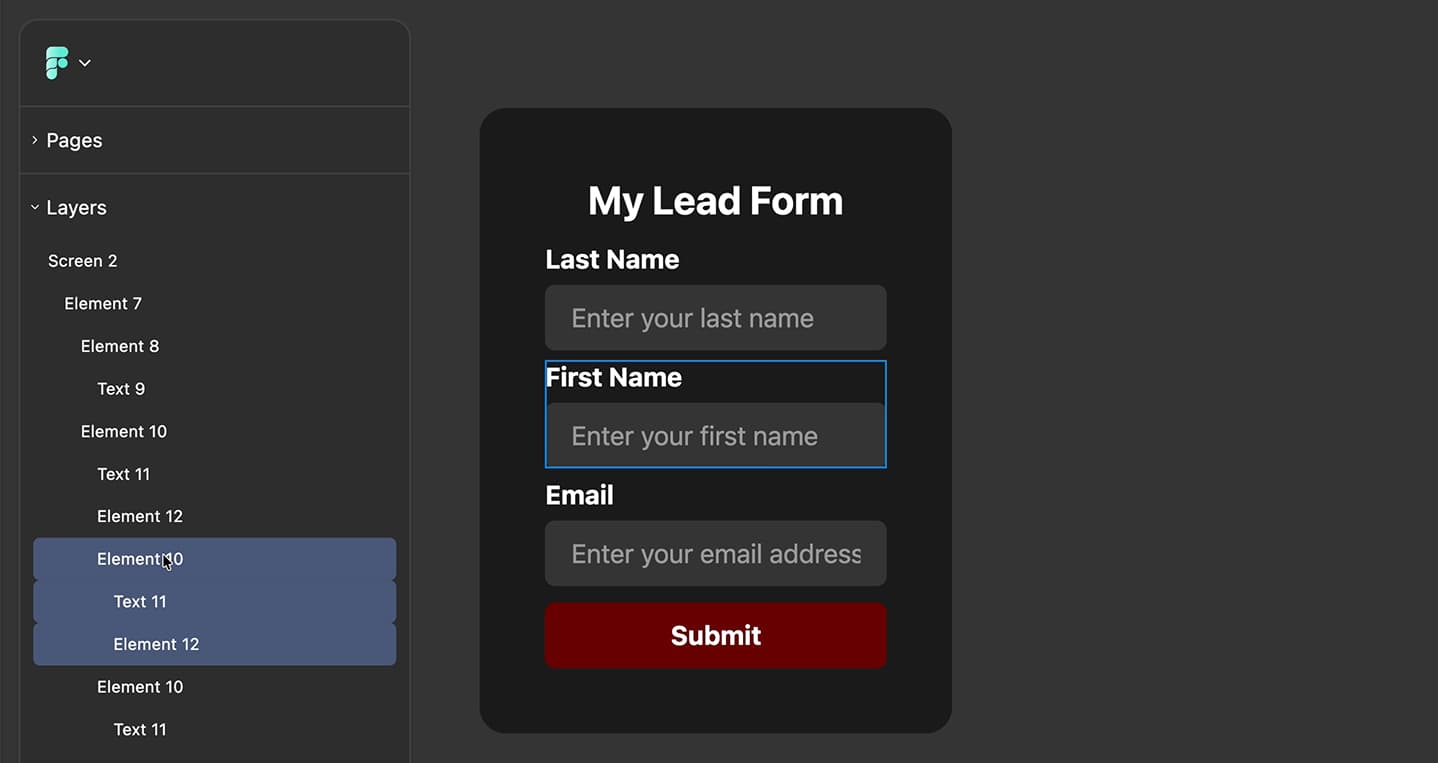
Click on any layer in the panel to select it. The selected layer will be highlighted in the panel and outlined on the canvas.
To select a single layer: Click once on the layer name.
To select multiple layers: Hold Cmd (Mac) or Ctrl (Windows/Linux) while clicking additional layers.
Ready to design a form?
Start creating stunning forms using an intuitive editor with a free account.
Start designingStep 3: Drag to Reorder
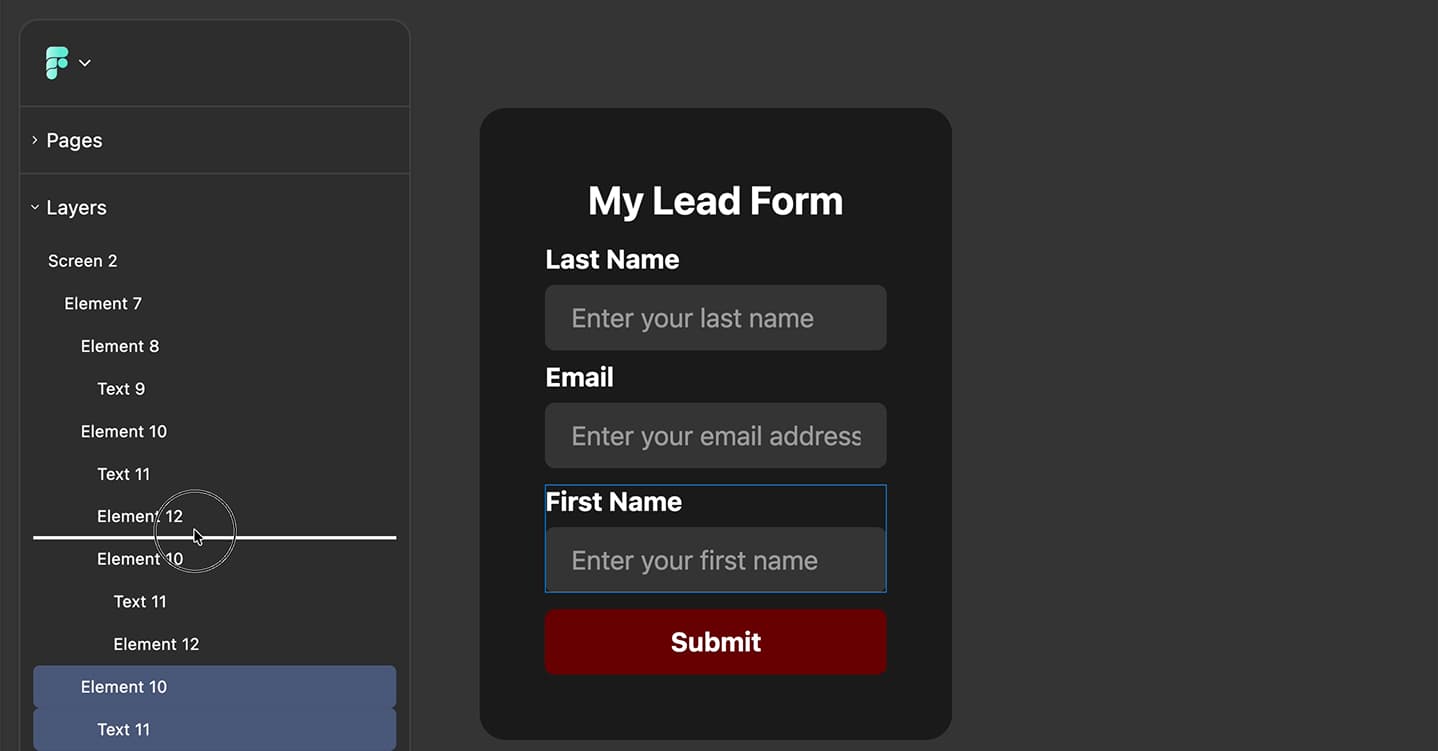
Once you've selected one or more layers, click and hold on any selected layer, then drag up or down in the panel. As you drag, you'll see a visual indicator showing where the layer(s) will be placed when you release the mouse.
Drop between layers: Position the indicator line between two existing layers to insert your selection at that position.
Drop into a container: If you're working with containers or groups, you can drag a layer over a container to nest it inside.
Release the mouse button to complete the reorder.
Step 4: Verify on the Canvas
After reordering, check the canvas to confirm that your elements appear in the correct visual order. The stacking order (z-index) updates automatically based on the layer order in the panel - layers at the top of the list appear behind layers at the bottom.
The Takeaway
Layer reordering in FigForm works just like in any design tool - drag elements in the layers panel to reorganize your form structure. Select single or multiple layers, drag to a new position, and watch the canvas update automatically.
By separating reordering (layers panel) from positioning (canvas), FigForm gives you precise control over both the layout and visual hierarchy of your forms.
Ready to build your form? Sign up for free and experience the intuitive design workflow today.