What Is Element Alignment?
Element alignment in FigForm lets you control how content is positioned inside a container. Think of it like HTML alignment controls - you get a simple 3x3 grid with 9 positions you can click to instantly align your content.
Behind the scenes, FigForm translates your selection into the appropriate CSS flexbox properties (align-items and justify-content). But you don't need to know CSS - just click where you want your content positioned, and FigForm handles the rest.
The 9-Position Grid
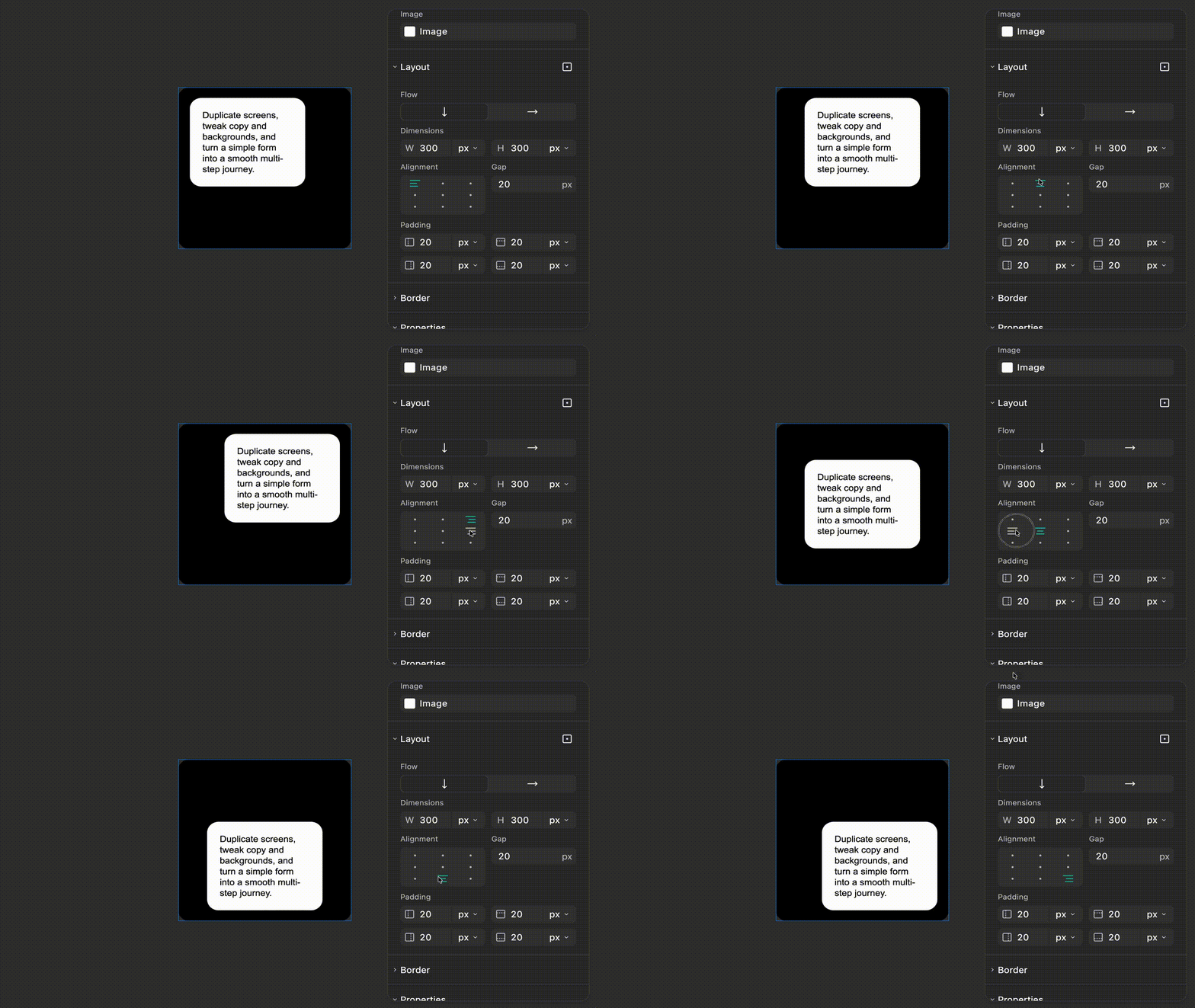
When you select a container in FigForm, you'll see the alignment control in the properties panel - a grid showing 9 dots arranged in 3 rows and 3 columns:
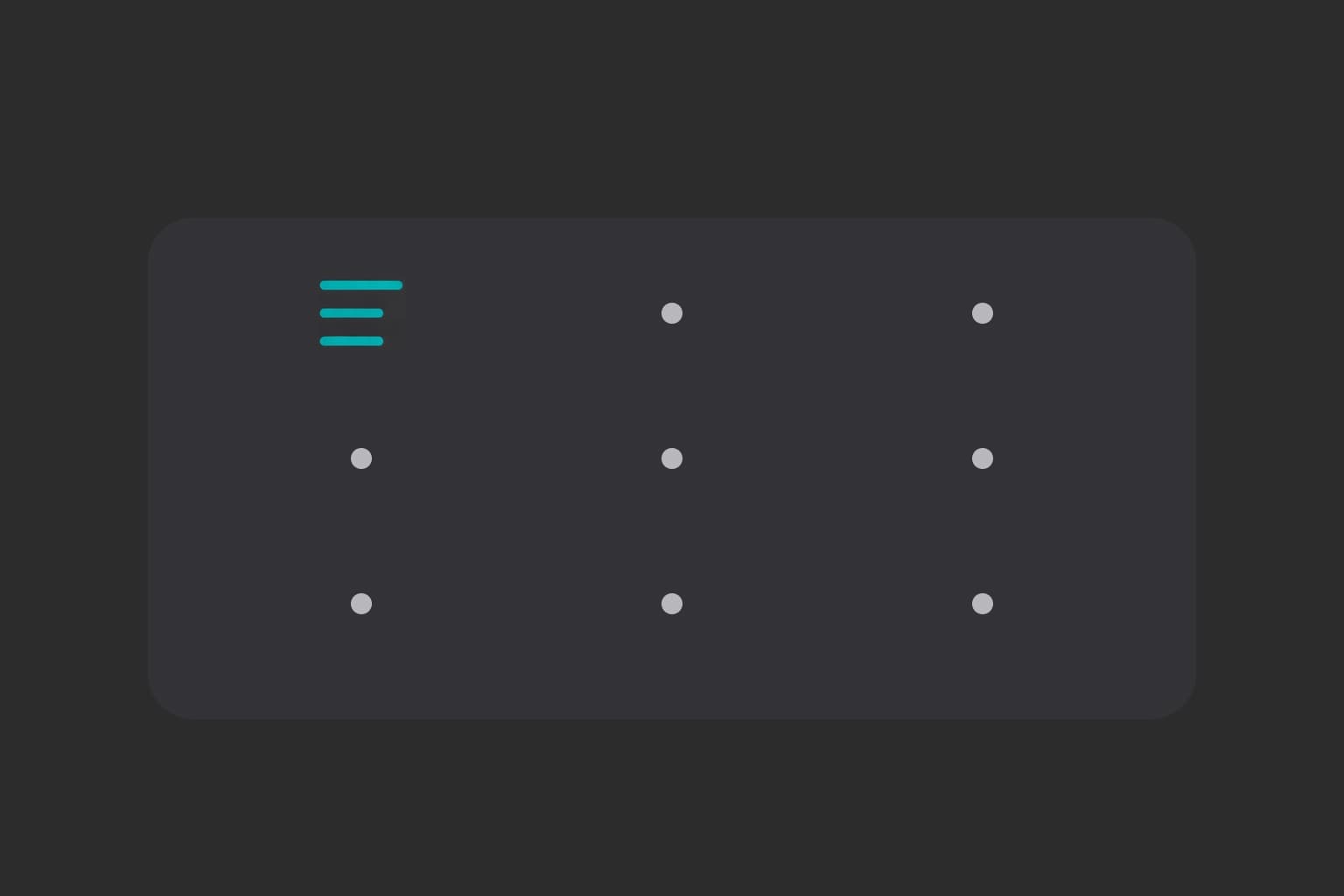
Each position corresponds to a specific alignment, this visual grid makes alignment intuitive - click the position that matches where you want your content, and you're done.
How to Align Content
Step 1: Select a Container
Click on any container element in your form. Containers are elements that hold other elements - like sections, frames, or parent elements.
The selected container will be highlighted with a blue outline in the canvas.
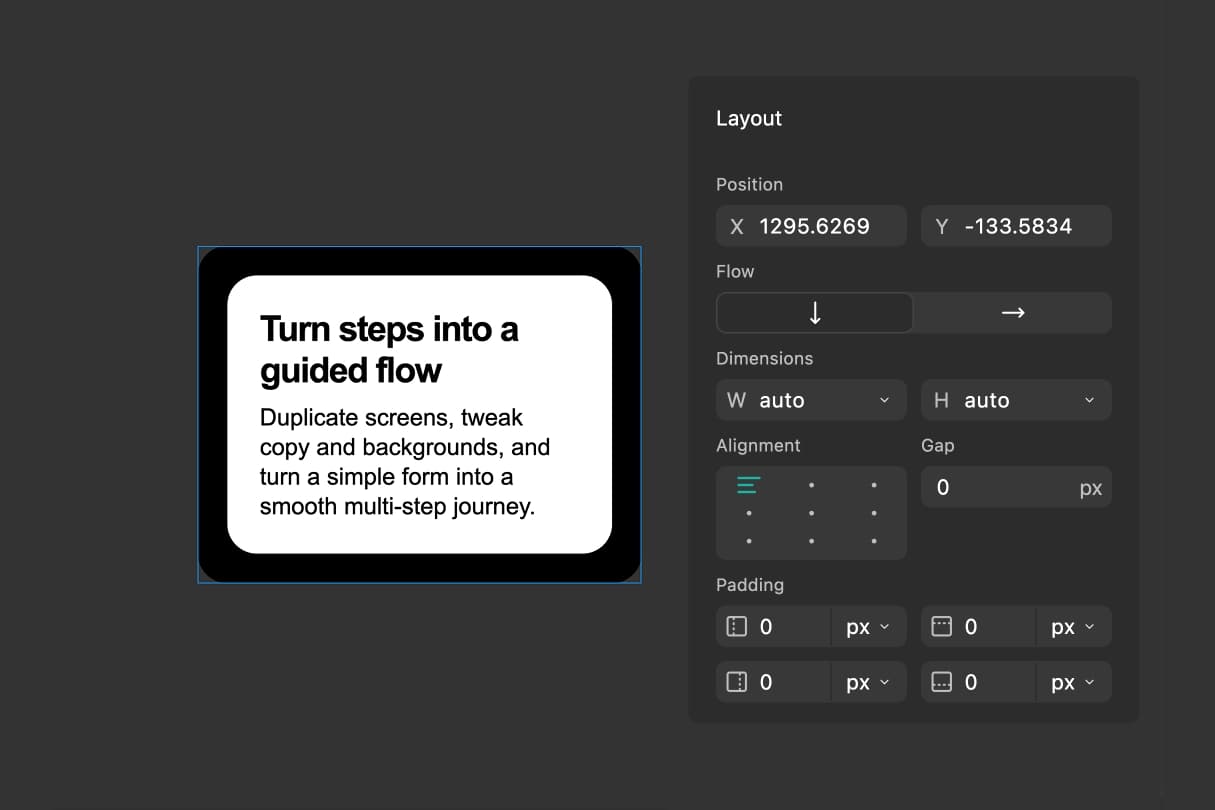
Step 2: Find the Alignment Control
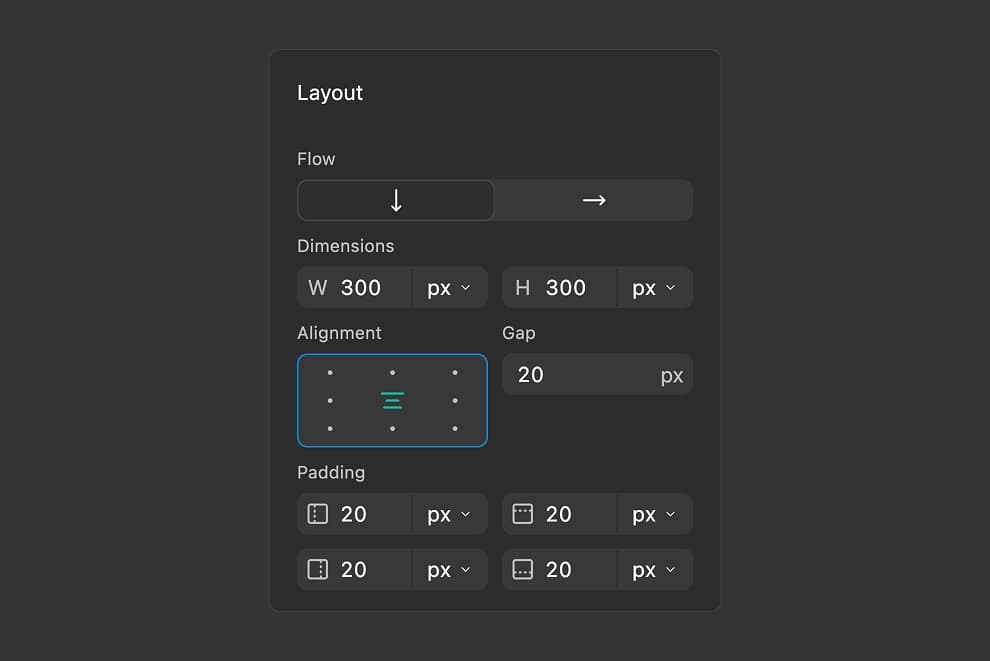
In the properties panel on the right side of the editor, scroll to the Layout section. You'll see the alignment grid displayed as 9 clickable dots arranged in a 3x3 pattern.
The currently selected alignment position will be highlighted in teal, showing you the current alignment state.
Ready to design a form?
Start creating stunning forms using an intuitive editor with a free account.
Start designingStep 3: Choose Your Alignment
Click any of the 9 positions in the grid. As you hover over each position, an icon appears showing what that alignment does.
The moment you click, your content instantly repositions inside the container to match your selection.
Step 4: Preview Your Changes
Your alignment changes are visible immediately in the canvas. You can switch between different alignment options as many times as you need - there's no "apply" button, changes happen instantly.
Preview your form on different screen sizes to make sure your alignment works well on mobile, tablet, and desktop.
Alignment vs. Absolute Positioning
It's important to understand the difference between alignment and absolute positioning:
Element Alignment:
- Content stays in the normal layout flow
- Other elements adjust around aligned content
- Content moves when the container resizes
- Works with responsive layouts automatically
Absolute Positioning:
- Content is removed from the layout flow
- Other elements ignore absolutely positioned content
- Content stays at fixed coordinates
- Requires manual adjustments for responsiveness
Use alignment for most layouts. Use absolute positioning only when you need elements to overlap or float independently.
The Takeaway
Element alignment in FigForm gives you visual control over content positioning without touching any code. Click a position in the 9-dot grid, and your content instantly moves to that alignment - top-left, center, bottom-right, or anywhere in between.
It works just like HTML alignment controls, but generates proper CSS flexbox properties behind the scenes. No CSS knowledge required - just point, click, and position.
Ready to build beautifully aligned forms?
Sign up for free and start positioning content exactly where you need it.