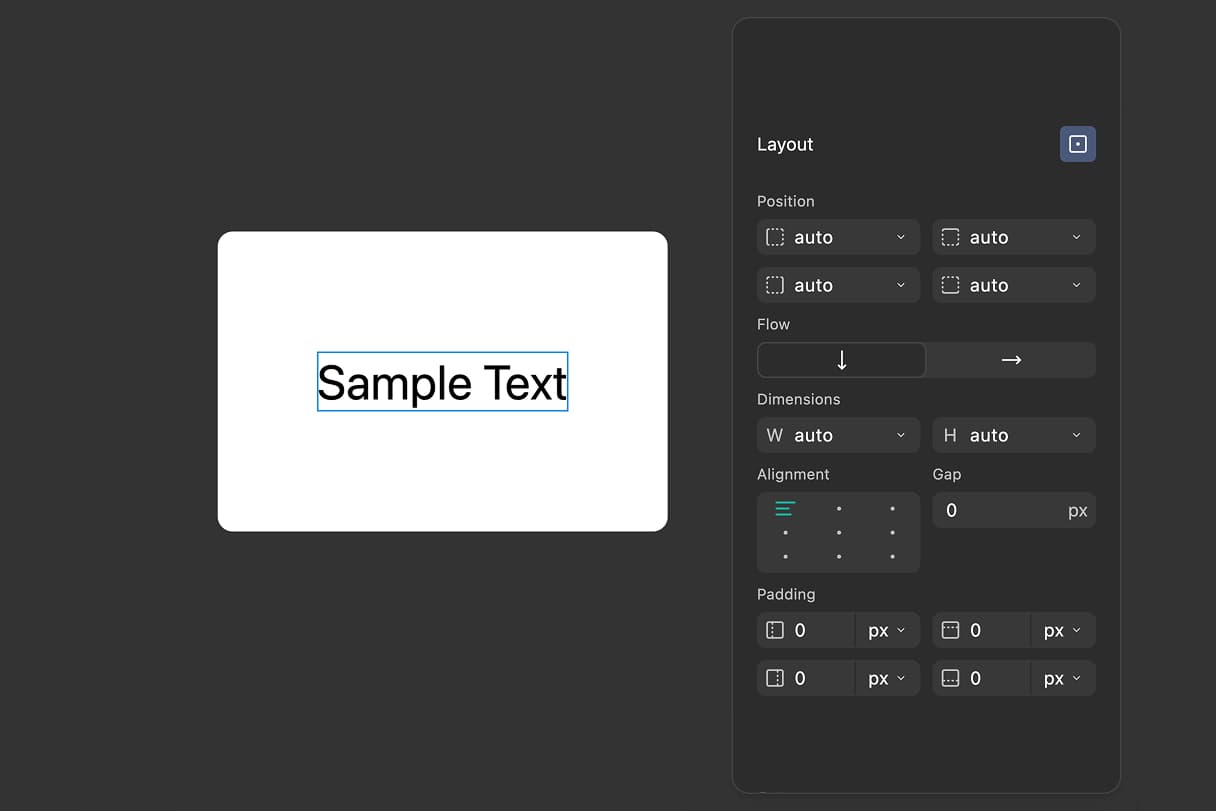
What Is Absolute Positioning?
Absolute positioning in FigForm works just like HTML's position: absolute - it removes an element from the normal document flow and positions it relative to its parent container (the form). Once enabled, you can precisely position elements using left, right, top, and bottom properties.
Think of it like HTML absolute positioning inside auto layouts. Elements with absolute positioning don't affect the layout of other elements - they float above or below the normal flow, anchored to specific positions within the form.
When to Use Absolute Positioning
Absolute positioning is perfect for elements that need to be positioned independently of other form elements:
Fixed Position Elements
Position elements that should stay in a specific spot regardless of other content - like watermarks, corner badges, or decorative elements that sit in fixed locations.
Overlays and Modals
Create overlays, tooltips, or modal-like elements that appear on top of your form content without disrupting the layout.
Custom Layouts
Build complex, pixel-perfect layouts that break out of the normal flow. Position elements precisely where you need them without being constrained by standard layout rules.
Floating Elements
Add floating help buttons, close icons, or decorative elements that need to be positioned relative to the form edges rather than other elements.
How to Enable Absolute Positioning
Step 1: Select Your Element
Click on any element in your form canvas or select it from the layers panel on the left. The element will be highlighted with a blue outline.
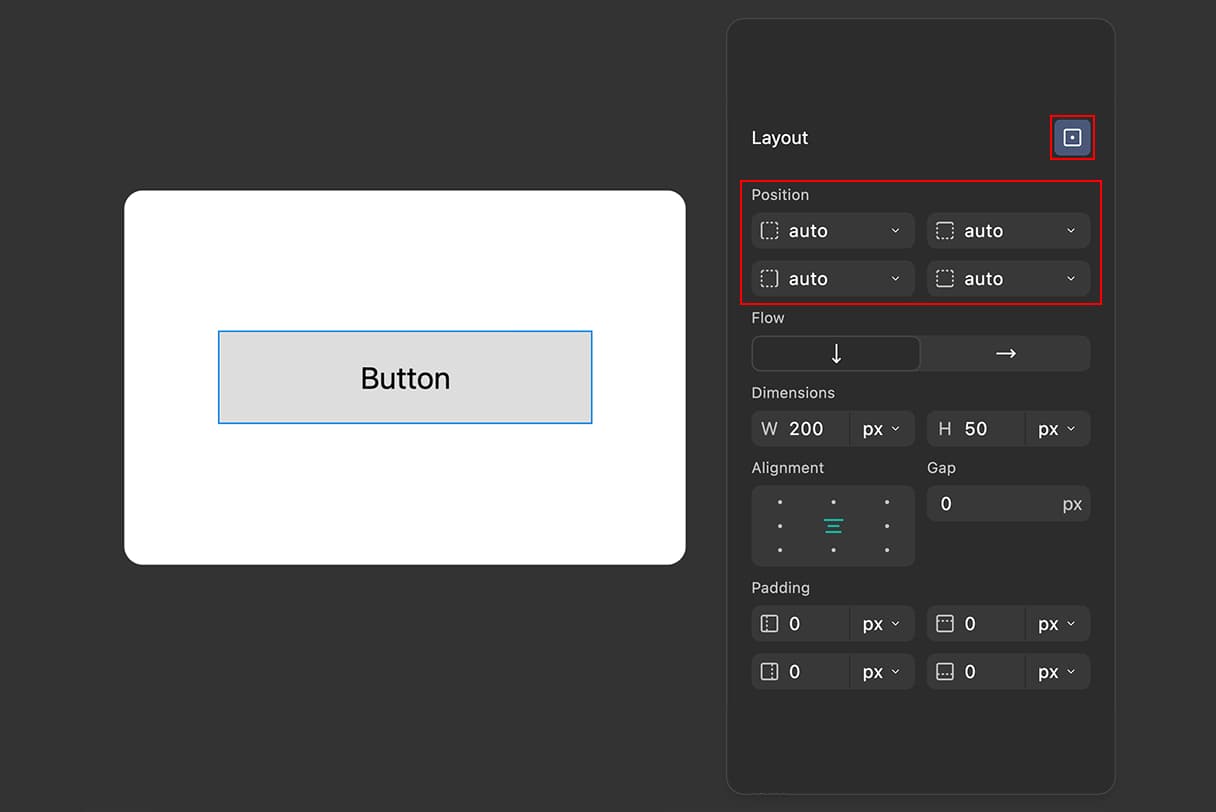
Step 2: Open the Layout Section
In the properties panel on the right side of the editor, find the Layout section. This section contains all positioning and sizing controls for the selected element.
Step 3: Toggle Absolute Positioning
At the top of the Layout section, you'll see a toggle button for absolute positioning. Click this button to enable absolute positioning for the selected element.
Once enabled, the element is removed from the normal layout flow, and new positioning controls appear.
Ready to design a form?
Start creating stunning forms using an intuitive editor with a free account.
Start designingSetting Position Properties
Once absolute positioning is enabled, you can set four positioning properties: left, right, top, and bottom. Each property defines the distance from that edge of the form to the corresponding edge of your element. For example, setting left: 20px creates a 20-pixel distance from the left edge of the form.
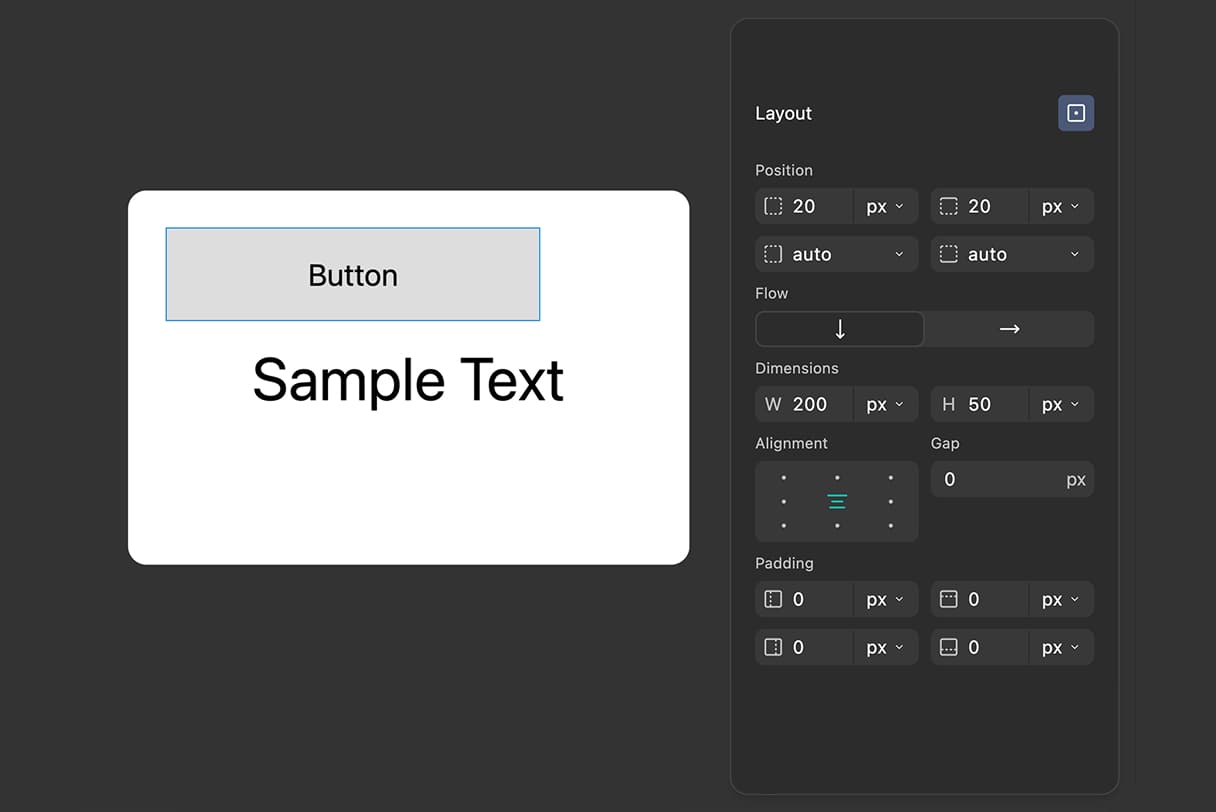
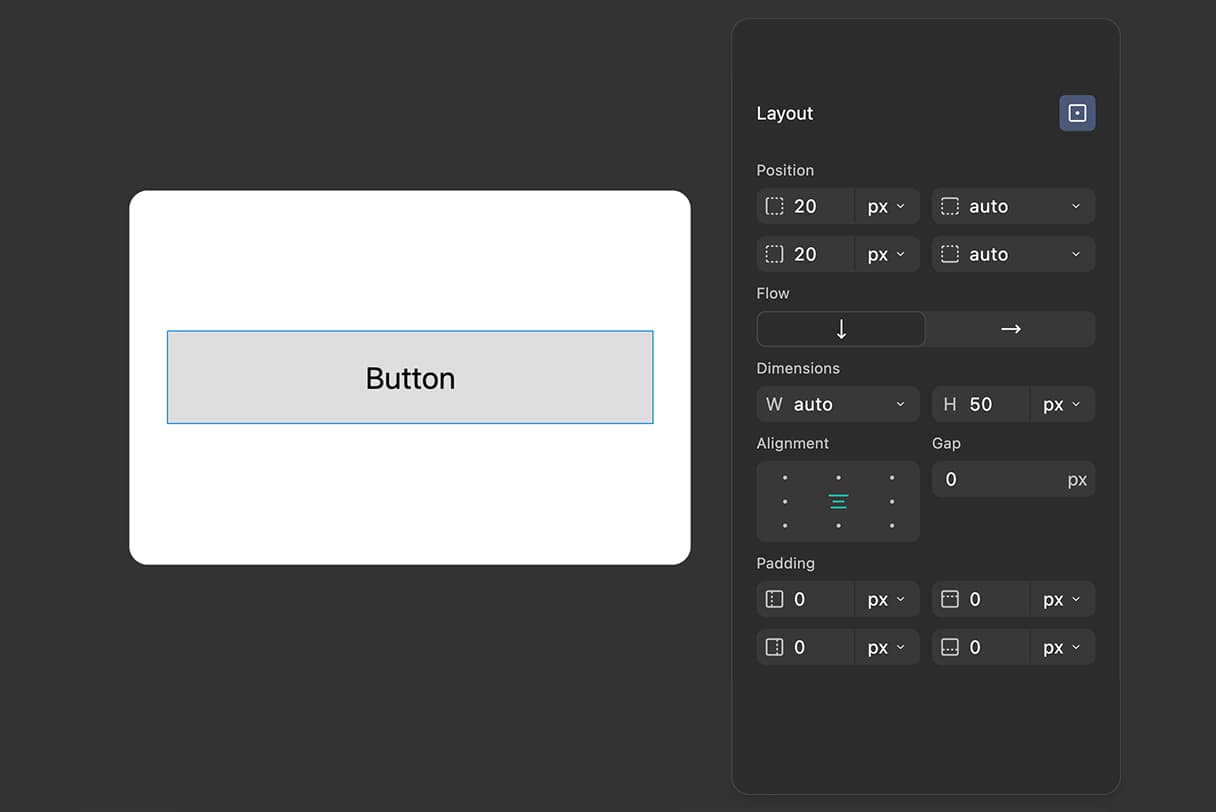
You can combine position properties to control both size and position. Setting both left and right stretches the element horizontally between those edges. Setting both top and bottom stretches it vertically. Or use combinations like left + top to anchor from a corner. This gives you complete control over how elements are positioned and sized within the form.
How Absolute Positioning Works
Positioned Relative to the Form
In FigForm, absolutely positioned elements are always positioned relative to the entire form container - not to their parent element. The form acts as the "relative" parent for all absolutely positioned children.
This means if you set left: 0px and top: 0px, your element will be positioned at the top-left corner of the form, regardless of where it appears in the layers panel hierarchy.
Removed from Normal Flow
Elements with absolute positioning don't take up space in the normal layout flow. Other elements behave as if the absolutely positioned element doesn't exist - they don't wrap around it or create space for it.
This is why absolute positioning is perfect for overlays, badges, or decorative elements that shouldn't affect your form's layout structure.
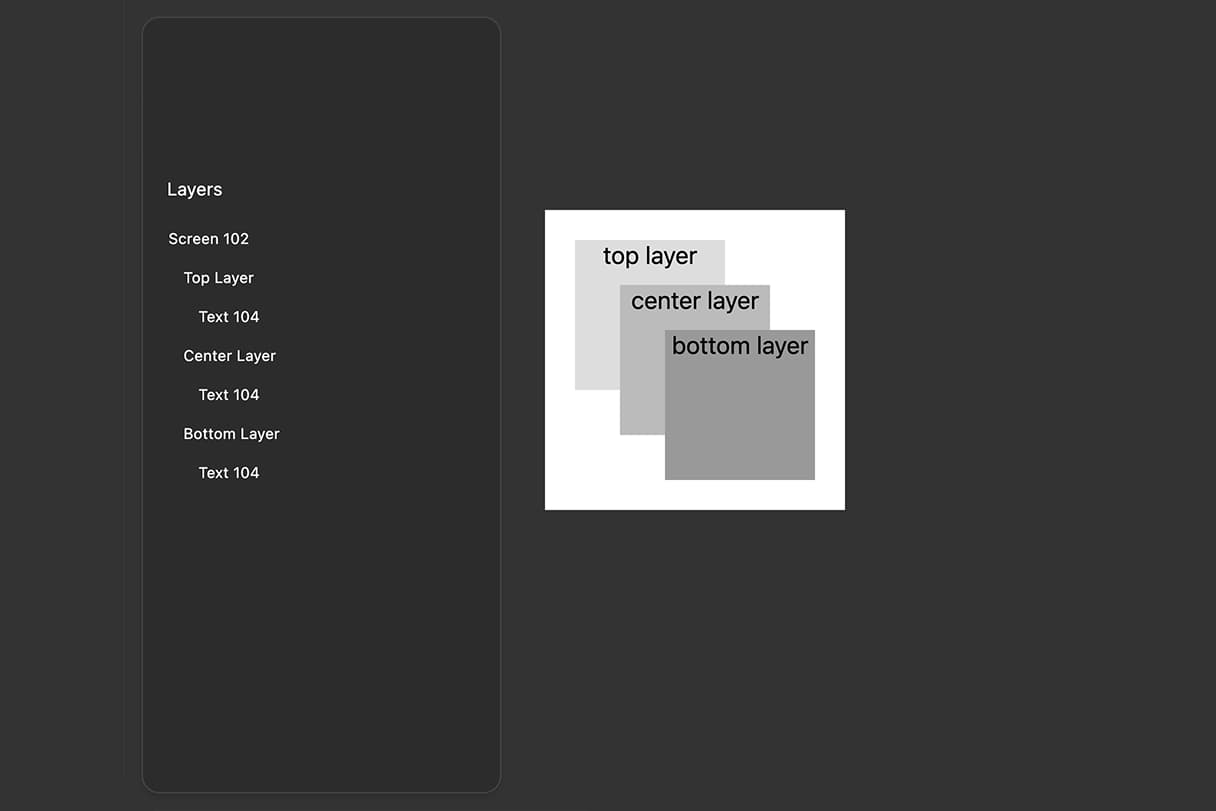
Z-Index and Stacking Order
The stacking order (which element appears on top) is controlled by the layer order in the layers panel. Elements lower in the layers list appear on top of elements higher in the list.
Drag elements up or down in the layers panel to change which elements appear in front.
The Takeaway
Absolute positioning gives you pixel-perfect control over element placement in FigForm. Toggle it on, set your position properties, and position elements exactly where you need them - independent of the normal layout flow.
It works just like HTML's position: absolute, making it immediately familiar if you've worked with either system.
Ready to build custom form layouts?
Sign up for free and start positioning elements exactly where you need them.